- PDF compression reduces file size by optimizing images, removing redundant data, and compressing streams
- Five presets: Low (300 DPI archival), Medium (150 DPI balanced), High (120 DPI), Ultra (72 DPI), Extreme (50 DPI)
- Target output size mode lets you enter an exact file size like 25KB or 10MB
- Advanced options: Linearize for web viewing, Normalize for compatibility, Grayscale conversion
- Compress entirely in your browser with Ghostscript (WASM) -- files never leave your device
- Password-protected PDFs supported after entering the password
- Cloud import from Google Drive and Dropbox, no software installation required
- After compressing, you can merge, protect, watermark, convert, or split the PDF
What Is PDF Compression
Understanding the tool that shrinks PDF files without breaking them.
A PDF compression tool reduces the file size of a PDF document by optimizing its internal structure. It works by removing redundant data, compressing embedded images, subsetting fonts, and re-encoding object streams. The result is a smaller file that looks identical to the original when opened in any PDF viewer.
Different PDF types respond differently to compression. A scanned document full of images can shrink dramatically. A text-heavy report with minimal images will see modest reduction. A presentation with photos and charts falls somewhere in between. Understanding your PDF's content helps you choose the right compression strategy.
Image Optimization
Images typically account for 70-90% of PDF file size. Compression reduces image resolution, converts to efficient formats like JPEG, and lowers quality settings -- often with no visible difference on screen.
Font Subsetting
PDFs often embed entire font files when only a handful of characters are used. Subsetting removes unused glyphs, reducing font data from megabytes to kilobytes without affecting text appearance.
Object Stream Compression
PDF objects -- text, vectors, metadata, and structure -- are compressed using algorithms like Flate (ZIP). Duplicate objects are removed, and internal streams are re-encoded for maximum efficiency.
Metadata Cleanup
Unused metadata -- editing history, author tags, embedded thumbnails, and alternate images -- can be safely stripped to further reduce file size with zero impact on content.
Why PDF Files Get So Large
The most common reasons PDFs end up with bloated file sizes.
PDF files are large because they are designed to be self-contained documents that display consistently across all devices. This means embedding fonts, high-resolution images, and complete metadata -- all of which add up quickly.
Embedded Images
Photos scanned at 300 DPI or imported from cameras at full resolution. A single camera photo can be 5-15MB. A 50-page document with photos can easily exceed 200MB.
Full Font Embedding
Each embedded font file adds 1-5MB. A document using five font families can carry 5-10MB of font data even before any content is added.
Uncompressed Object Streams
Some PDF creation tools output uncompressed or lightly compressed object streams, leaving significant optimization potential untouched.
Duplicate Resources
When the same logo or image appears on every page, some tools embed a separate copy for each page instead of referencing a single shared resource.
How PDF Compression Works
Shrinking a PDF means hunting its biggest bytes first — images, then fonts, then structural overhead.
PDF compression is not a single technique -- it is a combination of methods that work together. A good compression tool applies multiple strategies automatically, targeting the largest sources of file bloat first.
Image Downsampling
Reducing image resolution from 300 DPI to 150 DPI or 72 DPI. A 300 DPI scan is 4x larger than a 150 DPI scan with no visible difference on screen. This is the single most effective compression technique.
Image Recompression
Converting images to more efficient formats. JPEG for photographs (lossy, very small). ZIP/Flate for diagrams and solid colors (lossless, good reduction). The right format per image type maximizes compression.
Font Subsetting
Removing unused characters from embedded fonts. A full font file with thousands of glyphs can be reduced to the few hundred characters actually used in the document -- a 90-97% reduction in font data.
Structure Optimization
Removing duplicate objects, flattening forms, discarding unused resources, and compressing internal streams. These structural changes reduce file size by 10-30% without affecting content.
Lossless vs Lossy Compression
Understanding the two fundamental approaches to PDF compression.
| Feature | Lossless | Lossy |
|---|---|---|
| Quality | 100% preserved, pixel-perfect | Slight reduction at higher compression |
| File Size Reduction | 10-30% typical | 50-80% typical |
| Best For | Print, legal, archival | Email, web, mobile sharing |
| Reversibility | Fully reversible | Irreversible -- original data discarded |
| Speed | Faster processing | Slightly slower (quality analysis) |
| Compression Levels | 1-4 in AFFLIGO | 5-9 in AFFLIGO |
Compression Levels Explained
Choosing the right preset for your specific needs.
| Level | Label | Reduction | Quality | Best For |
|---|---|---|---|---|
| 1 | Minimal | 5-15% | Identical to original | Archival, legal documents |
| 2-3 | Light | 15-30% | Identical to original | Print-ready, high-quality sharing |
| 4 | Moderate | 30-40% | Nearly identical | Office documents, reports |
| 5 | Balanced | 40-55% | Excellent on screen | Email attachments (recommended) |
| 6-7 | Standard | 55-70% | Good on screen | General sharing, web uploads |
| 8-9 | Extreme | 70-85% | Acceptable on screen | Mobile sharing, strict size limits |
Start with level 5 (Balanced) for most use cases. It provides a 40-55% reduction with excellent screen quality. Adjust up or down based on the result. When you need precise control, switch to target output size mode instead.
Compress by Target Size
Enter an exact output file size instead of guessing with compression levels.
AFFLIGO's By Size mode lets you specify the exact output file size you need. Enter a value like 25KB, 5MB, or 10MB, and the tool adjusts compression automatically to hit that target. This is ideal when you know the file size limit but not the right compression level.
Email Attachments
Gmail limits to 25MB, Outlook to 20MB. Enter 5MB or 10MB as the target to ensure your PDF fits comfortably with room for other attachments.
Government Portals
Many government upload forms have strict 2MB or 5MB limits. Enter the exact limit as your target to maximize quality while meeting requirements.
Job Applications
Application portals often reject files over 5MB. Use target size mode to compress your resume or portfolio to exactly 5MB.
Cloud Storage
When storage space is limited, compress large archives to a specific size to fit within your quota. Enter the remaining space as your target.
| Target size | Who asks for it | How to hit it in AFFLIGO |
|---|---|---|
| 100KB | Government e-filing, visa, ID-document portals | By Size mode → 100KB. Best when the original is under ~2MB and mostly text; split out extra pages first. |
| 200KB | Job applications, CV uploads, short reports | By Size mode → 200KB. 2-4 page resumes usually land here with readable text. |
| 500KB | LinkedIn, banking and HR portals | By Size mode → 500KB. Keeps more image detail than 100-200KB targets. |
| 1MB | Job/university portals, email portfolios | By Size mode → 1MB. If text looks soft, split out unneeded pages and re-run. |
| 2MB | University uploads, tender documents | By Size mode → 2MB. Most image-heavy PDFs land here in one run. |
| 5MB | Forms, uploads, shared drives | By Size mode → 5MB, or level 5 (Balanced) for a near-5MB result. |
| 10MB | Safe-for-every-inbox zone | By Size mode → 10MB. Clears Gmail (25MB) and Outlook (20MB) with headroom for other attachments. |
The tool iteratively adjusts compression parameters to produce output as close to your target as possible. For very small targets (under 100KB), image-heavy PDFs may not reach the exact target. For most use cases, the result is within 5-10% of the target.
AFFLIGO Compress PDF Tool Features
The two-stage story: a seconds-fast quick pass handles most files, Ghostscript WASM takes the stubborn ones — or skip the guessing and name your exact target size.
AFFLIGO's Compress PDF tool combines dual compression modes, 5 presets, target output size, and three advanced options -- all running privately in your browser in two stages: a seconds-fast quick pass plus Ghostscript (WebAssembly) deep compress. Nothing is uploaded — the whole job stays on your machine.
Dual Compression Modes
By Level for quick selection. By Size for precise output control. Switch between modes with one click.
3 Advanced Options
Linearize for faster web viewing. Normalize for better compatibility across devices. Grayscale to convert color to black and white.
100% Private Processing
Compression runs entirely in your browser in two stages: a quick object-level pass handles most files in seconds (text and vectors untouched), and Ghostscript compiled to WebAssembly takes over for the stubborn ones. No uploads, no servers, no waiting in queues.
Cloud Import
Import PDFs directly from Google Drive or Dropbox without downloading first. Select files from your cloud storage instantly.
Progress Tracking
Linear progress bar with percentage and File 1 of N, plus waiting queue. Each finished file shows original size, compressed size, percentage saved and time.
Already-Optimized Guard
If a PDF would not get any smaller, AFFLIGO keeps your original file instead of handing you a larger output.
I built and tested this compressor as a two-stage engine: a quick object-level pass first (metadata plus oversized images, vectors untouched), then Ghostscript (WASM) deep compress when needed: 5 presets plus By-Size target mode (25KB–10MB), with Linearize, Normalize, and Grayscale options. Start with level 5 (Balanced, typically 40-55% smaller) and compare before/after page by page. If the output would grow, the Already-Optimized Guard keeps your original instead.
Step-by-Step Guide
Choose a preset or a target size and shrink your PDF in five short steps.
Upload PDF Files
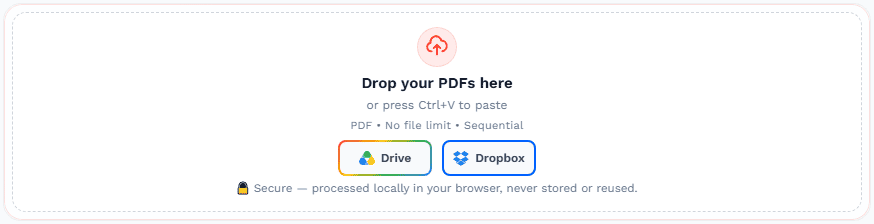
Drag and drop your PDFs into the upload zone, or click to browse — multiple files supported, queued and compressed one at a time. Import from Google Drive or Dropbox, or paste with Ctrl+V. Large files show a warning but are not blocked.
Choose Compression Mode
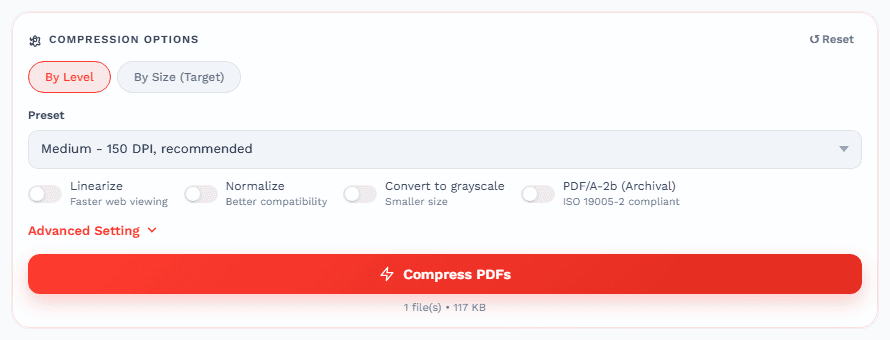
- By Level: Select a preset (Low through Extreme) from the dropdown
- By Size: Enter a target output like
25KBor10MB

Adjust Advanced Options
Optionally enable Linearize for faster web viewing, Normalize for better compatibility, and Grayscale to convert color pages to black and white for maximum reduction.

Compress
Click Compress PDFs and watch the linear progress bar for the current file — percentage and File 1 of N — with the waiting queue below. You can Cancel the current file any time. Each finished file shows original size, compressed size, percentage saved and time.
Download
Click Download on any finished file, or Download All (ZIP) when multiple are done. Use Compare to inspect before/after with slider or side-by-side, thumbnails and zoom. Then use Process Again for your next batch.

Shrink It Live — Animated Compress Demo
Hit play and watch a simulated run — upload an 8.4 MB PDF, set a 10 MB target, flip grayscale on, compress with Ghostscript, and download. About 25 seconds.
Linearize, Normalize, and Grayscale
Three advanced options that optimize your PDF beyond basic compression.
| Option | What It Does | When to Use |
|---|---|---|
| Linearize | Restructures the PDF so the first page loads immediately while the rest loads in the background. Enables progressive loading in web browsers. | PDFs embedded on websites or shared via link where fast first-page load matters. |
| Normalize | Standardizes internal PDF structures for maximum compatibility across different viewers, devices, and operating systems. | PDFs that will be opened on many different devices or in older PDF viewers. |
| Grayscale | Converts all color pages to black and white. Reduces image size significantly since grayscale images are 3x smaller than color. | Text documents, scanned documents, and PDFs where color is not essential. |
For maximum compression, enable all three options: Linearize + Normalize + Grayscale. This combination can reduce file size by an additional 20-40% on top of standard compression, especially for scanned documents and presentations.
How Much Can You Compress?
Real-world compression percentages by PDF type and content.
| PDF Type | Level 1-3 | Level 5 | Level 8-9 |
|---|---|---|---|
| Scanned Document | 20-35% | 50-65% | 70-85% |
| Photo Presentation | 15-30% | 40-55% | 60-75% |
| Text-Heavy Report | 5-15% | 15-25% | 30-45% |
| Mixed Content | 10-25% | 35-50% | 55-70% |
| Form with Signatures | 10-20% | 25-40% | 45-60% |
| Vector Diagram | 5-15% | 20-35% | 40-55% |
Text is already compact data. A page of text might be only 10KB of raw content. Compression cannot reduce this much further. The savings come from font subsetting and metadata cleanup, not from the text itself. Image-heavy PDFs compress far more because images contain millions of pixels with redundant data.
I verified this table while writing: an 8-page scanned sample (475,977 bytes) compressed at level 9 down to 64,575 bytes — 86% smaller — and a by-size run targeting 150KB converged at 64,578 bytes. A text-heavy export barely moved, exactly as the table predicts. Already-optimized files trip the inflate guard and are kept as-is instead.
Compressing Scanned PDFs
How to handle the largest category of PDF files -- scans and photos.
Scanned PDFs are the most common cause of large file sizes. A single page scanned at 300 DPI in color can be 5-10MB. A 100-page scanned document can be 500MB or more. These files respond extremely well to compression because the images contain massive amounts of redundant pixel data.
Use High Compression
Scanned documents are pure images, so use compression level 7-9 or target a specific output size. The tool will downsample images from 300 DPI to 150 DPI or lower.
Enable Grayscale
If color is not essential (most text scans), enabling Grayscale converts color images to black and white. This alone can reduce file size by an additional 30-50%.
Target a Specific Size
For scanned documents, target output size is often the best approach. Enter the maximum size you need (e.g., 5MB) and let the tool find the optimal compression parameters.
Compressing Image-Heavy PDFs
Presentations, brochures, portfolios, and photo-heavy documents.
Image-heavy PDFs -- presentations with slide photos, marketing brochures with product images, photography portfolios -- benefit significantly from compression. The key is balancing file size with the visual quality that makes these documents effective.
Presentations
PowerPoint exports and slide decks with photos. Use level 5-7 for screen sharing, level 3-4 if the presentation will be printed. Enable Linearize for web embedding.
Brochures and Marketing
Color-rich documents with product photography. Use level 4-6 to preserve brand colors and image quality while reducing size for email distribution.
Portfolios
Design and photography portfolios where image quality matters. Use level 2-3 for client presentations, or create two versions: high-quality for presentations and compressed for email.
Photo Albums
Personal photo collections in PDF format. Use level 6-8 with Grayscale for sharing. Keep an uncompressed archive version for printing.
Compressing Text-Heavy PDFs
Contracts, reports, research papers, and documentation.
Text-heavy PDFs -- contracts, legal documents, research papers, technical documentation -- are already relatively compact. The primary optimization targets are font subsetting, metadata cleanup, and object stream compression rather than image reduction.
Contracts and Legal
Text-only contracts with minimal images. Use level 1-3 to preserve quality. The main savings come from font subsetting and metadata removal (5-20% reduction).
Research Papers
Academic papers with text, charts, and occasional figures. Use level 3-5. Charts and diagrams compress well, while text sections see modest reduction.
Technical Documentation
Manuals, API docs, and specifications. Use level 4-6. Enable Linearize for web-hosted documentation where fast page loading matters.
Books and Manuscripts
Long-form text with minimal formatting. Use level 2-4. Font subsetting is the biggest win here -- especially for documents using custom or decorative fonts.
Working Through Multiple PDFs
Queue as many PDFs as you like — AFFLIGO compresses them one at a time.
Add multiple PDFs to the queue. They are processed sequentially to keep memory usage low, so browser-based Ghostscript stays fast and stable on every device, including older laptops and phones. Each file shows a linear progress bar and you can Cancel the current file. Finished files can be downloaded immediately or together via Download All (ZIP), and inspected with Compare.
Reuse Your Settings
Note the level (or target size) and advanced options you used for the first file. Compression options stay selected between runs, so the next file compresses identically.
Individual Results
After each run you see the original size, compressed size, and percentage saved -- so you can confirm quality before moving on.
Download & Repeat
Download any finished file immediately, or use Download All (ZIP) when several are done. Use Compare to inspect before/after, then Process Again for the next batch.
Compressing Password-Protected PDFs
How to handle encrypted and restricted PDF files.
AFFLIGO can compress PDFs with owner restrictions (print/edit locks) without any issues. PDFs with an open password can also be compressed after you enter the password during upload.
Owner-Restricted PDFs
PDFs that prevent printing, editing, or copying can be compressed normally. The compression does not affect the restriction settings.
Open-Password PDFs
PDFs that require a password to open can be compressed after entering the password. The compressed output retains the original password protection.
Never compress a PDF that contains digitally signed content without verifying the output first. Some compression methods can invalidate digital signatures. Always test compressed PDFs that have legal or certification significance.
Online vs Desktop PDF Compressors
Browser-based tools vs Adobe Acrobat vs desktop apps.
| Compressor tool | Pros | Cons |
|---|---|---|
| AFFLIGO (Online) | No downloads, instant access, 100% browser-based, free, 5 presets + target size | Requires internet for first visit |
| Adobe Acrobat | Full PDF editing suite, advanced optimization controls | Expensive subscription, software installation required |
| Desktop Apps | Offline access, batch processing | Installation required, potential malware risk, limited features |
| Ghostscript (CLI) | Powerful, scriptable, fine-grained control | Requires technical knowledge, command-line only |
Sources: Ghostscript docs, Smallpdf/iLovePDF feature pages, Adobe Acrobat pricing checked Aug 2026.
For most users, an online tool is the fastest and safest option. No installation, no account required, and everything is computed locally in your browser via Ghostscript WASM — no upload queue, no waiting room.
Common Mistakes and How to Avoid Them
Frequent compression errors and how to prevent them.
Over-Compressing
Using level 9 on a photo portfolio produces visible artifacts. Match compression level to content: high compression for text scans, moderate for photos, low for print-ready documents.
Not Checking the Output
Always verify compressed PDFs before discarding the original. Check image clarity, text readability, and that all pages compressed correctly. Open side-by-side with the original.
Re-Compressing Already Compressed PDFs
Running an already-compressed PDF through compression again yields minimal additional savings and may further reduce quality. Compress once at the right level.
Ignoring Font Embedding
PDFs with many custom fonts can be 10MB just from font data. Compression handles font subsetting automatically, but creating PDFs with fewer font families reduces baseline file size.
After Compressing -- What's Next
Workflow options after reducing your PDF file size.
Once your PDF is compressed, you may want to perform additional operations. AFFLIGO offers a full suite of PDF tools that work perfectly with compressed files.
Merge PDFs
Combine your compressed PDF with other documents. The Merge PDF tool lets you reorder and combine multiple files into one.
Protect PDF
Add password protection with AES-256 encryption. The Protect PDF tool secures your document before sharing.
Add Watermark
Stamp "CONFIDENTIAL" or your logo on every page. The Add Watermark tool supports text and image watermarks.
Convert to Word
Make the compressed PDF editable. The PDF to Word tool converts PDFs to editable Word documents.
Split PDF
Extract specific pages from the compressed document. The Split PDF tool separates pages into new files.
Rotate PDF
Fix page orientation if needed. The Rotate PDF tool corrects sideways or upside-down pages.
Frequently Asked Questions
Answers to the most common questions about compressing PDF files.
Want to explore more?
Key Takeaways
- PDF compression reduces file size by optimizing images, subsetting fonts, and compressing object streams
- Use level 5 (Balanced) as a starting point for most use cases -- adjust up or down based on results
- Target output size mode is ideal when you know the exact file size limit — 100KB for government portals, 200KB for job CVs, 1-2MB for uploads, 5-10MB for safe email
- Scanned and image-heavy PDFs compress the most (50-80%); text-heavy PDFs see modest reduction (10-30%)
- Enable Grayscale for scanned documents to reduce size by an additional 30-50%
- Queue multiple PDFs — they compress one at a time — and use Download All (ZIP) or Process Again for the next batch