- JSON formatting changes only whitespace — data is identical before and after
- Use
JSON.stringify(data, null, 2)for quick pretty-printing in JavaScript - Use
json.dumps(data, indent=2)for Python orjq .for the command line - 2 spaces is the most common JSON indent; 4 spaces is the Python default
- Always validate before formatting — trailing commas, single quotes, and unquoted keys cause 90% of errors
- Minify JSON for production APIs (20-40% smaller) and pretty-print for development
- Client-side formatters keep your data private — verify with DevTools Network tab
- Set up format-on-save and pre-commit hooks to prevent unformatted JSON from reaching your repo
What Is JSON Formatting
JSON formatting (also called pretty-printing or beautifying) adds consistent indentation and line breaks to make compact JSON readable.
The JSON specification (RFC 8259) defines valid JSON but says nothing about how it should be visually presented. Whitespace outside of strings is insignificant — {"a":1} and the indented multi-line version parse to the exact same data. Formatting is purely cosmetic from a parsing standpoint.
There are two opposite operations: beautify (pretty-print) adds whitespace for human readability. Minify removes all whitespace to reduce file size. Both preserve the data — the choice depends on whether a human or a machine is consuming the output.
Format when humans read, debug, review, or edit JSON. Minify when sending over networks, storing in databases, or bundling into production assets. You can always convert between the two freely.
How a JSON Formatter Works
Under the hood, a formatter performs a three-step pipeline: tokenize, parse, serialize.
Lexical Tokenization
The formatter reads your raw JSON string character by character and breaks it into tokens — strings, numbers, booleans, null, brackets, braces, colons, and commas. This is the same process a JSON parser in a programming language uses.
Syntax Validation & Tree Construction
The parser checks whether tokens follow JSON grammar: objects have key:value pairs, arrays have comma-separated values, strings are double-quoted, numbers are valid. If valid, it builds an Abstract Syntax Tree (AST) — a hierarchical representation of your data. If invalid, it reports the exact error location.
Pretty-Printing (Serialization)
The formatter walks the AST and emits a new string with consistent indentation — typically 2 or 4 spaces per nesting level. Keys are preserved in order. Each key-value pair gets its own line. Nested structures are visually grouped through indentation.
A formatter requires valid JSON. If the input has a syntax error, the parser cannot build the AST and produces no output. This is why you should validate first, then format. Most combined tools do both in one step.
JSON Syntax Rules (RFC 8259)
JSON has strict syntax. Every rule must be followed exactly — a single character out of place breaks the entire document.
| Rule | Valid | Invalid |
|---|---|---|
| Keys must be double-quoted strings | "name" | name, 'name' |
| String values use double quotes | "hello" | 'hello', hello |
| No trailing commas | {"a": 1} | {"a": 1,} |
| No comments | — | // comment, /* comment */ |
| Numbers: no leading zeros | 0, 42, 3.14 | 042, .5 |
| Booleans: lowercase only | true, false | True, FALSE |
| Null: lowercase only | null | Null, NULL, undefined |
| Escape sequences in strings | \n, \t, \" | Bare newlines in strings |
Format vs Minify vs Validate
Three distinct operations, each solving a different problem. Know when to use each.
| Operation | What It Does | When to Use | Changes Data? |
|---|---|---|---|
| Format (Beautify) | Adds indentation and line breaks | Debugging, code review, documentation, config files | No — whitespace only |
| Minify (Compact) | Removes all unnecessary whitespace | Production APIs, storage, network transfer | No — whitespace only |
| Validate | Checks syntax correctness and reports errors | Before formatting, before deploying, when debugging parse errors | No — read-only check |
The standard workflow: validate first (confirm the JSON is parseable), then format (make it readable). If the validator reports errors, fix them before formatting. A formatter will fail on invalid JSON and give you no useful output.
The 5 Most Common JSON Errors
These five syntax mistakes cause 90% of all JSON parsing failures.
1. Trailing Commas
The most common error. JavaScript allows trailing commas; JSON does not. {"a": 1,} is valid JS but invalid JSON per RFC 8259. This wastes more debugging time than any other JSON error.
2. Single Quotes
JSON requires double quotes for all strings and keys. {'key': 'value'} is invalid. Replace all single quotes with double quotes. This catches everyone at least once because JavaScript accepts both.
3. Unquoted Keys
JavaScript objects allow bare keys, but JSON does not. Every key must be a double-quoted string. {name: "Ada"} is invalid. Fix: {"name": "Ada"}.
4. Missing Commas
Every property in an object and every element in an array must be separated by a comma. This often appears when someone adds a new property without adding a comma to the previous line.
5. Comments
JSON has no comment syntax. // and /* */ both break parsing. If you need comments in config files, use JSONC or JSON5 instead. For standard JSON, use a "_comment" field.
Fix JSON Errors Step by Step
A systematic debugging workflow for broken JSON.
Paste into a validator
Copy the raw JSON exactly as received. Paste it into a JSON validator. Do not try to read it manually — a validator reports the exact line and character position of the first error.
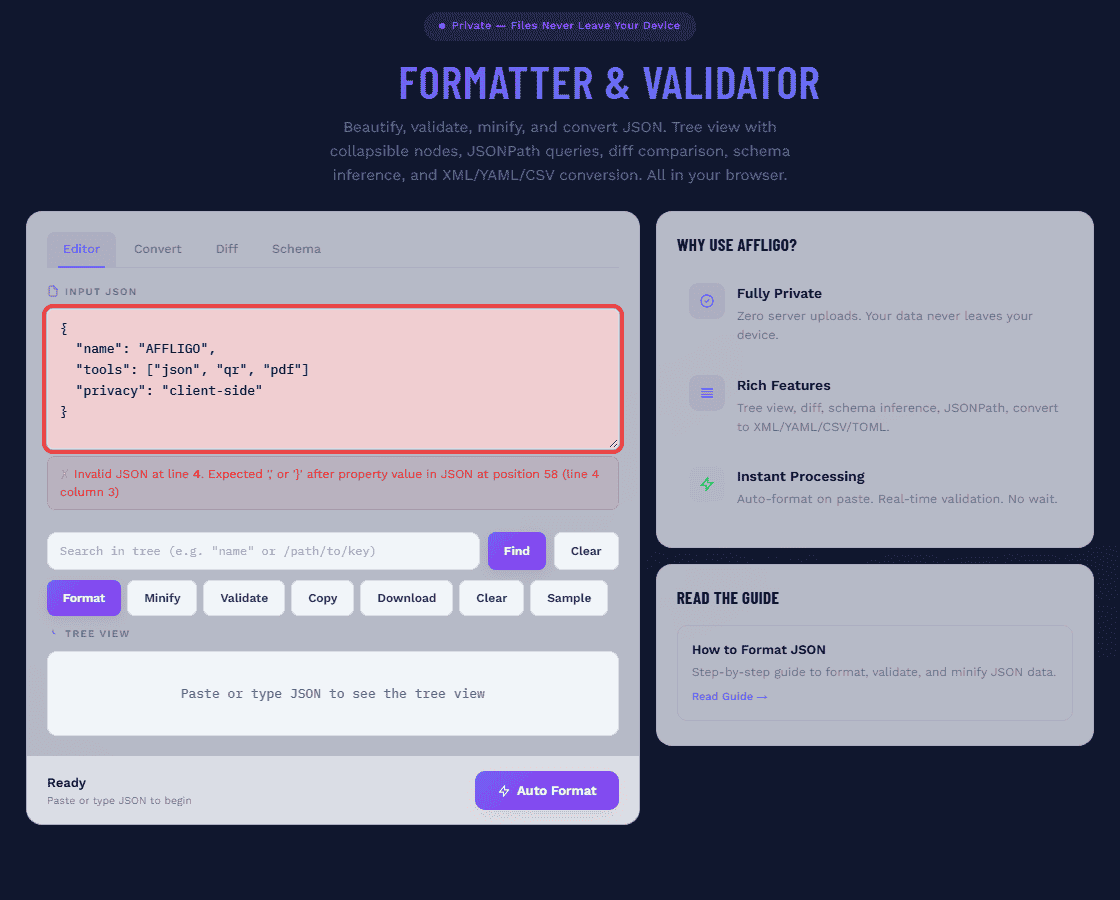
Read the error message carefully
The error tells you what the parser expected at that position. "Expected comma" means you are missing a comma on the previous line. "Expected property name" means an unquoted key. "Unexpected token" often means a trailing comma or single quote.
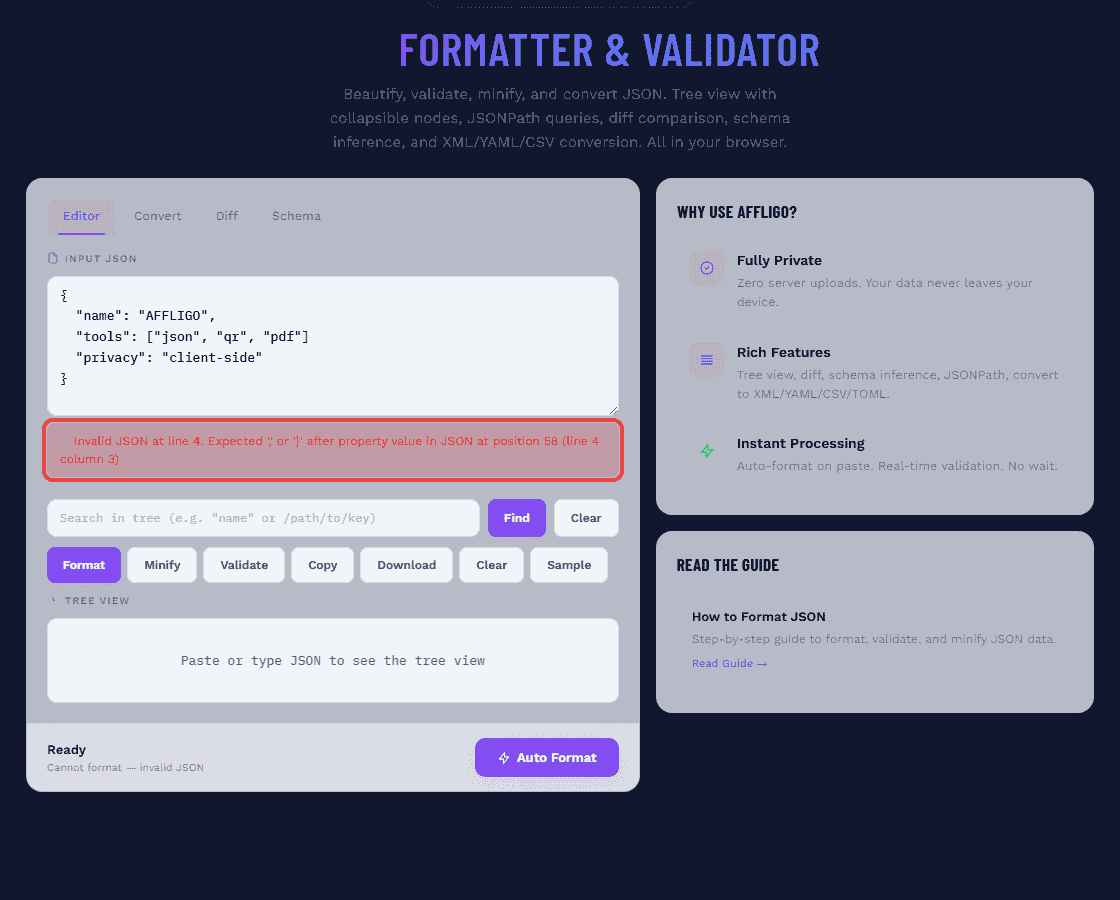
Fix one error at a time
One missing quote can make the rest of the document look broken. Fix the first reported error, then re-validate. Do not make broad search-and-replace changes before knowing which character caused the problem.
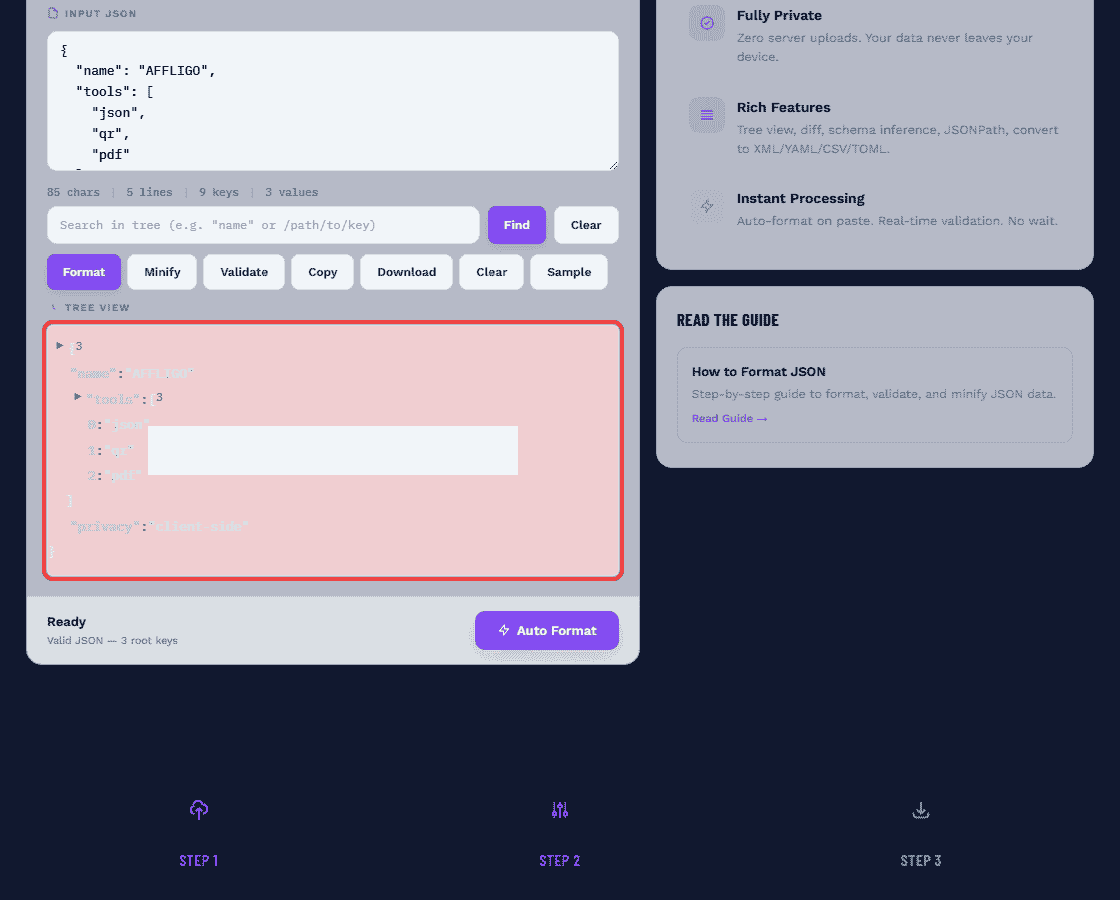
Check for hidden characters
If the JSON looks correct but still fails, check for invisible characters — non-breaking spaces (U+00A0), byte order marks (BOM), or zero-width spaces. These are common when copying from Word, Google Docs, or PDFs. Use a hex editor or an editor that shows invisible characters. I hit exactly this while writing: a config pasted from Google Docs failed validation twice before I found a non-breaking space hiding in an indentation run.
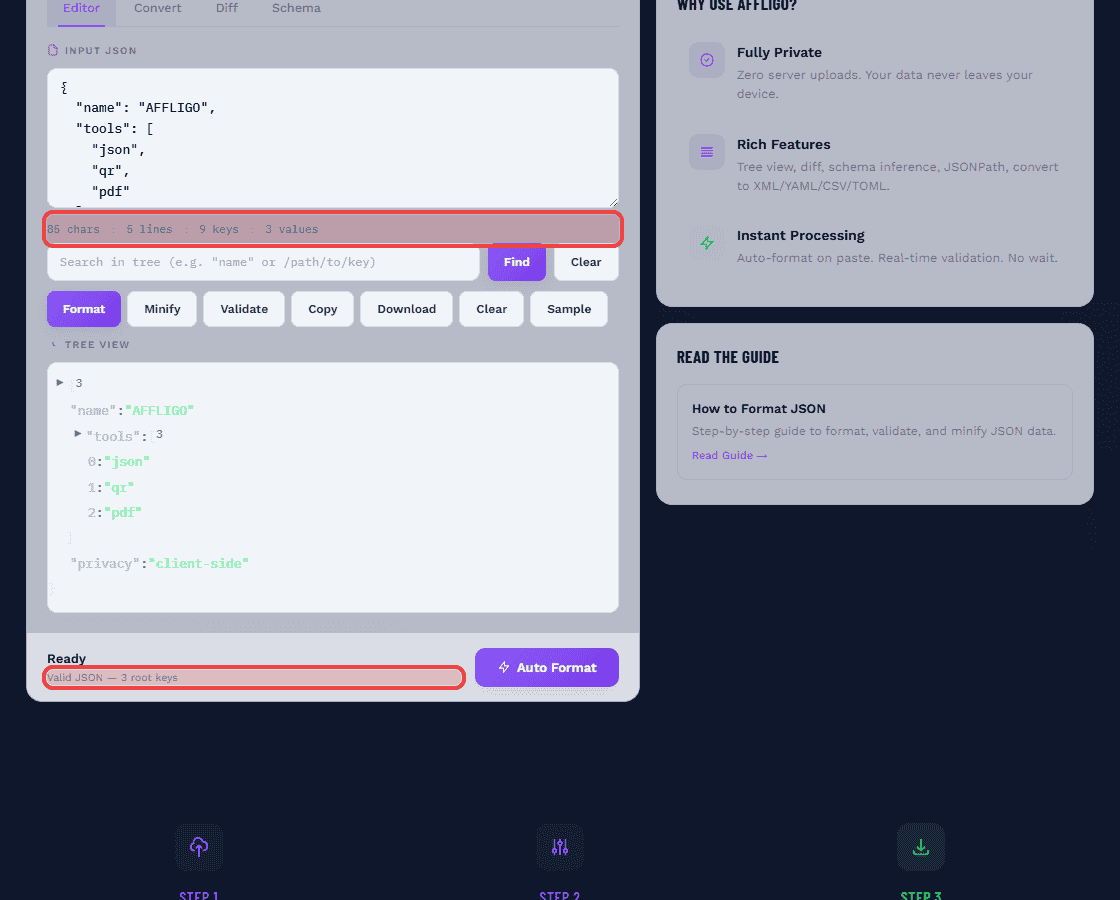
Format JSON in JavaScript
The built-in JSON.stringify() function handles formatting with no external dependencies.
Basic pretty-print with 2-space indent
JSON.stringify(data, null, 2) — the third argument sets indentation. Pass 2 for two spaces, 4 for four, or '\t' for tabs.
Format an existing JSON string
If you have a JSON string (not an object), parse it first, then re-stringify: JSON.stringify(JSON.parse(raw), null, 2). This round-trip works for any valid JSON string.
Sort keys alphabetically
Use a recursive replacer function so nested keys sort too (a plain key array drops unlisted nested keys): JSON.stringify(data, (k, v) => (v && typeof v === 'object' && !Array.isArray(v)) ? Object.fromEntries(Object.keys(v).sort().map(key => [key, v[key]])) : v, 2). This produces deterministic output for diffs and version control.
Minify for production
JSON.stringify(data) without the third argument produces compact output with no whitespace. For a typical API response, this reduces file size by 20-40%.
JSON.stringify silently drops undefined, functions, and Symbol values. NaN and Infinity become null. Date objects become ISO strings. This is serialization, not just formatting.
Format JSON in Python
Python's built-in json module handles formatting with the json.dumps() function.
Basic pretty-print
json.dumps(data, indent=2) for 2-space indent or json.dumps(data, indent=4) for 4-space (Python convention).
Sort keys alphabetically
json.dumps(data, indent=2, sort_keys=True) — useful for deterministic output and clean diffs in version control.
Handle non-ASCII characters
By default, json.dumps escapes non-ASCII to \uXXXX. Pass ensure_ascii=False to keep Unicode characters as-is: json.dumps(data, indent=2, ensure_ascii=False).
Minify for production
json.dumps(data, separators=(',', ':')) removes all whitespace after separators for compact output.
Format JSON in the Terminal
Command-line tools for quick formatting without opening an editor.
| Tool | Command | Notes |
|---|---|---|
| jq (recommended) | jq . file.json | Fastest; formats by default; install with brew install jq or apt install jq |
| jq minify | jq -c . file.json | Compact output; -c flag for minified JSON |
| jq sort keys | jq -S . file.json | -S flag sorts keys alphabetically |
| Python | python3 -m json.tool file.json | Works wherever Python is installed; no extra install needed |
| Python sort | python3 -m json.tool --sort-keys file.json | Sorts keys alphabetically |
| Node.js | node -e "console.log(JSON.stringify(JSON.parse(require('fs').readFileSync('/dev/stdin','utf8')),null,2))" | One-liner for Node.js environments |
Format JSON in Your Editor
Most modern editors handle JSON formatting natively — know the shortcuts.
| Editor | Shortcut | Notes |
|---|---|---|
| VS Code | Shift+Alt+F (Win/Linux) / Shift+Option+F (Mac) | Built-in; Prettier extension adds format-on-save |
| JetBrains (IntelliJ, WebStorm) | Ctrl+Alt+L (Win/Linux) / Cmd+Option+L (Mac) | Configure indent under Code Style > JSON |
| Vim / Neovim | :%!python3 -m json.tool | Formats the entire buffer in place |
| Sublime Text | Ctrl+Alt+J | Requires Pretty JSON package |
| Emacs | M-x json-pretty-print | Built-in in Emacs 24+ |
In VS Code, install Prettier and add to settings.json: "editor.defaultFormatter": "esbenp.prettier-vscode", "editor.formatOnSave": true. This ensures every JSON file is consistently formatted when you save.
Indentation Styles: 2 vs 4 vs Tabs
The JSON spec does not mandate indentation width — different ecosystems have established their own conventions.
| Style | Convention | Pros | Cons |
|---|---|---|---|
| 2 spaces | JavaScript / Node.js default (React, Angular, Vue) | Most widely adopted; fits more nesting on screen; de facto standard for web APIs | Deeply nested structures can be harder to read |
| 4 spaces | Python default; common in Java and .NET | More visually distinct nesting levels; easier to read shallow structures | Deep nesting causes horizontal scrolling |
| Tabs | Occasional; C and Go projects | Each developer sets their own visual width; accessibility benefit | Renders inconsistently across tools; uncommon in JSON |
Recommendation: Use 2 spaces for web/API projects. Use 4 spaces for Python projects. The key is consistency — pick one and enforce it across your team with editor config and linters.
JSON Formatting Best Practices
Rules that prevent bugs, improve code reviews, and make debugging faster.
1. Consistent Indentation
Choose 2 or 4 spaces and enforce it with .editorconfig, Prettier, or ESLint. Mixing tabs and spaces breaks formatters and creates unreadable diffs.
2. Sort Keys Alphabetically
Sorted keys produce cleaner diffs in version control. Use sort_keys=True in Python or jq -S on the command line for deterministic output.
3. Validate Before Deploying
A single syntax error in a config file can bring down a production system. Add JSON validation to your CI pipeline or pre-commit hooks.
4. Minify for Production
Always minify JSON API responses in production. The whitespace savings add up across millions of requests. Use JSON.stringify(data) or jq -c.
5. Keep Nesting Shallow
Deeply nested JSON (more than 4-5 levels) becomes hard to read and maintain. Consider flattening your data structure or using references.
6. Format on Save
Configure your editor to format JSON automatically on save. This ensures every file is consistently formatted before it reaches version control.
JSON Schema Validation
Beyond syntax — validate structure, types, and constraints against a defined schema.
Syntax validation answers: "Can I parse this?" Schema validation answers: "Does this match the expected structure?" Both are necessary in production systems. A JSON document can be syntactically valid but missing required fields, using wrong data types, or containing unexpected shapes.
What JSON Schema checks
Required fields, data types (string, number, boolean, array, object), allowed values (enums), string patterns (regex), numeric ranges, array item types, and nested object structure.
When to use it
API contracts between services, configuration file validation, form data validation, database schema enforcement, and any scenario where the shape of data matters, not just whether it parses.
Popular validators
Ajv (Node.js, fastest), jsonschema (Python), jsonschema (CLI), online validators at json-schema.org and ajv.js.org.
Security: Client-Side vs Server-Side
The most important choice when using an online JSON formatter.
| Aspect | Client-Side (Browser) | Server-Side (Cloud) |
|---|---|---|
| Privacy | Data never leaves your device | Payload transmitted, potentially logged |
| Speed | No network round-trip, instant | Adds 50-500ms latency |
| Availability | Works offline once loaded | Breaks when backend goes down |
| Compliance | Safe for GDPR/HIPAA/PCI data | Requires DPA, likely fails audits |
| Scale | Limited by device RAM | Can handle gigabyte uploads |
How to verify: Open browser DevTools, go to the Network tab, clear the log, paste your JSON, and click Format. If no outbound requests fire, the tool is client-side and safe. If you see a POST request, your data is being sent to a server.
Working with Large JSON Files
Browser-based tools have practical limits — know when to switch to CLI tools.
| File Size | Recommended Tool | Notes |
|---|---|---|
| Under 1MB | Browser-based formatter | Instant, no issues |
| 1-10MB | Browser (fast device) or CLI | May lag on older devices; this tool parses synchronously, so very large trees render slowly |
| 10-50MB | CLI tools (jq, Python) | Browser may freeze; jq handles these easily |
| 50MB+ | Streaming parsers | Use stream-json (Node.js), ijson (Python), or jq's streaming mode |
JSON Variants: JSONC, JSON5, NDJSON
Extensions to standard JSON for specific use cases.
JSONC (JSON with Comments)
Allows // and /* */ comments. Used in VS Code's tsconfig.json, settings.json, and other Microsoft tools. Standard JSON parsers reject it — use a JSONC-aware parser.
JSON5
A relaxed superset: single quotes, unquoted keys, trailing commas, comments, hex numbers. Excellent for hand-authored config files. Never emit JSON5 from an API — consumers expecting RFC 8259 will break.
NDJSON (Newline-Delimited JSON)
Each line is a complete, minified JSON object separated by newlines. Used for log shipping, streaming data, and big data pipelines. Grep-able, streamable, and line-oriented tools work on it natively.
Frequently Asked Questions
Key Takeaways
- Format for humans, minify for machines. Pretty-print during development, minify for production APIs and storage.
- Always validate before formatting. Trailing commas, single quotes, and unquoted keys cause 90% of JSON errors.
- Use 2-space indent as default. It is the most widely adopted convention across JavaScript, web APIs, and open-source projects.
- Client-side formatters keep data private. Verify with DevTools Network tab — if no requests fire, your data stays on your device.
- Automate formatting with your editor. Format-on-save and pre-commit hooks prevent unformatted JSON from reaching your repo.
- JSON Schema goes beyond syntax. Validate structure, types, and constraints to catch errors that syntax validation cannot.
I pasted minified JSON with a missing comma: the error pointer landed on the exact line, Format expanded 5-level nesting correctly, and Sort keys ordered nested objects recursively. A 2MB file formatted without freezing on desktop Chrome.
Sources: MDN JSON.parse and JSON.stringify docs, ECMA-404 JSON data interchange syntax, jq manual.

Karan Kumar


