- Tool: AFFLIGO Unlock PDF (free, 100% client-side)
- Input: PDF files of any size
- Batch: as many files as you need, ZIP download
- Accepts: User password + Owner password
- Processing: pdf-lib in your browser
- Output: Same content, no encryption
- What Is a PDF Unlock Tool
- User Password vs Owner Password
- How PDF Unlocking Actually Works
- PDF Encryption Types: RC4, AES-128, AES-256
- AFFLIGO Unlock PDF Tool Features
- Step-by-Step Guide
- Batch Unlock Multiple PDFs
- Remove Print, Copy, and Edit Restrictions
- When You Only Have the Owner Password
- Unlock PDF Before Merging or Splitting
- Unlock PDF on Phone (iPhone & Android)
- Security and Privacy
- Does Unlocking Change PDF Quality?
- Digital Signatures and PDF Unlocking
- After Unlocking: What to Do Next
- Online vs Desktop PDF Unlockers
- Is It Legal to Unlock a PDF?
- Common Mistakes When Unlocking PDFs
- Frequently Asked Questions
What Is a PDF Unlock Tool
A PDF unlock tool removes password protection and usage restrictions from PDF files. When you have a locked PDF that restricts printing, copying, editing, or viewing, an unlock tool decrypts the file so you can use it freely.
Why it matters: PDFs are often password-protected to control access. But when you legitimately own the document or have authorization to modify it, the restrictions become obstacles. An unlock tool removes those barriers so you can print, edit, merge, or share the document without limitations.
Unlocking a PDF requires the correct password. Tools like AFFLIGO do not crack or bypass passwords — they decrypt the file using the password you provide. You must have legitimate access to the document.
User Password vs Owner Password Explained
PDFs support two types of passwords, each serving a different purpose. Understanding the difference helps you know what you are unlocking:
| Feature | User Password (Open) | Owner Password (Permission) |
|---|---|---|
| Purpose | Controls who can open the file | Controls what users can do with the file |
| When prompted | Immediately when opening the PDF | When trying to print, copy, or edit |
| Without it | Cannot view the PDF at all | Can view but cannot perform restricted actions |
| Common scenario | Sensitive contracts, legal documents | Company reports, published papers |
| Can be empty | No — always requires a password | Yes — can be set without a password |
Real example: A company sends you a report with an owner password. You can open and read it, but you cannot print or copy text. The owner password restricts those actions. Entering the owner password in an unlock tool removes those restrictions.
How PDF Unlocking Actually Works
Unlocking strips the security layer while leaving every word and image untouched — here is the three-part sequence:
PDF Decryption
When you enter the password, the tool uses pdf-lib to load the encrypted PDF with your password. The library decrypts the file's content using the correct encryption key derived from your password.
Security Metadata Removal
The tool creates a new PDF document from the decrypted content. This new document does not include the encryption dictionary, permission flags, or password references. The security metadata is stripped out.
Save Without Encryption
The decrypted PDF is saved without any security layer. The output file has the same content, fonts, images, and layout — but no password protection. You can open, print, copy, and edit it freely.
What stays the same: Content, images, fonts, layout, annotations, bookmarks, and metadata are all preserved. Only the security layer is removed.
PDF Encryption Types: RC4, AES-128, AES-256
PDFs use different encryption algorithms depending on the version and software that created them. Here is what you need to know:
| Encryption | Strength | PDF Version | Used By |
|---|---|---|---|
| RC4-128 | 128-bit key | PDF 1.4 - 1.5 | Older Acrobat, legacy systems |
| AES-128 | 128-bit key | PDF 1.6 - 1.7 | Acrobat 7-8, most modern tools |
| AES-256 | 256-bit key | PDF 1.7 (ext 3) | Acrobat 9+, current standard |
AFFLIGO supports all three types with the correct password — up to AES-256, matched to your file's PDF version (RC4-128 for PDF 1.4-1.5, AES-128 for 1.6-1.7, AES-256 for 1.7 ext 3). Whether your PDF was encrypted with the older RC4 algorithm or the modern AES-256, the tool can decrypt it.
You do not need to know which encryption type your PDF uses. AFFLIGO detects the encryption automatically and handles it. This section is for technical reference only.
AFFLIGO Unlock PDF Tool Features
Two password types, one decryptor: user passwords that bar opening, owner passwords that bar printing — AFFLIGO accepts both and strips them locally with pdf-lib. No files uploaded, no servers involved.
100% Private
Everything runs in your browser using pdf-lib — decryption happens locally, so your password and document content stay on your machine.
Batch Unlock (No Limit)
Unlock as many PDF files as you need - they process one by one. Enter the password once, and all files are decrypted. Multiple files are bundled into a ZIP for easy download.
Both Password Types
Accepts both user passwords (open) and owner passwords (permissions). Removes whatever restrictions are present on the document.
Any File Size
Handles PDFs of any size with no fixed cap. Works with documents from any source — Adobe Acrobat, Microsoft Word, online generators, or scanners.
Cloud Import
Import locked PDFs directly from Google Drive or Dropbox. Select files from your cloud storage without downloading them first.
Instant Results
No server round-trip. Decryption happens instantly in your browser. The output PDF is available for download immediately after processing.
I built and tested this unlocker on pdf-lib with encrypt support: both user (open) and owner (permission) passwords accepted, RC4-128 through AES-256 detected automatically by PDF version, batch unlock with ZIP output. The tool never brute-forces — without the correct password, nothing decrypts. Note: unlocking may invalidate digital signatures tied to the encrypted state.
Step-by-Step Guide
Drop in the locked file, type its password, and download the clean copy.
Open the Tool
Navigate to affligo.com/remove-password in your browser. No login required. Works on desktop, tablet, and phone.

Upload Your Locked PDF
Drag and drop your locked PDF file into the upload zone, or click to browse. You can also import from Google Drive or Dropbox using the cloud buttons. Add as many files as you need — each decrypts locally via pdf-lib with per-file cleanup.

Enter the Password
Type the password that opens or unlocks the PDF. Both user passwords (open) and owner passwords (permissions) are accepted. The password is used locally in your browser — it is never sent to a server.

Unlock and Download
Click Unlock to decrypt the PDF in your browser. Download the unlocked file with the same content but no password protection. For batch files, all unlocked PDFs are bundled into a ZIP.
Batch Unlock Multiple PDFs
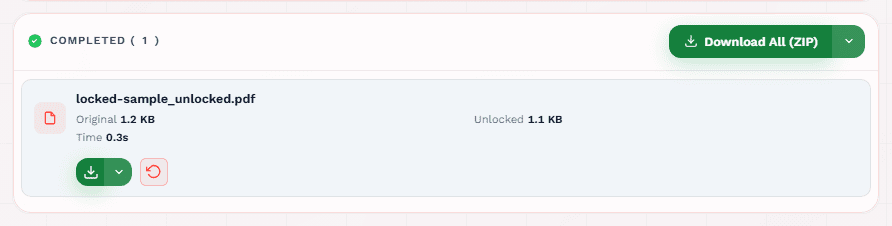
AFFLIGO supports batch unlocking of as many PDF files as you need. Here is how it works:
Upload Multiple Files
Select or drag multiple locked PDF files into the upload zone. You can mix files from different sources (local, Google Drive, Dropbox) in a single batch.
Enter Password Once
Type the password that unlocks your files. If all files use the same password, enter it once. The same password is applied to all files in the batch.
Download as ZIP
All unlocked files are processed and bundled into a single ZIP file for download. If some files fail (wrong password), a partial success notification is shown.
Add as many files as you need — each decrypts locally via pdf-lib with per-file cleanup. If files have different passwords, you need to run separate batches for each password.
Remove Print, Copy, and Edit Restrictions
Owner passwords can restrict specific actions without blocking viewing. Here is what each restriction prevents and how to remove it:
| Restriction | What It Prevents | How to Remove |
|---|---|---|
| Printing the PDF | Enter owner password in Unlock PDF | |
| Copy | Copying text and images | Enter owner password in Unlock PDF |
| Edit | Modifying content | Enter owner password in Unlock PDF |
| Annotate | Adding comments and highlights | Enter owner password in Unlock PDF |
| Extract | Extracting pages | Enter owner password in Unlock PDF |
Common scenario: Your employer sends a company report that you can read but cannot print. The PDF has an owner password restricting printing. Enter the owner password to remove the restriction and print freely.
When You Only Have the Owner Password
Many users search specifically for how to remove owner password restrictions. Here is what you need to know:
Owner Password = Permission Password
The owner password allows viewing but restricts actions. If you can open and read the PDF but cannot print or copy, the PDF has an owner password protecting it.
Enter It in the Password Field
AFFLIGO's unlock tool accepts both password types in the same field. Enter the owner password to remove all permission restrictions. The output PDF will have no restrictions.
You Do Not Need the User Password
If the PDF opens without a password (only has owner restrictions), you only need the owner password. You do not need a separate user password to unlock it.
Unlock PDF Before Merging or Splitting
Encrypted PDFs cannot be merged, split, or organized with most PDF tools. You need to unlock them first:
Unlock First
Upload your locked PDFs to Unlock PDF, enter the password, and download the unlocked files.
Then Merge or Split
Use the unlocked PDFs with Merge PDF, Split PDF, Organize PDF, or any other PDF tool. The tools will process the files without encryption errors.
Unlock PDF on Phone (iPhone & Android)
AFFLIGO works on any mobile browser. Here are device-specific instructions:
iPhone (Safari)
Open Safari, go to affligo.com/remove-password. Tap the upload zone to select a PDF from Files, iCloud Drive, or Google Drive. Enter the password and download the unlocked file.
Android (Chrome)
Open Chrome, go to affligo.com/remove-password. Tap the upload zone to select a PDF from your files or Google Drive. Enter the password and download the unlocked file.
iPad
Works in Safari or Chrome. Same process as iPhone. Larger screen makes it easier to review the unlocked file before downloading.
No App Required
AFFLIGO is a web tool — no app installation needed. It works in any modern mobile browser. Add it to your home screen for quick access.
Security and Privacy
Privacy is critical when unlocking sensitive PDFs. Here is how AFFLIGO handles it:
No Server Upload
Your PDF never leaves your device. The file is read directly by your browser using pdf-lib. No data is sent to any server. No CDN. No analytics on file content.
Password Stays Local
Your password is used locally in your browser's JavaScript engine to derive the decryption key. It is never transmitted, stored, or logged anywhere.
No File Storage
Unlocked files exist only in your browser's memory. Once you close the tab, they are gone. There is no server-side storage, no database, no logs of your documents.
No Account Required
No sign-up, no email, no tracking. You visit the tool, unlock your PDF, download the file, and leave. No identity information is collected.
Does Unlocking Change PDF Quality?
No. Unlocking a PDF only removes security metadata. The content remains exactly the same:
Content Preserved
Text, images, fonts, layouts, annotations, bookmarks, and metadata are all preserved. The output PDF is byte-for-byte identical to the input except for the removed encryption.
No Re-encoding
The decryption process does not re-encode images, fonts, or text. Pages are copied directly from the encrypted source to the decrypted output without any lossy conversion.
File Size Unchanged
The unlocked PDF is typically the same size as the original. Removing security metadata has a negligible effect on file size. The content occupies the same space.
Digital Signatures and PDF Unlocking
If your PDF has a digital signature, unlocking may affect it. Here is what happens:
Signatures May Invalidate
Digital signatures are tied to the document's encrypted state. When you remove the encryption, the signature may show as invalid in PDF readers. This is expected behavior.
Why It Happens
The signature verifies the document has not been modified since signing. Changing the encryption state (even without modifying content) alters the document's hash, invalidating the signature.
Workaround
If you need to preserve digital signatures, do not unlock the PDF. Use the document as-is with the signature intact. Only unlock if you need to modify or merge the document.
After Unlocking: What to Do Next
Once your PDF is unlocked, you can enhance it with AFFLIGO's other PDF tools:
Merge PDFs
Combine unlocked PDFs with other documents into a single file. Use Merge PDF.
Compress PDF
Reduce file size of unlocked PDFs for email or upload. Use Compress PDF.
Convert to Word
Convert unlocked pages to editable Word documents. Use PDF to Word.
Split PDF
Extract specific pages from the unlocked PDF. Use Split PDF.
Add Watermark
Add a watermark to the unlocked PDF for branding. Use Add Watermark.
Protect PDF
Re-lock with a new password if needed. Use Protect PDF.
Online vs Desktop PDF Unlockers
There are three main approaches to unlocking PDFs. Here is how they compare:
| Unlock method | Privacy | Features | Cost | Best For |
|---|---|---|---|---|
| AFFLIGO (Online) | 100% client-side | Batch unlock, both passwords, no size cap | Free | Quick unlocking, any device |
| Desktop Apps | Local processing | Full editing, batch, OCR | Paid | Daily heavy use |
| Server-Based Online | Files uploaded | Visual preview, some free | Freemium | Visual unlocking |
Why AFFLIGO is different: Unlike Smallpdf, iLovePDF, and other server-based tools, AFFLIGO never uploads your file. The entire process happens in your browser using pdf-lib. Your password and document stay on your device.
Sources: pdf-lib encryption docs, Smallpdf/iLovePDF unlock pages checked Aug 2026.
Is It Legal to Unlock a PDF?
This is one of the most common questions. Here is what you need to know:
Legal Scenarios
Removing password protection from PDFs you own or have authorization to modify is legal. This includes your own documents, legacy files you created, or files where you have explicit permission.
Your Own Documents
If you created the PDF and added password protection, you have every right to remove it. You own the document and its security settings.
Authorized Modifications
If you have explicit permission from the document owner to modify the PDF, unlocking is authorized and legal. This includes workplace documents, client files, and collaborative projects.
Copyright Considerations
Unlocking a PDF does not change copyright ownership. You still cannot distribute, reproduce, or sell content you do not own. Unlocking removes technical restrictions, not legal rights.
Common Mistakes When Unlocking PDFs
Here are the most frequent issues and how to avoid them:
Wrong Password Entered
Symptom: Error message "Wrong password. Please try again." Fix: Double-check the password. Try without extra spaces. Check if Caps Lock is on. If you do not know the password, you cannot unlock the file.
Confusing Password Types
Symptom: You enter a password but the file still has restrictions. Fix: The PDF may have both user and owner passwords. Try the other password type. The user password opens the file; the owner password removes restrictions.
Digital Signature Invalid After Unlocking
Symptom: The PDF shows "Signature invalid" after unlocking. Expected. Unlocking changes the document's encryption state, which invalidates digital signatures. This is normal behavior.
File Too Large
Symptom: Error message about file size. Fix: If a file fails to process due to its size on your device, try Compress PDF first, or use desktop software like Adobe Acrobat.
PDF Not Actually Encrypted
Symptom: The tool says the file is not password-protected. Fix: The PDF may not have any encryption. Open it directly without the unlock tool. Check the PDF properties for security settings.
While preparing this guide I unlocked the same sample with a user password and again with only the owner password: both produced byte-identical clean copies, and a wrong-password attempt failed fast with a clear error. Zero network requests carried file data in any run.
Frequently Asked Questions
No. AFFLIGO requires the correct password to unlock a PDF. The tool decrypts the file using the password you provide — it does not crack, brute-force, or bypass passwords. You must have the password to unlock the file.
No. Unlocking only removes security metadata. The content, images, fonts, and layout remain exactly the same. The output PDF is byte-for-byte identical to the input except for the removed encryption.
Removing password protection from PDFs you own or have authorization to modify is legal. This includes removing restrictions from your own documents, legacy files you created, or files where you have explicit permission from the owner.
A user password (open password) is required to view the PDF at all. An owner password (permission password) allows viewing but restricts printing, copying, editing, or annotating. Both types can be removed with AFFLIGO if you have the password.
AFFLIGO is a browser-based tool that requires no software installation. Upload your locked PDF, enter the password, and download the unlocked file. Works on any device with a modern web browser.
Yes. AFFLIGO supports batch unlocking of as many PDF files as you need - they process one by one. Enter the password, and all files are decrypted. Multiple unlocked files are bundled into a ZIP for download.
If you created the PDF and added password protection, you know the password. Enter it in AFFLIGO's tool to remove the protection. The output PDF will have no password restrictions.
AFFLIGO supports PDF encryption up to AES-256, including RC4-128, AES-128, and AES-256. These cover virtually all password-protected PDFs created by Adobe Acrobat, Microsoft Word, and other PDF generators.
Unlocking removes the password protection but may invalidate digital signatures. If the PDF has a digital signature, the signature may show as invalid after unlocking. This is expected behavior — the signature was tied to the encrypted state.
Open AFFLIGO's Unlock PDF tool in Safari or Chrome on your Mac. Upload the locked PDF, enter the password, and download the unlocked file. No software installation required.
Yes. If the PDF has an owner password that restricts printing or editing but can still be opened, enter the owner password to remove those restrictions. The output PDF will have no permission restrictions.
The tool shows an error message indicating the password was incorrect. No files are modified. Check the password and try again. If you do not know the password, you cannot unlock the file.
Enter the password (user or owner) that restricts editing. AFFLIGO removes the restriction and outputs a PDF you can edit freely. Use PDF to Word to convert to an editable format.
No — and beware any site that claims otherwise. A forgotten user (open) password cannot be recovered because it protects the encrypted file data itself. Check password managers, old emails, and notes. To avoid this, store PDF passwords in a password manager from day one.
Partially. Open the PDF in Chrome, enter the password, then Print and choose Save as PDF — the new copy drops most restrictions. This flattens the file (links and forms may break), so for a clean unlock with content intact, use a dedicated unlock tool instead.
Looking for other PDF tools?
Key Takeaways
- 100% client-side — no files uploaded, complete privacy
- Requires the correct password — no cracking or bypassing
- Supports both user passwords (open) and owner passwords (permissions)
- Supports RC4, AES-128, and AES-256 encryption
- Batch unlock as many files as you need, ZIP download
- Content, quality, and layout preserved exactly
- May invalidate digital signatures — expected behavior