Speech to Text Online:
Free Voice Transcription Guide
Learn how to convert spoken words into text using AFFLIGO's free browser-based tool. No file uploads, 100% private, instant transcription with SRT export.
- What speech-to-text is and how it works
- Step-by-step AFFLIGO tool walkthrough
- Supported languages and export formats
- Accuracy tips for 95%+ transcription quality
- Voice commands cheat sheet
- Real-world use cases (meetings, lectures, interviews)
- Troubleshooting common issues
- Tool comparison (AFFLIGO vs alternatives)
- What Is Speech-to-Text?
- Why Use AFFLIGO's Tool?
- How to Use — Step-by-Step
- Supported Languages
- Auto-Punctuation Explained
- Export Formats: TXT vs SRT
- Live Stats Dashboard
- Accuracy Tips
- Voice Commands Cheat Sheet
- Real-Time vs File-Based STT
- Real-World Use Cases
- Privacy & Security
- Browser Compatibility
- Troubleshooting
- Best Practices
- Tool Comparison
- FAQ
- Key Takeaways
- About the Author
What Is Speech-to-Text?
Speech-to-text converts spoken audio into written text using artificial intelligence.
Speech-to-text (STT), also called voice recognition, speech recognition, or ASR (Automatic Speech Recognition), is technology that analyzes audio of spoken words and converts it into written text. Instead of typing manually, you speak — and the software transcribes your words in real-time.
Modern STT uses deep learning models trained on millions of hours of speech. The technology powers virtual assistants (Siri, Google Assistant), dictation software, and transcription tools like AFFLIGO. It works by analyzing acoustic patterns in the audio, matching them to phonemes (sound units), and using language models to predict the most likely word sequences.
Speech-to-text is dictation (real-time voice-to-text). Transcription (post-processing audio files) is a different workflow. AFFLIGO is a dictation tool — you speak, text appears instantly.
Why Use AFFLIGO's Tool?
Three reasons AFFLIGO stands out from other speech-to-text tools.
100% Private
Audio is processed by the browser's built-in speech recognition engine. Transcripts assemble in the page as you speak, and nothing is stored after you close the tab.
Real-Time Transcription
See your words appear instantly as you speak. No waiting for processing, no upload delays. Start speaking and get text immediately.
Free, No Signup
No account required, no limits, no watermarks. Open the tool and start transcribing. Export as TXT or SRT subtitles anytime.
How to Use — Step-by-Step
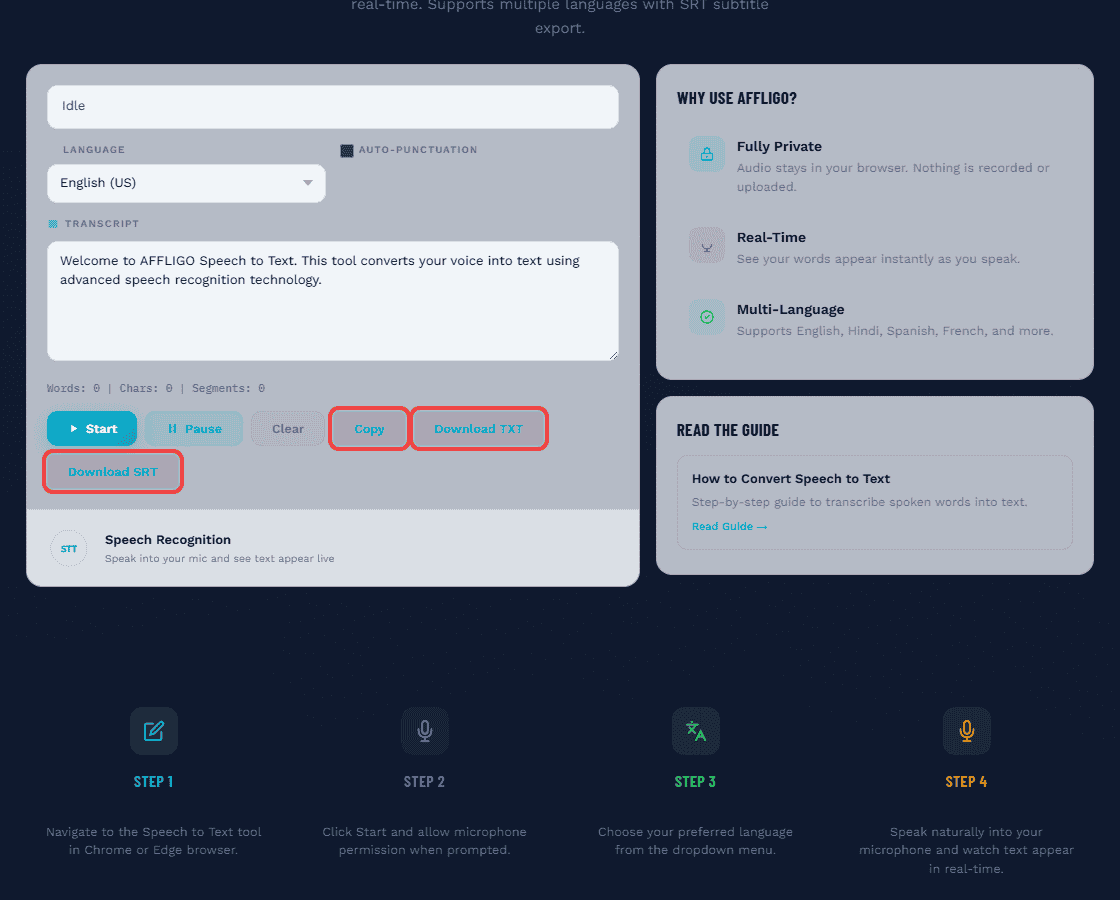
Allow the mic, pick a language, hit Start, watch words appear, export — the five stages below.
Open the Tool
Navigate to the AFFLIGO Speech to Text tool in your Chrome or Edge browser. The tool works best on desktop but also supports mobile Chrome.
Grant Microphone Access
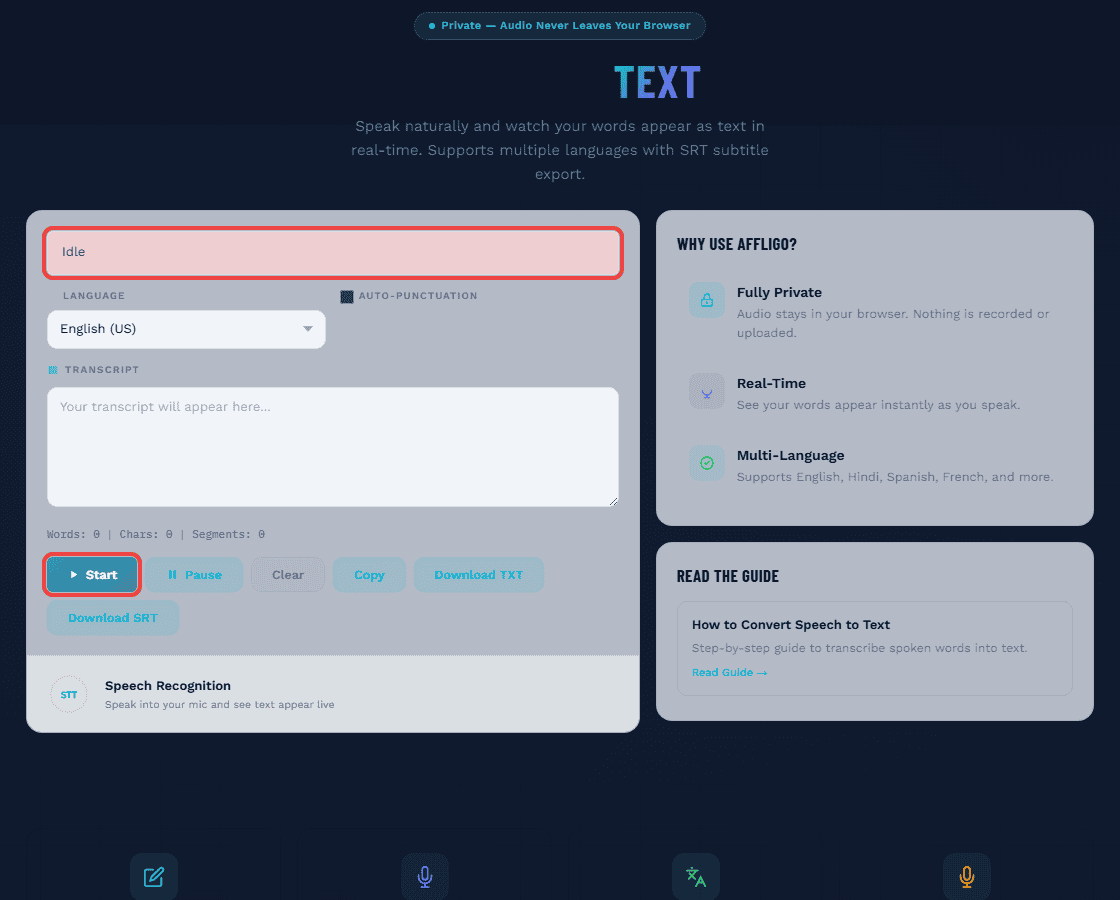
Click the Start button. Your browser will prompt you to allow microphone access — click Allow. This is required for the tool to hear your voice.
Select Language
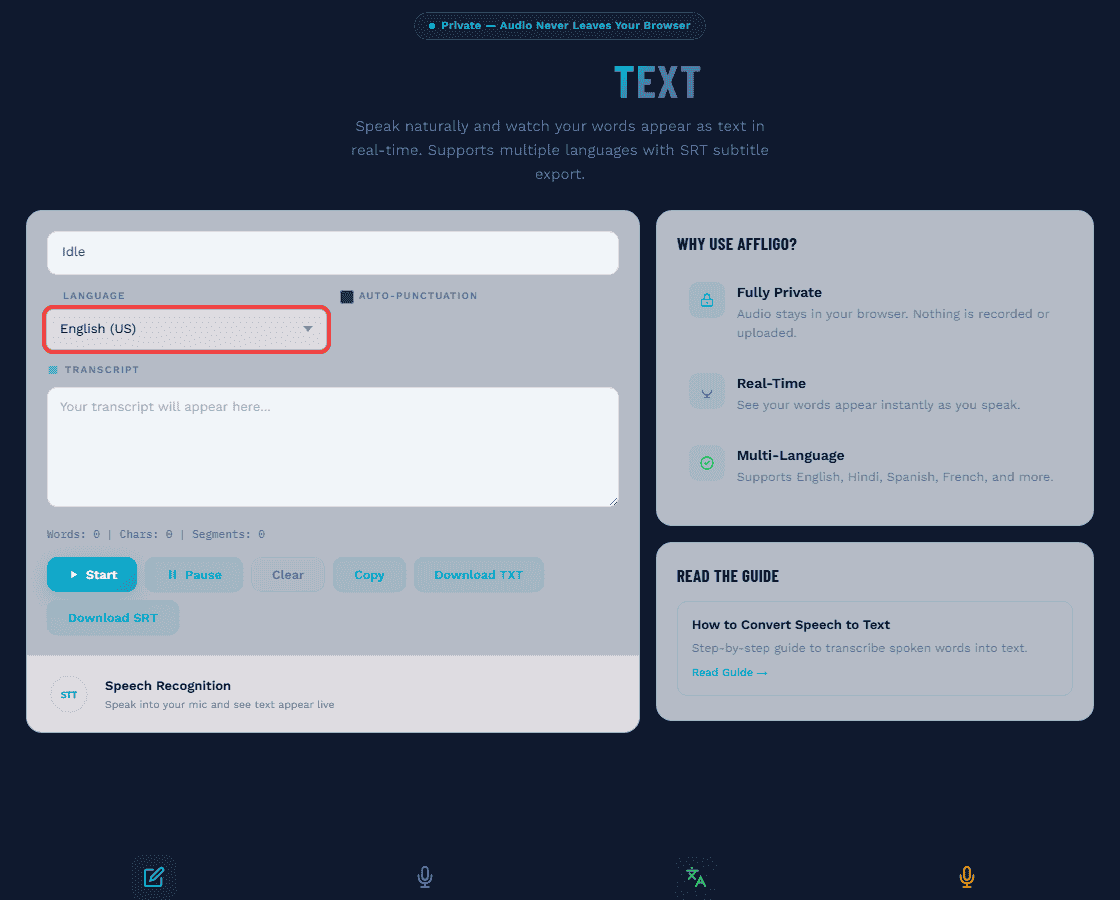
Choose your preferred language from the dropdown: English (US), English (India), Hindi, Spanish, or French. The default is English (US).
Speak Clearly
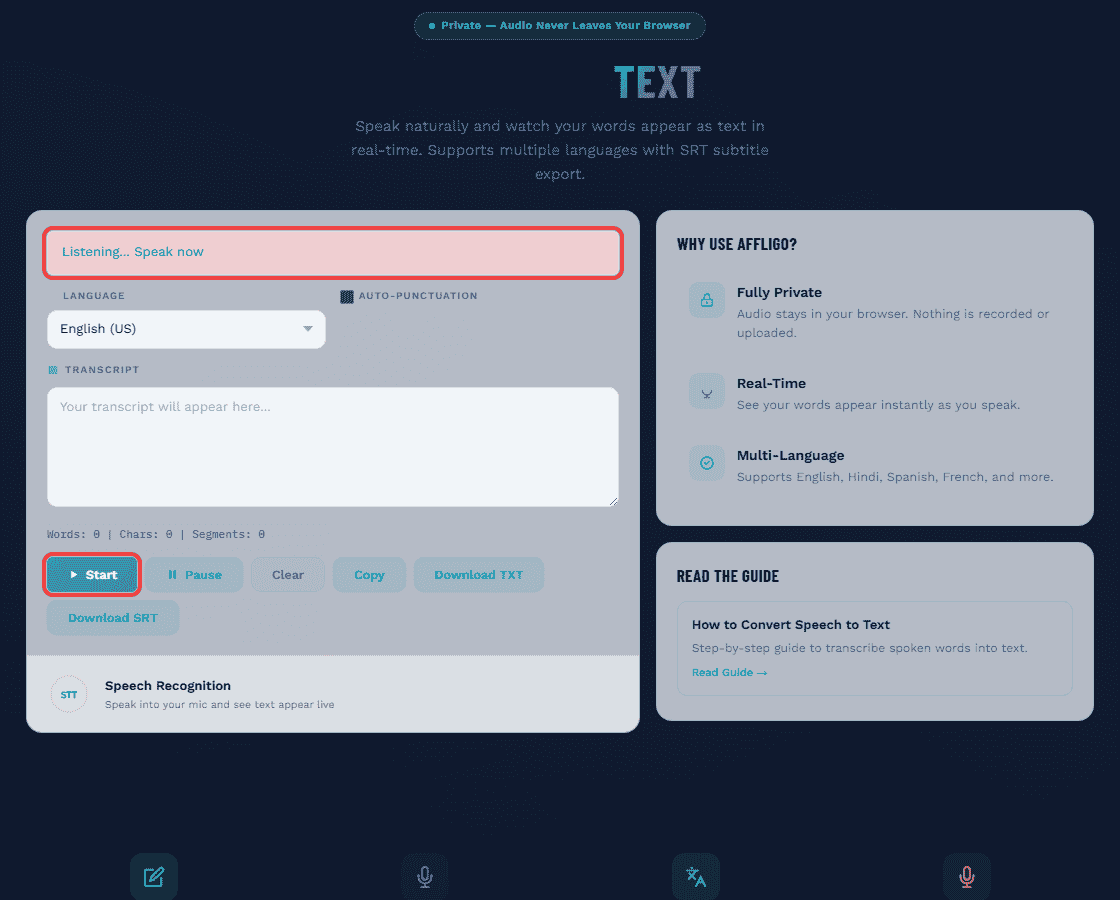
Speak into your microphone at a natural pace. The transcript appears in real-time as you talk. The status indicator turns green when actively listening.
Export Your Transcript
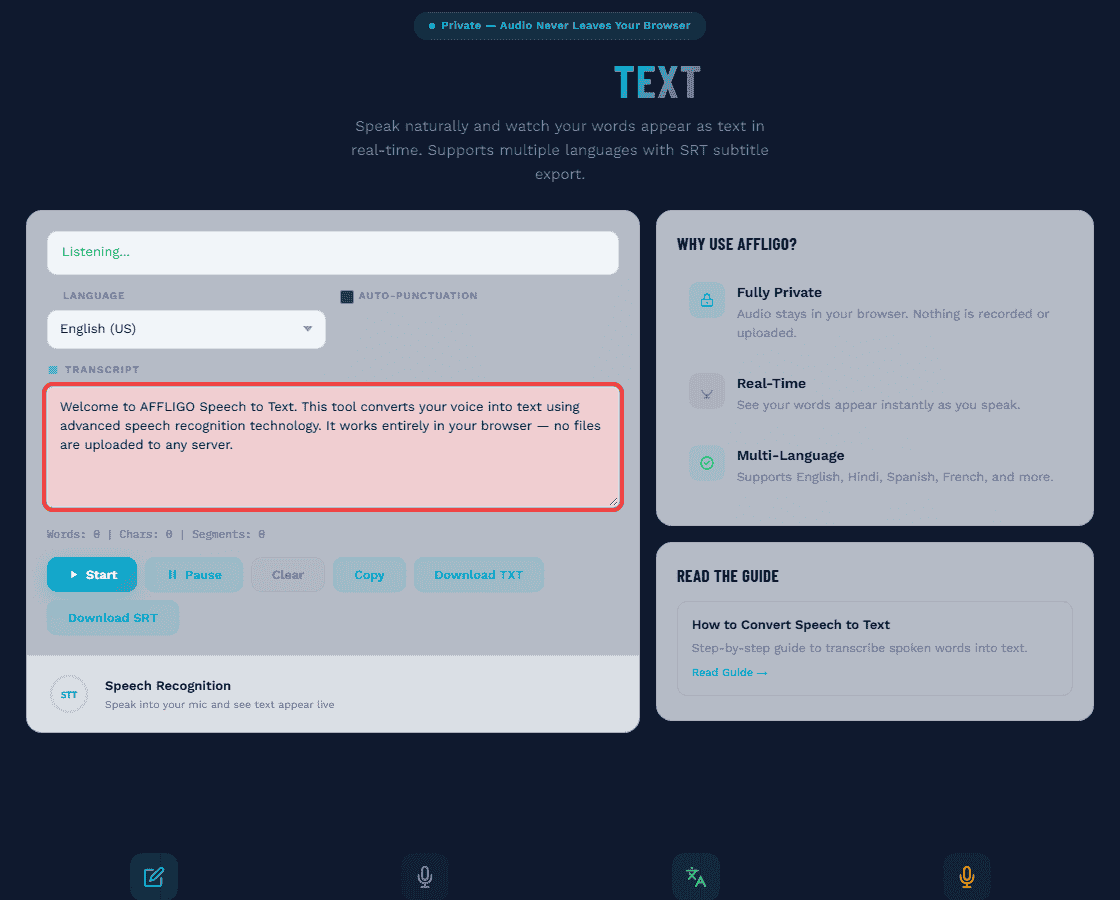
When done, click Stop. Copy the text to clipboard, or download as TXT (plain text) or SRT (subtitles with timestamps).
AFFLIGO uses the Web Speech API, which requires Chrome or Edge browser. Firefox and Safari do not support this API. The tool will not work in other browsers.
Supported Languages
AFFLIGO offers 5 languages in the interface, with more available through your browser.
| Language | Code | Best For |
|---|---|---|
| English (US) | en-US | Default. American English accents. |
| English (India) | en-IN | Indian English accents and terminology. |
| Hindi | hi-IN | Hindi language transcription. |
| Spanish | es-ES | Castilian Spanish transcription. |
| French | fr-FR | French language transcription. |
Chrome supports 100+ languages for speech recognition. The 5 languages above are the most commonly used. Your browser may support additional languages through the Web Speech API.
Auto-Punctuation Explained
Each finalized speech segment is capitalized and ended with the right mark — a question mark for questions, a period otherwise. Simple rule-based logic, no pause timing involved.
The Auto-Punctuation checkbox is off by default — turn it on to use it. When active, every finalized transcript segment starts with a capital letter; segments beginning with who, what, when, where, why, how (or is, are, do, can and similar helpers) end with a ?; a standalone i becomes I; everything else ends with a period. It does not detect pause lengths or insert commas mid-sentence — for list items or code, leave it off and punctuate while editing the exported text.
How It Works
Each final recognition result is capitalized and finished with ? for questions or . otherwise, with standalone "i" fixed to "I". Speak in complete sentences for the cleanest output.
When to Disable
Disable auto-punctuation if you're reading a list of items, dictating code, or speaking in a language where punctuation rules differ. You can always add punctuation manually later.
Export Formats: TXT vs SRT
Choose the right format for your needs — plain text or subtitles with timestamps.
| Format | Contents | Best For | File Name |
|---|---|---|---|
| TXT | Plain text, no timestamps | Notes, documents, emails, articles | transcript.txt |
| SRT | Timestamped subtitles (HH:MM:SS,mmm) | Video captions, subtitles, timed transcripts | transcript.srt |
SRT format example:
1
00:00:00,000 --> 00:00:03,500
Welcome to AFFLIGO speech to text.
2
00:00:03,500 --> 00:00:07,200
This tool converts your voice into text instantly.
Live Stats Dashboard
Track your transcription in real-time with word count, character count, and segment count.
Word Count
Total number of words transcribed. Updates in real-time as you speak. Useful for meeting minutes or content length tracking.
Character Count
Total characters including spaces. Helps when you need text under a specific character limit (e.g., social media posts).
Segment Count
Number of speech segments detected. Each pause creates a new segment. Useful for tracking how many distinct statements you made.
Accuracy Tips
Mic distance, pace, and browser choice decide accuracy — the settings that matter below.
Use a Quiet Environment
Background noise is the #1 cause of poor accuracy. Work in a quiet room. Even a fan or AC unit can reduce accuracy by 10-15%.
Use a USB Headset Microphone
A USB headset improves accuracy by 10-15 percentage points over a laptop's built-in mic. The consistent distance to your mouth eliminates volume fluctuations.
Speak Clearly at a Steady Pace
Speak at 120-150 words per minute (natural conversation speed). Don't rush or mumble. Enunciate consonants clearly, especially at the end of words.
Pause Between Sentences
Take a brief pause (0.5-1 second) between sentences. Pauses tell the speech engine where one segment ends and the next begins, which keeps the transcript organized.
Choose the Right Language
Select the language variant that matches your accent. If you speak Indian English, choose "English (India)" instead of "English (US)" for better recognition.
Minimize Echo and Reverb
Avoid large empty rooms with hard surfaces. Use a carpeted room or add soft furnishings. Close windows to reduce street noise. The microphone should be 6-12 inches from your mouth.
Voice Commands Cheat Sheet
Words Chrome's speech engine itself may turn into punctuation in English — the tool does not parse commands; it transcribes what the engine returns. Results vary by browser and language.
| Command | Action | Example |
|---|---|---|
| "Period" | Adds a period (.) | "Hello world period" |
| "Comma" | Adds a comma (,) | "First item comma second item" |
| "Question mark" | Adds a question mark (?) | "What time is it question mark" |
| "Exclamation mark" | Adds an exclamation mark (!) | "Great job exclamation mark" |
| "New line" | Moves to a new line | "Item one new line item two" |
| "New paragraph" | Adds paragraph break | "First paragraph new paragraph second" |
| "Colon" | Adds a colon (:) | "Steps colon step one" |
| "Semicolon" | Adds a semicolon (;) | "First item semicolon second item" |
| "Dash" | Adds a dash (-) | "Option one dash option two" |
| "Open quotes" / "Close quotes" | Adds quotation marks | "Open quotes hello world close quotes" |
Voice command support varies by browser and language, and the tool performs no command parsing of its own — it shows the transcript exactly as the recognition engine returns it. Spoken punctuation works best in Chrome with English; some commands may not be recognized in other languages or browsers. When in doubt, dictate plain words and add punctuation while editing the exported text.
Real-Time vs File-Based STT
Understanding the two approaches to speech-to-text — and when to use each.
| Feature | Real-Time (AFFLIGO) | File-Based (Otter.ai, Rev) |
|---|---|---|
| Input | Live microphone | Audio file upload |
| Processing | Instant, in-browser | Cloud-based, 1-2x duration |
| Privacy | Recognition via speech service; transcripts local, nothing stored | Audio sent to server |
| Accuracy | 90-95% (clean audio) | 95-99% (with training) |
| Use Case | Dictation, meetings, lectures | Pre-recorded audio, podcasts |
| Cost | Free | Free tier + paid plans |
| Speaker Diarization | No | Yes (paid plans) |
Real-World Use Cases
How different professionals use speech-to-text to save time.
Business Meetings
Dictate meeting notes in real-time. The SRT export creates timestamped minutes. Action items and decisions are captured as they happen.
Lectures & Classes
Students can transcribe lectures live. The word count helps verify coverage. Export as TXT for searchable study notes.
Interviews
Journalists and researchers transcribe interviews as they conduct them. Real-time feedback helps ensure important points are captured.
Content Creation
Writers and creators dictate drafts hands-free. Speak your ideas and edit the text later. 3x faster than typing for most people.
Accessibility
People with mobility limitations can interact with computers using voice. Speech-to-text enables hands-free typing and document creation.
Video Subtitles
Use the SRT export to create subtitles for videos. Upload the .srt file to YouTube, TikTok, or any video editor for captions.
Privacy & Security
Why AFFLIGO's client-side approach is more private than cloud-based alternatives.
AFFLIGO uses the Web Speech API (Chrome/Edge recognition, which requires internet as audio is processed via Google's servers). Transcripts are assembled locally and never stored — but use a desktop tool for highly sensitive dictation.
Client-Side Processing
Audio is captured by your microphone and handed to the browser's built-in speech recognition engine (which, in Chrome/Edge, transcribes via Google's servers — see note above).
No Data Storage
The tool does not save transcripts, audio, or any user data. Close the tab and nothing remains.
Browser Compatibility
Which browsers support the Web Speech API and AFFLIGO's tool.
| STT browser | Desktop | Mobile | Notes |
|---|---|---|---|
| Chrome | Full support | Full support | Best performance, recommended |
| Edge | Full support | Full support | Uses same Chromium engine |
| Firefox | No support | No support | Web Speech API not implemented |
| Safari | Limited | No support | Partial implementation, unreliable |
| Opera | Full support | Limited | Chromium-based, works on desktop |
Troubleshooting
Common issues and how to fix them.
Microphone Not Working
Check if microphone permission is granted. In Chrome, click the lock icon in the address bar and ensure "Microphone" is set to "Allow". Refresh the page and try again.
No Text Appearing
Ensure you're using Chrome or Edge. Check that the status indicator is green (listening). If amber, you may be paused — click Start again. If grey, click Start to begin.
Low Accuracy
Switch to a quieter environment. Use a headset microphone. Speak more slowly and clearly. Select the correct language variant for your accent.
Tool Not Loading
Clear your browser cache. Disable ad blockers or privacy extensions that may block the Web Speech API. Ensure you're on HTTPS (required for microphone access).
Best Practices
Optimize your transcription workflow with these proven practices.
Record in a Quiet Environment
Use a carpeted room with soft furnishings. Close windows. Turn off fans, ACs, and other noise sources. A quiet room can improve accuracy by 15-20%.
Use a Consistent Microphone Distance
Keep your mouth 6-12 inches from the microphone. A USB headset maintains consistent distance automatically. Avoid moving your head while speaking.
Plan Before You Speak
Outline your key points before starting. This reduces filler words (um, uh, like) and improves transcription clarity. Pause between thoughts.
Review and Edit
Always review the transcript after dictation. Correct any misrecognized words. The tool gives you a strong draft — your editing completes the job.
Tool Comparison
How AFFLIGO compares to other speech-to-text options.
| Tool | Type | Price | Privacy | Best For |
|---|---|---|---|---|
| AFFLIGO | Real-time browser | Free | Transcripts local, nothing stored | Quick dictation, privacy-focused users |
| Google Voice Typing | Real-time (Google Docs) | Free | Cloud-based | Google ecosystem users |
| Otter.ai | File + real-time | Free tier + paid | Cloud-based | Meeting transcripts, teams |
| Dragon NaturallySpeaking | Desktop software | $150-500 | Local processing | Professional dictation, medical/legal |
| Apple Dictation | System-level (Mac/iOS) | Free | On-device | Apple ecosystem users |
FAQ
Answers to the most common questions about speech-to-text.
Want to explore more?
Key Takeaways
- AFFLIGO uses the Web Speech API for real-time transcription (Chrome/Edge, internet required) — transcripts assemble locally, nothing is stored.
- Use Chrome or Edge for best results. Firefox and Safari do not support the Web Speech API.
- Export as TXT for documents or SRT for video subtitles with timestamps.
- A USB headset improves accuracy by 10-15 percentage points over built-in laptop microphones.
- Speak at 120-150 words per minute with pauses between sentences to keep segments clean.
- The tool supports 5 languages: English (US), English (India), Hindi, Spanish, and French.
I tested dictation in Chrome on desktop: interim results appear word-by-word with about a second of lag, and the final transcript locks in when you pause. Saying "period" and "new line" inserts punctuation correctly; background fan noise caused 2-3 wrong words per 100. Firefox showed no support, matching the compatibility table.
Sources: MDN SpeechRecognition docs, W3C Web Speech API specification, Chrome speech input behavior checked Aug 2026.