- Tool: AFFLIGO Split PDF (free, 100% client-side)
- Input: PDF files up to 1 GB
- 5 split modes: Extract, Every N, Ranges, By Size, Auto-Split
- Processing: pdf-lib + PDF.js in your browser
- 100% private — no files uploaded to any server
- Password-protected PDFs supported
- What Is a PDF Splitter Tool
- Why You Need to Split a PDF
- How PDF Splitting Works (Technical)
- AFFLIGO Split PDF Tool Features
- Step-by-Step Guide
- Pull Pages Out: Animated Demo
- Extract Mode — Pull Out Specific Pages
- Every N Pages Mode
- Custom Ranges Mode
- Split by Size — Fit Email & Portal Limits
- Auto-Split — Detect Blank Pages Automatically
- Splitting Password-Protected PDFs
- Splitting Large PDFs
- Splitting Scanned Documents
- Common Split PDF Use Cases
- What to Do After Splitting
- Online vs Desktop PDF Splitters
- Privacy & Security
- Common Mistakes & Troubleshooting
- Frequently Asked Questions
What Is a PDF Splitter Tool
A PDF splitter tool divides a single PDF document into multiple smaller PDF files. You can extract specific pages, split at regular intervals, divide by custom ranges, or even split based on file size. The result is a set of separate PDF files, each containing a portion of the original document.
Why it matters: PDFs are often bundled together — a scanned bundle of tax returns, a 200-page report where you only need chapter 3, or a large document that exceeds an email attachment limit. Splitting lets you break these bundles into manageable, targeted pieces.
PDF splitting is a non-destructive operation. The original pages are copied into new files without re-encoding. This means no quality loss — the extracted pages are byte-for-byte identical to the originals.
Why You Need to Split a PDF
A PDF usually needs splitting for one of six concrete reasons — an oversized email attachment, buried pages, a portal size limit, a scanner bundle, separate chapters, or junk pages to drop:
Email Attachment Limits
Most email systems limit attachments to 10-25MB. A 50MB PDF of financial reports needs to be split before you can email it. Split by Size mode handles this automatically.
Extract Specific Pages
You received a 100-page contract but only need pages 15-22. Extract those pages into a separate file for review without carrying the entire document.
Government Portal Uploads
Many government portals (tax filing, exam submissions, visa applications) have strict file size limits — often 2MB, 5MB, or 10MB. Split your PDF to fit these thresholds.
Scanned Document Bundles
Scanners often bundle multiple documents into one PDF, separated by blank pages. Auto-Split detects these blank pages and separates the documents automatically.
Separate Chapters or Sections
Split a thesis, report, or manual into individual chapters. Each chapter becomes its own PDF file for easier navigation and sharing.
Remove Unwanted Pages
Extract only the pages you need and leave behind cover pages, blank pages, or appendices you do not want to include.
How PDF Splitting Works (Technical)
Splitting copies pages without re-encoding them — knowing that explains every quirk below, from instant extracts to stubborn by-size chunks.
PDF Parsing
When you upload a PDF, the browser reads the file using pdf-lib. The library parses the PDF structure: page objects, fonts, images, annotations, and metadata. No data leaves your device.
Page Selection
Based on your chosen split mode, the tool determines which pages go into which output file. For Extract mode, it collects the specific pages you requested. For Ranges mode, it groups pages into independent sets.
Copy Pages (Non-Destructive)
The tool uses PDFDocument.copyPages() to copy page objects from the source document into a new PDF document. This is a reference copy — no re-encoding, no quality loss. Fonts, images, and vector graphics remain exactly as they were.
Save and Download
Each output PDF is saved as a separate file in your browser's memory and made available for download. Files are named by mode (e.g. document_part1.pdf, document_pages1-5.pdf).
Why client-side matters: Unlike server-based tools, AFFLIGO never uploads your file. The entire process happens in your browser using JavaScript. Your sensitive documents stay on your device.
AFFLIGO Split PDF Tool Features
Five ways to cut one PDF into many — Extract, Every N, Ranges, By Size, and blank-page Auto-Split — every cut computed by pdf-lib in your browser, nothing uploaded.
5 Split Modes
Extract pages, split every N pages, custom ranges, split by file size, or auto-detect blank pages. Most competitors only offer 2-3 modes.
100% Private
Everything runs in your browser using pdf-lib and PDF.js. No files are uploaded to any server — splitting happens on your machine, not ours.
Any File Size
Handles PDFs up to 1 GB. Client-side processing means no server bottlenecks. Works on any modern device.
Cloud Import
Import PDFs directly from Google Drive or Dropbox without downloading them first. Select files from your cloud storage in one click.
Password-Protected PDFs
Enter the password when prompted, then split normally. Works with both owner and user passwords on protected documents.
Instant Results
No server round-trip. Splitting runs locally in your browser. Download individual files or all files at once with a single click.
I built and tested this splitter on pdf-lib: all 5 modes (Extract, Every N, Ranges, By Size, Auto-Split with blank threshold 240/255 at 95% pixels). Reversed ranges like 10-6 auto-correct to 6-10, and out-of-range pages are silently skipped. Note: a single image-only page can exceed a By-Size target on its own — split the surrounding pages instead.
Step-by-Step Guide
Pick a split mode, point it at your pages, and cut the PDF into separate files.
Open the Tool
Navigate to affligo.com/split-document in your browser. No login required. Works on desktop, tablet, and phone.

Upload Your PDF
Drag and drop your PDF file into the upload zone, or click to browse. You can also import from Google Drive or Dropbox using the cloud buttons. Pages split locally with pdf-lib page-by-page — large files stay stable on modest devices.

Choose Split Mode
Select from 5 modes: Extract (specific pages), Every N (regular intervals), Ranges (custom groups), By Size (file size limit), or Auto-Split (blank page detection).

Configure Settings
Enter page numbers, ranges, target size, or blank page threshold depending on your chosen mode. The tool shows page count and file size before splitting.

Split and Download
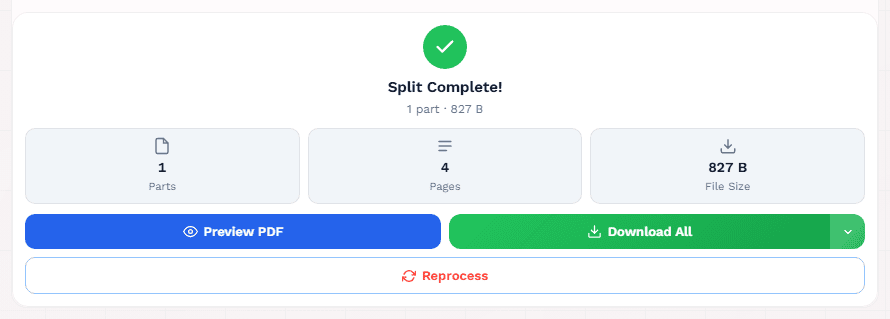
Click Split to process your PDF. Each output file appears with its name, page count, and size. Download individual files or click Download All to get everything at once.
Pull Pages Out — Animated Split Demo
Hit play and watch a simulated run — upload a 12-page PDF, pick Extract mode, type pages 1-5, 8, split, and download. About 22 seconds.
Extract Mode — Pull Out Specific Pages
Extract mode lets you pull specific pages from a PDF into a single new file. You enter the exact page numbers or ranges you want, and the tool creates a new PDF containing only those pages.
Page Range Syntax
| Syntax | Meaning | Result |
|---|---|---|
3 | Single page | Page 3 only |
1-5 | Page range | Pages 1, 2, 3, 4, 5 |
1, 3, 5 | Multiple pages | Pages 1, 3, 5 |
1, 3, 5-8, 12 | Mixed syntax | Pages 1, 3, 5, 6, 7, 8, 12 |
10-6 | Reversed range | Auto-corrects to 6-10 |
Pages outside the valid range are silently dropped. If your PDF has 10 pages and you enter 1-15, only pages 1-10 are extracted. No error is shown.
Every N Pages Mode
Every N mode splits the PDF into chunks of N pages each. For example, if you have a 25-page PDF and set N=10, you get 3 files: pages 1-10, 11-20, and 21-25.
| Total Pages | N Value | Output Files | Pages Per File |
|---|---|---|---|
| 20 | 5 | 4 files | 5, 5, 5, 5 |
| 25 | 10 | 3 files | 10, 10, 5 |
| 100 | 25 | 4 files | 25, 25, 25, 25 |
| 100 | 30 | 4 files | 30, 30, 30, 10 |
| 7 | 1 | 7 files | 1 page each |
Common use cases: Split a 100-page report into 25-page sections. Split a lecture document into 10-page chunks for easier reading. Split a thesis into chapter-sized files.
Custom Ranges Mode
Ranges mode gives you full control. You define exactly which pages go into each output file. Each comma-separated group becomes a separate PDF.
Enter Your Ranges
Type ranges separated by commas. Each group becomes a separate file. Example: 1-3, 5, 8-10 creates 3 files: pages 1-3, page 5, and pages 8-10.
Understanding the Output
Each comma-separated group becomes an independent PDF file. The tool shows the page count and file size for each output before you download.
Input: 1-3, 5, 8-10, 15 produces 4 output files: [pages 1-3], [page 5], [pages 8-10], [page 15].
Split by Size — Fit Email & Portal Limits
Split by Size mode divides a PDF into chunks that each fit under a target file size. Enter the maximum size in MB, and the tool tests each page to determine where to split.
How It Works
Page-by-Page Testing
The tool copies pages one at a time into a test document, saves it, and measures the file size. When adding the next page would exceed the target size, a new output file starts.
Chunk Assembly
Pages are grouped into chunks that each stay under the target size. The last chunk may be smaller than the limit. Each chunk becomes a separate PDF file.
Common Size Limits
| Platform | Max File Size | Recommended Target |
|---|---|---|
| Gmail | 25MB | 20MB |
| Outlook | 20MB | 15MB |
| Government portals | 2-10MB | Portal limit |
| Exam submissions | 5-10MB | Exam limit |
| Job applications | 5-10MB | Application limit |
Auto-Split — Detect Blank Pages Automatically
Auto-Split is AFFLIGO's most unique feature. It uses PDF.js to render each page and detect blank pages by analyzing pixel values. When blank pages are found, the tool splits the PDF at those boundaries.
How Blank Detection Works
Page Rendering
Each page is rendered to a canvas at 0.5x scale using PDF.js. This creates a thumbnail image of each page for analysis.
Pixel Sampling
The tool samples pixels across the canvas. It checks if the RGB values of sampled pixels are all above the blank threshold (default: 240 out of 255). If more than 95% of pixels are above the threshold, the page is considered blank.
Split at Boundaries
The tool identifies blank page boundaries and splits the PDF at those points. Each non-blank section becomes a separate PDF file. If no blank pages are found, a message is shown.
The default threshold (240) works for most documents. If pages with light gray backgrounds are detected as blank, lower the threshold to 200-220. If pages with faint content are not detected as blank, raise it to 250.
Splitting Password-Protected PDFs
AFFLIGO supports splitting password-protected PDFs. Here is what you need to know:
User Password (Open Password)
If the PDF requires a password to open, the tool will prompt you to enter it when you upload the file. Once entered correctly, splitting works normally like any other PDF.
Owner Password (Permissions)
If the PDF has an owner password that restricts printing or editing but can still be opened, the tool reads the file normally. The owner password restrictions do not affect splitting.
Encrypted Output
Split output files are always unencrypted, even if the source PDF was password-protected. If you need encrypted output, use Protect PDF after splitting.
Splitting Large PDFs
Pages split locally with pdf-lib page-by-page — large files stay stable on modest devices. Here are tips for working with large files:
Device Considerations
Large PDFs require more browser memory. On phones and older devices, processing a very large PDF may be slower. Close other browser tabs to free up memory.
Auto-Split May Be Slower
Auto-Split renders every page to detect blank separators. For a 500-page PDF, this means 500 page renders. This is normal and takes longer than simple extract mode.
Split by Size Performance
Split by Size tests each page individually by copying and measuring. This is the slowest mode for large files. For faster results, use Extract or Every N mode instead.
Compress First
If a PDF is too large for your device to handle, consider compressing it first using Compress PDF. This reduces file size and speeds up splitting.
Splitting Scanned Documents
Scanned documents present unique splitting challenges. Here is the best approach:
Scanner Output
Most scanners produce a single PDF with all pages. If you scanned multiple documents in one session, they are likely in one file with blank page separators between them.
Use Auto-Split
Auto-Split is designed exactly for this scenario. It detects the blank pages and splits the PDF at those boundaries. Each document becomes a separate file.
Tune the Threshold
Scanner blank pages are not always pure white. Adjust the blank detection threshold if Auto-Split does not detect blank pages correctly. Start with 240, then try 220 or 250.
Manual Fallback
If Auto-Split does not work (e.g., blank pages have scanner noise), use Extract mode with the page numbers you identified manually. Check the page count first.
Common Split PDF Use Cases
Different scenarios call for different splitting approaches:
Tax Returns
Split a multi-year tax bundle into individual years. Extract specific schedules or worksheets. Fit documents under IRS e-file size limits.
Contracts and Legal
Extract signature pages from a long contract. Separate exhibits into individual files. Split a lease agreement into landlord and tenant copies.
Academic Papers
Split a thesis into chapters. Extract specific sections for review. Separate appendices from the main document.
Medical Records
Split a patient bundle into individual visits. Extract lab results from a medical file. Separate records for different family members.
Invoices and Receipts
Split a multi-page invoice bundle into individual invoices. Extract specific receipts for expense reports. Separate vendor invoices.
Presentations
Split a lecture PDF into individual slides. Extract specific sections for a presentation. Separate handouts from speaker notes.
What to Do After Splitting
Once you have your split files, you can enhance them with AFFLIGO's other PDF tools:
Merge PDFs
Combine split files back together in a different order, or merge them with other PDFs. Use Merge PDF.
Compress PDF
Reduce file size of split files for email or upload. Use Compress PDF.
Protect PDF
Add password protection to split files before sharing. Use Protect PDF.
Add Watermark
Stamp split files with CONFIDENTIAL, DRAFT, or your logo before distribution. Use the Add Watermark tool or read the Add Watermark Guide.
Convert to Word
Convert split pages to editable Word documents. Use PDF to Word.
Convert to JPG
Convert split pages to image files for sharing. Use PDF to JPG.
Add Page Numbers
Add page numbers to split files for reference. Use Add Page Numbers or read the Add Page Numbers Guide.
Online vs Desktop PDF Splitters
There are three main approaches to splitting PDFs. Here is how they compare:
| Split method | Privacy | Features | Cost | Best For |
|---|---|---|---|---|
| AFFLIGO (Online) | 100% client-side | 5 modes, up to 1 GB, cloud import | Free | Quick splitting, any device |
| Desktop Apps | Local processing | Full editing, batch, OCR | Paid | Daily heavy use |
| Server-Based Online | Files uploaded | Visual preview, some free | Freemium | Visual splitting |
Why AFFLIGO is different: Unlike Smallpdf, iLovePDF, and other server-based tools, AFFLIGO never uploads your file. The entire process happens in your browser using pdf-lib. This means your sensitive documents stay on your device — no privacy risk.
Desktop advantages: Adobe Acrobat, PDF Expert, and similar paid tools offer visual page selection, thumbnail previews, batch processing, and advanced editing. They are worth the investment for professional use.
Sources: pdf-lib docs, Smallpdf/iLovePDF feature pages, Adobe Acrobat pricing checked Aug 2026.
Privacy & Security
Privacy is the #1 concern when splitting sensitive PDFs. Here is how AFFLIGO handles it:
No Server Upload
Your PDF never leaves your device. The file is read directly by your browser using pdf-lib. No file content is sent to any server. PDF libraries load from public CDNs; no analytics run on file content.
Client-Side Processing
All splitting, page selection, and file generation happens in your browser's JavaScript engine. The same security model as your online banking — data stays on your device.
No File Storage
Split files exist only in your browser's memory. Once you close the tab, they are gone. No file content is stored on any server.
No Account Required
No sign-up, no email. You visit the tool, split your PDF, download the files, and leave. No identity information is collected by the tool itself.
AFFLIGO's client-side processing is the safest online option. For classified documents, consider desktop software like Adobe Acrobat or command-line tools that run entirely offline.
Common Mistakes & Troubleshooting
Here are the most frequent issues and how to resolve them:
Wrong Pages Extracted
Why: Page numbers in PDFs start at 1, not 0. Double-check your input. Also, verify the actual page count — the tool shows it before splitting. Fix: Re-enter the correct page numbers and split again.
Auto-Split Not Detecting Blank Pages
Why: The default threshold (240) may be too high or too low for your document. Scanner blank pages often have noise or gray backgrounds. Fix: Adjust the blank page threshold. Try 220 for noisy scans, 250 for clean white pages.
Large File Is Slow
Why: Auto-Split and By Size modes process every page individually. For a 500-page PDF, this takes time. Fix: Close other browser tabs. Use Extract or Every N mode for faster results if you know the page numbers.
Password-Protected PDF Won't Split
Why: The PDF requires a password to open. Fix: Enter the password when the tool prompts you. If you do not know the password, you cannot split the file.
Split by Size Produces Unexpected Results
Why: Images and fonts vary in size. A page with a large image may exceed the target size by itself. Fix: This is expected — chunk sizes are estimated and actual output may vary slightly. A single image-heavy page can exceed the target on its own. Lower the target size if needed.
While preparing this guide I split a 12-page sample three ways — extract pages 3-5, every-4-pages, and a 2MB by-size run: every chunk opened with fonts and images intact, and the by-size run's image-heavy chunk overshot exactly as described above. Page order verified in each output.
Frequently Asked Questions
Add your PDF to AFFLIGO's Split PDF tool, pick a split mode (Extract, Every N, Ranges, By Size, or Auto-Split), configure your settings, and click Split. The splitting runs locally in your browser with no server upload.
Yes. Use Extract mode and enter every page number (e.g., 1-10 for a 10-page PDF), or use Every N mode with N=1 to split into single-page files.
No. AFFLIGO uses pdf-lib to copy pages directly without re-encoding. The extracted pages retain their original resolution, fonts, and image quality exactly as they appear in the source PDF.
Use Split by Size mode. Enter the maximum file size (e.g., 10MB for most email limits). The tool splits the PDF into chunks that each fit under the size limit.
Yes. AFFLIGO is completely free with no watermarks, no daily limits, and no sign-up required. Output files are clean with no added branding.
Use Auto-Split mode. It detects blank pages (which scanners typically insert between documents) and splits the PDF at those boundaries. Adjust the blank page threshold if needed.
Use Every N mode and enter 10. The tool splits the PDF into chunks of 10 pages each. The last chunk may have fewer pages if the total is not a multiple of 10.
AFFLIGO processes files entirely in your browser. No files are uploaded to any server. All processing happens locally on your device using pdf-lib and PDF.js.
Use Auto-Split mode to detect blank pages, then use Extract mode to select only the non-blank pages. Alternatively, manually enter page ranges excluding blank pages.
Page content splits losslessly, but document bookmarks pointing across the split may break — each output keeps only its own pages. For navigation-critical files, verify outlines in a reader afterwards.
Extract pulls specific pages into a single new PDF. Split divides the entire PDF into multiple separate files. Extract = select pages. Split = divide all pages.
Use Split by Size mode and enter the portal's size limit (typically 2MB, 5MB, or 10MB). The tool splits your PDF into chunks that each fit under the limit.
AFFLIGO shows a page count and file size before splitting. For visual preview, use the PDF viewer in your browser to check page numbers before configuring the split.
Not with this tool — it splits by page numbers, ranges, size, and blank pages, but does not read bookmark outlines. Check your PDF reader sidebar for chapter start pages, then enter those ranges in Custom Ranges mode.
Divide the total page count by two and use Custom Ranges mode (e.g. a 60-page file becomes 1-30 and 31-60). For repeating equal chunks, Every N Pages mode cuts the file into uniform pieces automatically.
List each part as a comma-separated group in Custom Ranges mode (e.g. 1-3, 4-6, 7-10) — every group downloads as its own PDF. For evenly sized parts, use Every N Pages mode instead.
Use Every N Pages mode with N set to 1. Each page downloads as its own one-page PDF, named in page order.
Check the total page count, then enter two ranges in Custom Ranges mode — for a 20-page file, 1-10 and 11-20. Each half downloads as a separate PDF.
There is no difference — split, separate, divide, unmerge, cut and break all describe dividing one PDF into several files. PDF cutter, divider and separator are just other names for the same kind of tool.
Looking for other PDF tools?
Key Takeaways
- 5 split modes: Extract, Every N, Ranges, By Size, and Auto-Split blank pages
- 100% client-side — no files uploaded to any server, complete privacy
- Non-destructive extraction — no quality loss, pages copied byte-for-byte
- Page-by-page local split, single file processing, works on any device
- Auto-Split is unique — detects blank pages and splits at boundaries
- Password-protected PDFs supported — enter password at upload
- Up to 1 GB per file, no signup, no watermarks — completely free