- A PDF workflow chains operations — merge, then compress, then watermark, then protect — into one saved, replayable sequence
- Order changes the result: the golden rule is merge first, protect last, because locked PDFs cannot be merged
- Upload once, press Run once — no downloading and re-uploading between tools
- Save any chain as a template and replay it on next week's files with the same settings
- Always test the chain on one representative file before running the full batch
- Keep originals untouched and verify counts: files in against files out, pages in against pages out
- Everything runs in your browser with pdf-lib and pdf.js — files never leave your device
- Share links and exports carry settings only — never your PDFs or passwords
What Is a PDF Workflow
Think in pipelines, not tasks: one document journey from raw files to finished deliverable.
A PDF workflow is a saved sequence of PDF operations that runs end to end. Instead of opening a merge tool, downloading the result, opening a compress tool, uploading again, downloading again — you declare the whole chain once: Merge → Compress → Watermark → Page Numbers → Protect. Upload your files a single time, press Run, and each step feeds the next automatically.
This pipeline mindset is how professionals handle documents at any serious volume. Invoice pipelines run extract → validate → file on a schedule; print shops run inspect → bleed → impose as a fixed recipe; automation platforms like Stirling PDF's Automate let teams save operation sequences and replay them. The principle is identical everywhere: define the transformation stages once, then feed documents through them instead of improvising the same clicks every time.
Ordered Steps
Every workflow is an ordered list. Step 2 receives Step 1's output — not your original uploads. Reordering steps changes the result, which is exactly why order rules exist (see section 07).
Per-Step Settings
Each step carries its own configuration: merge mode, compression level, watermark text and position, password rules. Settings travel with the workflow when you save or share it.
One Run, Many Files
Drop in four invoices or forty. The chain applies to every file, and steps like Merge combine them exactly where you placed that step in the order.
Saved & Replayable
A saved workflow remembers steps and settings — never your PDFs. Next week you open it, drop in fresh files, and press Run. The setup cost is paid exactly once.
Why Workflows Beat Single Tools
Three wins that compound every week you repeat the job.
Consistency
The same opacity, the same footer position, the same password policy — every run, every file. Manual repetition drifts; a saved chain does not. Batch guides call this out as the core win: defined pipelines produce auditable, repeatable results where improvised clicking produces surprises.
Speed
One upload and one download replace five round-trips through five tools. For a weekly invoice pack — merge, number, stamp, protect — that is the difference between two minutes and twenty.
Reuse Across the Team
A share link carries the recipe, not the files. A colleague replays your exact chain on their own documents. No screenshots of settings, no "which opacity did you use" messages.
Fewer Transfer Errors
Every manual download–upload hop is a chance to grab the wrong file or an intermediate version. A chained run eliminates the hops, so the wrong-file mistake has nowhere to hide.
Validation Before Damage
A good workflow builder checks the chain before anything runs: missing passwords, empty page ranges, a merge step starved of files, a locked file headed for a merge. Studio blocks the run with a plain-language message instead of failing halfway.
Audit Trail Thinking
Count files in against files out; count pages in against pages out. A workflow makes this check natural because inputs and outputs are explicit — the same verification discipline professional batch operators use on every run.
How AFFLIGO Studio Works
Upload files, stack tool steps in order, press Run. The chain does the carrying.
AFFLIGO Studio is a free PDF workflow builder that runs entirely in your browser. Fourteen tools — Merge, Split, Organize, Rotate, Delete Pages, Extract Pages, Compress, Crop, Watermark, Page Numbers, Protect, Unlock, Sign and OCR — snap together as steps. Click a tool to add it, drag cards to reorder, configure each step, and run the whole chain with one button.
Upload your PDFs
Drop files into the sidebar or import from Drive and Dropbox. Duplicates are rejected automatically, and each file keeps its page count beside its name so you always know what entered the chain.
Stack tool steps in order
Click tools in the order they should run — or drag cards to rearrange later. Each tool can appear once per workflow, which keeps chains readable: one Merge, one Protect, one Watermark.
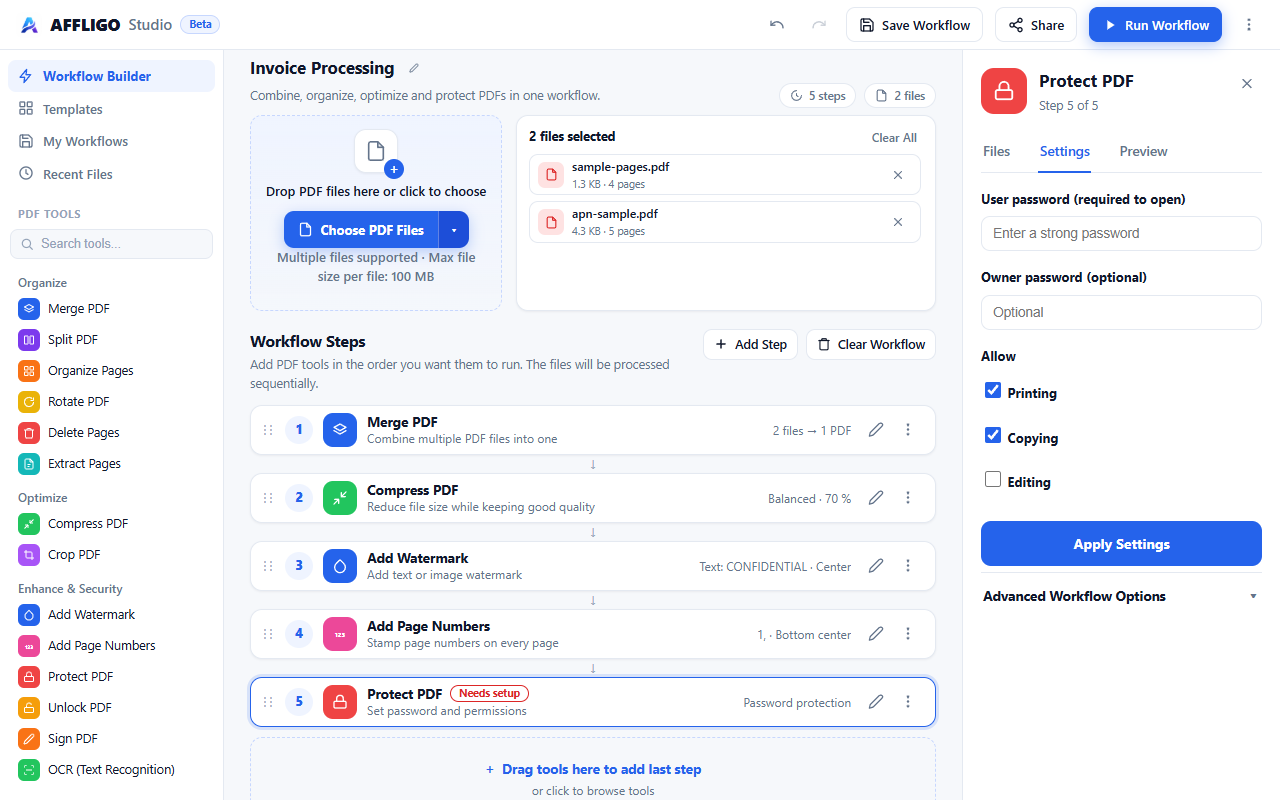
Configure each step
Open a step's Settings tab: merge mode, compression level, watermark text with live preview, page-number format, password rules. A summary line on every card shows its configuration at a glance.
Press Run and download
Studio validates the chain first — missing passwords, empty ranges, starved merges — then executes step by step with live progress. One output file downloads directly; several arrive as a single ZIP.
I ran this exact five-step chain headless — Merge 2 files, Watermark, Page Numbers, Protect — and verified real output bytes: 4 input pages became 1 merged, stamped, numbered, protected PDF. Studio's engine links steps automatically: each step receives the previous step's output unless you explicitly point it at specific uploaded files.
Build Your First Workflow (With Screenshots)
The classic: four invoices in, one protected, numbered, stamped PDF out.
Upload the four PDFs
Drag all four invoices into Studio at once. They appear in the file list with sizes — this is your intake. Glance at it: four files in means your outputs must account for four files' worth of pages.
Add Merge first
Click Merge PDF. It lands as Step 1. Leave its input on Automatic so it takes all four uploads and produces one combined document. Merging first is not a preference — it is a requirement, explained in section 07.
Add Page Numbers, then Watermark
Add both steps and set formats: numbers as "Page 1 of N" bottom-center, watermark as DRAFT at 40% opacity. Check each in its Preview tab — both render a live dummy-page preview of your exact settings before anything runs.
Add Protect last, then Run
Protect always goes at the end: set the user password and permissions, then press Run Workflow. You receive one PDF — merged, numbered, stamped, locked. If anything is misconfigured, the dialog tells you in plain words before processing starts.
The Visual Editor: Pages Under Your Fingers
Six page-level tools share one editor that opens ready for the job you picked.
Organize, Rotate, Delete Pages, Extract Pages, Crop and the PDF Editor all open the same visual editor — deliberately. Reordering, rotating, deleting, extracting and cropping are the same seven page operations everywhere, and one well-tested editor beats six slightly different ones. What changes per tool is the focus it opens with: Crop arms the crop rectangle immediately, Rotate glows its rotate buttons, Delete highlights its delete button, Extract reminds you that only selected pages survive.
Pick a file from the left panel
The editor lists every uploaded file on the left. Click one to edit it — single-file editing, one at a time. Each file keeps its own independent edit state, so switching files never loses work. Other chain steps (merge, protect) never affect what you see here; the chain order applies when you Run.
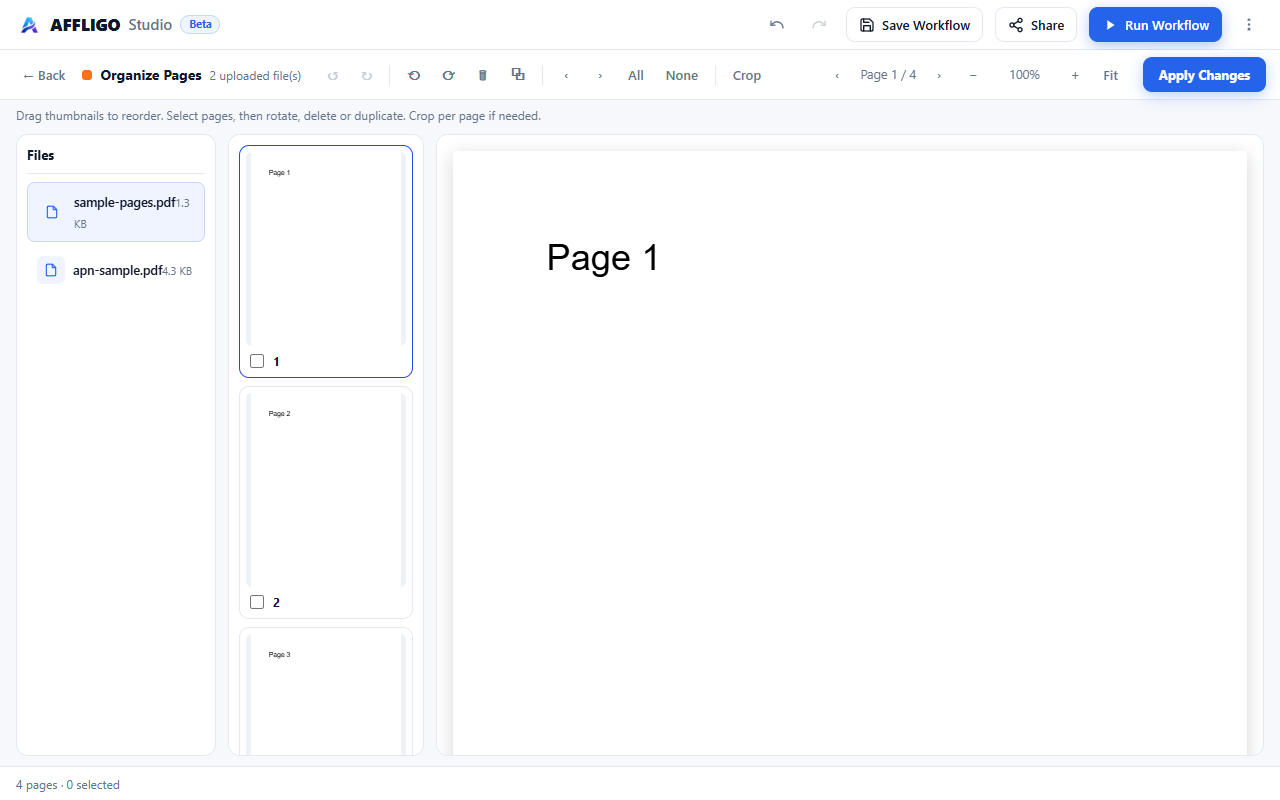
Rearrange, rotate, delete, crop
Drag thumbnails to reorder, Ctrl/Cmd-click to multi-select, rotate or delete in bulk. Crop mode fits the whole page on screen with zero scrolling, so the rectangle is drawn in one view. Undo and redo cover every operation.
Apply back to the step
Apply Changes saves the edits into the workflow step as compact per-file data — not flattened PDFs. At Run time the engine applies each file's own edits to that file, matched by page count, and anything that no longer matches passes through untouched with a note.
Live Previews Before You Run
See the stamp before it is permanent.
Watermarks and page numbers are overlays — once burned in, repositioning them means re-running. So both steps carry a Preview tab that renders a dummy page with your current settings: the exact font, size, color, opacity, rotation, position and tiling for watermarks; the exact format (including Roman numerals), start number and placement for page numbers. Change a setting, revisit the tab, and the render updates.
Open the Preview tab
Select the Watermark or Page Numbers step, then click Preview. A one-page sample document renders with your overlay drawn using the same math as the processing engine — what you see is what the output carries.
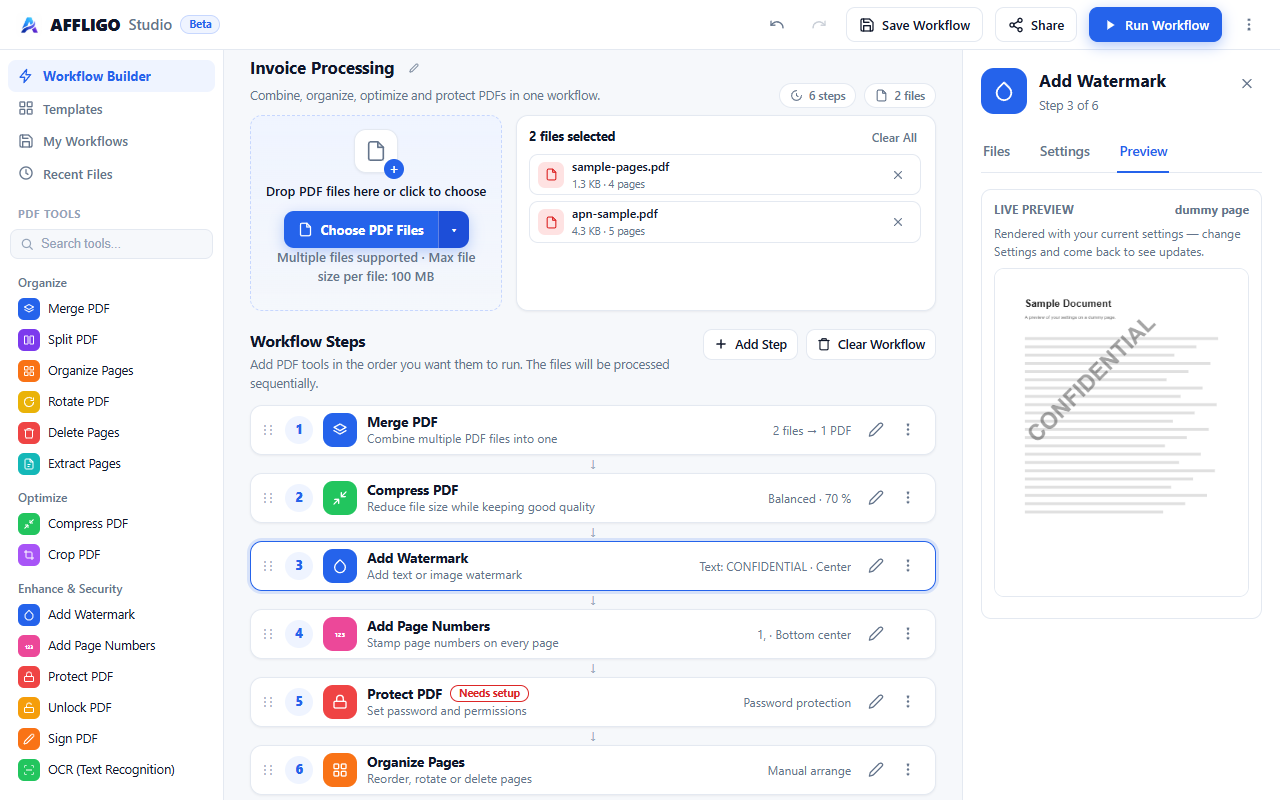
Rendering your real 200-page file just to check a footer would be slow and wasteful. The dummy page answers the only question that matters pre-run — does this stamp look right? — in under a second.
Order Matters: The Golden Rules
Steps are physical operations — sequence changes physics.
Professional batch guides stress the same lesson print shops learned decades ago: write the operation order in physical terms, because resizing before stamping is a different act than stamping before resizing. Three rules cover nearly every Studio chain:
Merge first, protect last
Password-locked PDFs cannot be merged — locked pages cannot be read out without the key. So combining always precedes locking. Studio enforces this: a merge step placed after Protect is blocked before the run with a plain-language error.
Compress once, at the right end
Compressing twice stacks artifacts on the same images. Merge first, then compress the merged result once — unless files are so large the merge itself struggles, in which case shrink the heavy inputs first.
Stamp the finished pages
Watermarks, page numbers and crops belong after structural steps (merge, split, organize) so numbering matches the final page order and crops are not reshuffled away.
Automatic means previous output
Leave each step's input on Automatic and it receives the previous step's output — the chain links itself. Touch the Files tab only when a step must deliberately skip the chain and work on raw uploads.
Four files + Merge + Protect producing a ZIP of four separately locked files — with no merge — means the merge never fed the protect step: either Merge was disabled, or Protect's Files tab was ticked (explicit-uploads mode), so both steps ran independently on the raw uploads. Keep both Automatic and Merge enabled, and you get one protected merged PDF.
Batch Smarts From People Who Do This Daily
Batches break in predictable places. Plan for all of them before starting.
Test one file first
The single most repeated advice in batch-processing guides: run the chain on one representative file and inspect it properly. A wrong watermark position on one file is a shrug; across ninety files it is an afternoon of rework discovered by someone else.
Zero-pad your filenames
Text sorts character by character, so file10 lands before file2. Name scans 001, 002 … 010 and every tool — merge order today, your archive tomorrow — agrees on the sequence. It is the only ordering fix that travels with the files.
Verify counts both ways
Files in against files out; pages in against pages out. A mismatch is the fastest signal that something failed partway. Spot-check the first, the last and the largest output — failures cluster at the edges and on whichever file stressed the process hardest.
Work on copies, keep originals
Batch operations are fast and thorough, which is exactly what makes a wrong setting expensive. Studio never mutates uploads, but keep your own source folder intact anyway so any bad run is a retry, not a loss.
Respect memory limits
Browser processing holds documents in RAM — that is what keeps files off other people's servers, and it bounds capacity by the machine. Count pages and image weight, not files: fifty short text PDFs can be lighter than one scanned report. Split giant sets into smaller groups.
Name outputs so future-you understands
Studio suffixes outputs (-merged, -watermarked, -protected) so each file's history is visible months later. Never overwrite inputs with outputs — it makes a partial batch impossible to resume.
Real-World Workflow Recipes
Copy these chains step for step — all ship as one-click templates.
| Recipe | Chain | Why this order |
|---|---|---|
| Invoice pack | Merge → Page Numbers → Watermark → Protect | Combine first, number the final order, stamp, then lock the finished document. |
| Scan cleanup | Organize → Compress → Page Numbers | Fix page order visually, shrink the heavy scans once, then number the final sequence. |
| Contract draft | Compress → Watermark (DRAFT) → Page Numbers | Lighten the file, stamp every page as draft, number for review references. |
| Assignment submission | Merge → Page Numbers → Compress | Combine pages, number them, then squeeze under the portal's upload limit. |
| Report splitter | Split (ranges) → Watermark per part | Divide first so each part gets its own correct stamp and name. |
Every recipe above ships inside Studio as a ready template — open AFFLIGO Studio, pick Templates, and the whole chain (steps plus settings) loads in one click. Rename it for the client and it becomes your house standard.
Templates, Save & Share Without Leaking Files
The recipe travels. The documents stay home.
Nine starter templates
Invoice Processing, Contract Cleanup, Assignment PDF, PDF Cleanup and five more cover the most common chains. Each loads steps with sane default settings — you only add files.
Save = settings snapshot
Saving stores step order plus every setting in your browser. Files are referenced by name only; their bytes are never persisted, so reopening a saved workflow asks you to re-add PDFs — a privacy feature, not a limitation.
Share links carry zero PDFs
Copy Link encodes the configuration into the URL hash. Teammates opening it get your exact chain on their machine and supply their own files. Passwords are stripped before anything is shared or exported.
.affligo export files
Export downloads the workflow as a portable JSON file. Version it, email it, archive it next to the job folder. Import validates schema, rejects duplicates and unknown tools before touching your canvas.
Troubleshooting: When the Chain Complains
Every message below is one I verified by reproducing it.
"Needs at least 2 files to merge"
The merge step sees fewer than two inputs. Either upload another PDF, or — if later steps feed it — check the previous step actually outputs files. Merge into One Page mode needs only one.
"Move Protect to the END (merge first, protect last)"
Your merge step would receive locked PDFs. Drag Protect below Merge (or re-add in that order) and run again. Locked files cannot be combined, full stop.
"Has no file data — remove it and add it again"
The workflow was restored from a saved session, and file bytes do not survive reloads. Re-add the named PDF and everything works. This is the price of never uploading your files anywhere.
ZIP output instead of one PDF
A ZIP means the final step produced several files — usually a Protect step running per-file on raw uploads because Merge was disabled or bypassed via explicit file selection. Check that every step is enabled and inputs are Automatic.
Extract step demands page selection
Extract Pages outputs only selected pages, so running with nothing selected is blocked up front. Open the visual editor, Ctrl/Cmd-click the pages, Apply, then Run.
Privacy: Files That Can't Leak
The strongest privacy claim is architectural, not rhetorical.
"We don't store your files" is a trust claim. "Your files never leave your browser" is a verifiable fact — and it is how the current generation of privacy-first PDF tools (built on the same open libraries) earns that trust. AFFLIGO Studio works the same way:
pdf-lib manipulates
Merging, splitting, rotating, watermarking, numbering, encrypting — pure JavaScript on the PDF binary, right in your tab. The same library powers a wave of open-source in-browser PDF tools.
pdf.js renders
Mozilla's renderer draws thumbnails, the page viewer and the live previews onto local canvases. Previews never touch a network.
Memory, not servers
Files live in your tab's RAM from upload to download. Close the tab and everything is gone — no account, no history on any server, nothing to delete, nothing to breach.
Share-safe by construction
Workflows, templates, share links and exports contain configuration only. A teammate can replay your entire chain without ever seeing your source PDFs.
Browser vs Desktop vs Scripts
Honest boundaries: use each where it wins.
| Browser workflow (Studio) | Desktop app | Script / CLI | |
|---|---|---|---|
| Best for | One-off and weekly multi-step jobs with visual checks | Unattended watched folders, huge archives | Recurring identical jobs, thousands of files |
| Setup | None — open and go | Install + configure | Write + maintain code |
| Limits | Device RAM; hundreds of pages fine | Disk space | Your engineering time |
| Privacy | Files never leave the device | Local (if offline tool) | Wherever you run it |
| Repetition | Replay saved template manually | Scheduled, automatic | Cron, fully automatic |
The dividing line the batch guides draw is recurrence: a one-off batch of eighty scans is a browser job; the same operation every Monday morning eventually deserves a script. Studio sits in the middle — saved templates make repetition nearly free while keeping every run visible and verifiable.
I regression-tested Studio end to end in a real headless browser — 39 checks covering builder, files, all six visual editors, live previews, engine adapters, templates, sharing and the run dialog — all passing with zero page errors. Claims in this guide about Studio behavior (validation messages, per-file edits, sticky run dialog, fit-to-page crop) were verified against the running app, not the source code.
Frequently Asked Questions
Answers to the most common questions about PDF workflows.
Want to explore more?
Key Takeaways
- A PDF workflow chains operations into one saved, replayable sequence — upload once, run once
- Order is physics: merge first, protect last; stamp finished pages; compress once
- Test the chain on one file, then verify counts: files in vs out, pages in vs out
- Save chains as templates; share links carry settings only, never PDFs or passwords
- Everything runs in your browser — privacy by architecture, not by promise
- AFFLIGO Studio is free: 14 tools, visual page editor, live previews, zero signup