- Tool: AFFLIGO PDF to Word (free, 100% in-browser)
- Input: PDF up to 20MB per file
- Output: DOCX (Word 2007+)
- Single-file: one PDF at a time for reliable conversion
- Scanned PDFs: run through the OCR tool first
- Privacy: parsed and rebuilt on your own machine
- What Is PDF to Word Conversion
- Why Convert PDF to Word
- How Conversion Works (Technical)
- Native PDF vs Scanned PDF
- AFFLIGO Tool Features
- Step-by-Step Guide
- Output Format: DOCX
- What Gets Preserved
- What Does NOT Transfer
- Scanned PDFs and OCR Explained
- Handling Tables and Complex Layouts
- Converting One File at a Time
- After Converting: Editing Your Document
- Use Cases: Resumes, Contracts, Reports
- PDF to Word on Mac, Windows, and Phone
- Online vs Desktop vs Built-In Converters
- Security and Privacy
- Common Problems and Fixes
- Frequently Asked Questions
What Is PDF to Word Conversion
PDF to Word conversion is the process of transforming a Portable Document Format (PDF) file into a Microsoft Word document (.docx or .doc). The goal is to take a fixed-layout, read-only document and turn it into an editable, flow-based format you can modify, rewrite, reformat, or update.
Why it matters: PDFs are designed to look the same on every device. That fixed-layout nature makes them perfect for sharing but terrible for editing. When you receive a contract, resume, or report in PDF and need to change the text, adjust formatting, or reuse the content, you need a Word document.
PDF uses absolute positioning (every element sits at fixed X,Y coordinates on the page). Word uses flow-based layout (text flows from one line to the next, wrapping naturally). This fundamental difference is why conversion can never be 100% perfect.
Why Convert PDF to Word
There are several practical reasons why someone would need to convert a PDF to a Word document:
Editing Content
The number one reason. A client sends you a PDF proposal and asks for minor text changes. Without conversion, you are stuck retyping the entire document.
Reformatting
PDF styling is fixed. Word lets you change fonts, margins, spacing, columns, and layout. Perfect for rebranding documents or adapting content for a different audience.
Extracting Content
Copy-pasting from PDF often breaks formatting, loses images, or produces garbled text. Converting to Word preserves structure and lets you extract clean content.
Collaboration
Word supports track changes, comments, and real-time co-authoring. Convert a PDF to Word so your team can collaborate using familiar tools.
Form Filling
PDF forms can be restrictive. Converting to Word gives you full editing power, including filling in fields, adding new sections, or restructuring the form entirely.
Template Reuse
Received a PDF template you like? Convert it to Word and use it as a starting point for new documents with consistent formatting.
How PDF to Word Conversion Works (Technical)
PDFs store positioned glyphs, not paragraphs — here is how the engine reverse-engineers your document into Word, and where it can stumble:
PDF Parsing
The converter reads the PDF file structure. It identifies text objects (with font, size, color, position), images (embedded or referenced), vector graphics, and page dimensions. For native PDFs, text is stored as selectable characters. For scanned PDFs, each page is a single image.
Layout Analysis
The engine groups text into paragraphs, identifies columns, detects tables by looking for grid-aligned text objects, and maps the spatial relationships between elements. This is the hardest part because PDF does not store logical structure (it does not know what is a "paragraph" vs a "list item").
Scanned PDFs Need OCR First
If the PDF contains images rather than selectable text, this tool cannot convert it directly. Run it through the OCR PDF tool first to add a text layer, then convert the result here. Clean scans at 300 DPI or higher produce the most accurate results.
Document Generation
The extracted content is assembled into a Word document. Text goes into paragraphs with appropriate styles. Images are inserted as embedded objects. Table structures are recreated using Word table elements. The result is a .docx file ready for editing.
100% client-side: AFFLIGO converts entirely in your browser using pdf.js text extraction plus table detection. Nothing is uploaded — the heavy lifting happens on your own device, so there are no queues, no daily limits, and complete privacy.
Native PDF vs Scanned PDF
The type of PDF you have is the single biggest factor in conversion quality. Here is what differentiates them:
| Characteristic | Native PDF | Scanned PDF |
|---|---|---|
| Text type | Real, selectable characters | Image of text (no selectable characters) |
| File size | Smaller (text stored as code) | Larger (each page is a full-resolution image) |
| Searchable | Yes | No (without OCR) |
| Copy-paste | Works (with formatting issues) | Not possible (it is an image) |
| Conversion quality | Excellent to Good | Depends on OCR accuracy |
| How to identify | Select text with your mouse cursor | Selecting highlights the entire page as an image |
Tip: If you can select individual words with your mouse in a PDF reader, it is a native PDF. If selecting highlights the entire page as one block, it is scanned.
AFFLIGO PDF to Word Tool Features
AFFLIGO's PDF to Word tool pairs a pdf.js reader with table detection to rebuild paragraphs, tables, and images as native DOCX — page ranges included, uploads not. No software installation required. Works in any modern browser on any device.
DOCX Output
Modern Word format (Word 2007+) with the best compatibility and smallest file size. Fully editable text, tables, and images.
Page Selection
Convert the whole PDF or pick specific pages with ranges like 1-3, 5. Ideal for long documents where you only need a section.
Single-File Focus
One PDF at a time for reliable conversion. Maximum file size is 20MB per file. Pick another file right after with Convert Another.
Cloud Import
Import PDFs directly from Google Drive or Dropbox without downloading them first. Select files from your cloud storage and convert in one step.
Font Preservation
Original fonts, sizes, bold/italic styling, and text alignment carry over into the Word document instead of falling back to defaults.
Privacy First
No upload, no server, no storage — pdf.js reads the PDF and the DOCX is rebuilt in your tab. Convert unlimited files with no daily limits.
Step-by-Step: How to Convert PDF to Word
Upload the PDF, pick your pages, and rebuild it as DOCX — five clicks to an editable file.
Open the Tool
Navigate to affligo.com/pdf-to-doc in your browser. No login required. Works on desktop, tablet, and phone.
Upload Your PDF
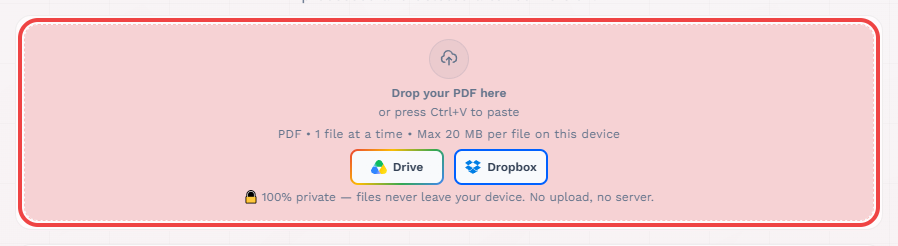
Drag and drop your PDF file into the upload zone, or click to browse your files. You can also import directly from Google Drive or Dropbox using the cloud buttons. Maximum: 20MB. One file is converted at a time — picking another PDF replaces the current one.
Pick Pages (Optional)
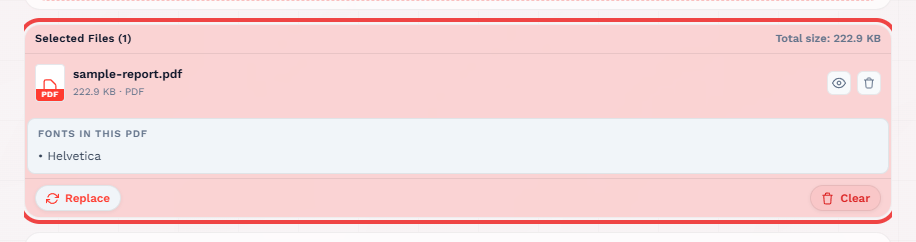
Leave the Pages field blank to convert the whole PDF, or type a range like 1-3, 5 to convert only selected pages. The tool validates the range against the real page count. As shown in Step 2 above, the file list states the real page count — match your range against it before hitting Convert.

Convert
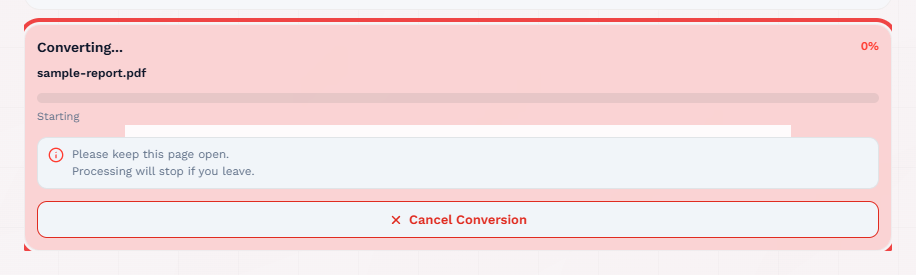
Click the Convert button. The PDF converts right in your browser with a live per-page progress indicator — no upload, no waiting room.
Download Your Word Document
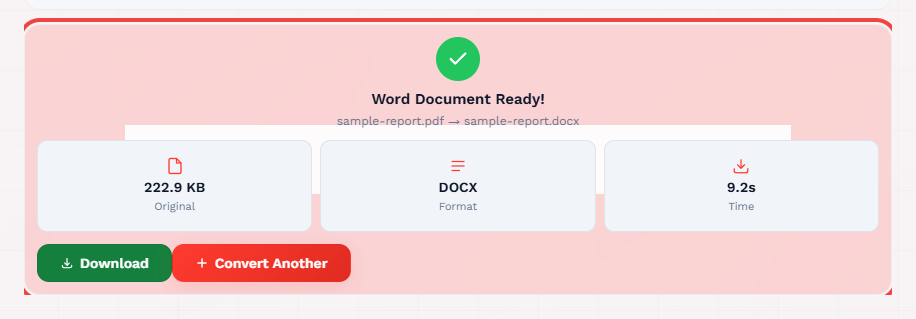
When conversion completes, click Download to save your editable Word file — same name as the original PDF with a .docx extension. Open it in Microsoft Word, Google Docs, or LibreOffice Writer.
Output Format: DOCX
The tool outputs DOCX — the modern Word standard: smallest files, best formatting support, and compatible with Microsoft Word 2007+, Google Docs, and LibreOffice Writer. DOCX is fully editable: text, tables, images, fonts, and alignment carry over from the PDF.
Need legacy DOC or ODT? Open the DOCX in Word or LibreOffice and use Save As — one click, no quality loss.
What Gets Preserved During Conversion
When you convert a PDF to Word, the following elements are generally preserved:
Text Content
All selectable text is extracted and placed into Word paragraphs. Font size, color, and basic formatting (bold, italic, underline) are preserved.
Images and Graphics
Embedded images are extracted and inserted into the Word document. Resolution is preserved. Images may shift position slightly depending on layout complexity.
Basic Layout
Page breaks, paragraphs, and simple column layouts are preserved. The document structure follows the logical reading order of the PDF.
Fonts (Common)
Standard fonts (Arial, Times New Roman, Calibri, Helvetica) are preserved. If the PDF uses a font not installed on your system, Word will substitute a similar font.
Tables
Simple tables with clear borders and grid structure are converted to Word table elements. Data is preserved even if column widths adjust slightly.
Headers and Footers
Page headers and footers are preserved and placed in the correct sections of the Word document.
What Does NOT Transfer to Word
Being honest about limitations saves you frustration. These elements are problematic or lost during conversion:
Complex Table Formatting
Tables with merged cells, nested tables, or cell shading often break during conversion. Borders may disappear or shift. Cell contents are preserved, but layout may need manual fixing.
Multi-Column Text
PDF magazine-style or newspaper-style multi-column layouts convert to sequential text. You will need to manually recreate column layouts in Word using section formatting.
Precise Positioning
Elements placed at exact coordinates (like watermarks, stamps, or layered design) will shift. Word uses flow-based layout, not absolute positioning.
Interactive Elements
PDF forms, hyperlinks, JavaScript, embedded multimedia, and annotations are not carried over. These are PDF-specific features with no Word equivalent.
Specialty Fonts
If the PDF uses a font not installed on your system, Word substitutes a different font. This can change the appearance significantly. Install the original font before opening the Word file to fix this.
Page Size and Margins
PDF page size is preserved, but Word defaults to its own margin settings. You may need to adjust margins to match the original PDF appearance.
Perfect conversion is not possible. PDF uses fixed layout; Word uses flow-based layout. Expect to spend 5-15 minutes reviewing and adjusting formatting after conversion, especially for complex documents. Simple text-heavy PDFs convert nearly perfectly.
Scanned PDFs and OCR Explained
This is where many users get stuck. If your PDF is a scan of a paper document, it is not a "real" PDF — it is a collection of images, one per page. There is no selectable text inside. Standard conversion cannot extract text from images.
This tool needs selectable text. If you upload a scanned PDF, conversion stops with a clear message. Run the scan through the OCR PDF tool first to add a text layer, then convert the result here.
How to Get the Best OCR Results
Scan at 300 DPI or Higher
Low-resolution scans (72-150 DPI) produce blurry text that OCR struggles to recognize. 300 DPI is the minimum for reliable OCR. 600 DPI is ideal for maximum accuracy.
Keep Pages Straight
Skewed or rotated scans confuse the OCR engine. Use a document scanner that auto-deskews, or straighten pages before converting.
Use Clean Copies
Highlighted text, coffee stains, wrinkled pages, or handwritten notes reduce OCR accuracy. Use the cleanest scan you have available.
Choose the Right Language
If your PDF contains text in a language other than English, make sure the OCR engine is set to recognize that language. The OCR PDF tool supports 38+ languages.
What to expect: OCR accuracy on clean, 300 DPI scans is typically 95-99%. Accuracy drops to 80-90% on low-quality scans, handwritten text, or unusual fonts. Always review the converted document for errors.
Handling Tables and Complex Layouts
Tables are the most problematic element in PDF-to-Word conversion. Here is what typically happens and how to fix it:
| Table Type | Conversion Result | Fix |
|---|---|---|
| Simple grid (no merges) | Converts well | Adjust column widths |
| Merged cells | Merges lost or misaligned | Manually recreate merges |
| Tables within tables | Flattened to single-level table | Rebuild nested structure |
| Tables with borders removed | May not be detected as tables | Insert table manually, paste content |
| Color-filled cells | Shading lost | Reapply cell shading in Word |
Tips for Complex Layouts
Convert First, Fix Later
Do not try to "fix" the PDF before converting. Convert as-is, then fix formatting in Word where you have full editing tools.
Use Word's Layout Tools
After conversion, use Word's table tools to fix merges, borders, and cell shading. Use Page Layout to adjust margins and columns.
For Multi-Column Layouts
Insert section breaks and set columns manually in Word. The converter will place all text sequentially — you need to re-flow it into columns yourself.
Converting One File at a Time
AFFLIGO converts one PDF at a time, entirely in your browser. No queues, no daily limits — convert as many files as you like, one after another. Here is how it works:
Upload a Single PDF
Select or drag one PDF into the upload zone, or import it from Google Drive or Dropbox using the cloud buttons.
Convert and Download
Click Convert, wait for the progress indicator to finish, then download your Word file. Use the Convert Another button to process the next file.
Replacing the File
Picking another PDF before converting replaces the current one. To convert several documents, finish one first, then add the next — there are no daily limits.
Maximum 20MB per file, one file at a time. Files exceeding the size limit are rejected with a notification.
After Converting: Editing Your Document
Once you have your Word file, here is what to do next:
Open in Your Word Processor
Double-click the downloaded file to open it in Microsoft Word. Alternatively, upload to Google Docs or open in LibreOffice Writer. All three support .docx files.
Review Formatting
Scroll through the entire document. Check that text is correct, images are in place, and tables look right. Pay special attention to headers, footers, and page breaks.
Fix Any Formatting Issues
Adjust fonts, margins, spacing, or table widths as needed. Use Word's Find & Replace (Ctrl+H) to correct OCR errors. Run spell check to catch recognition mistakes.
Install Missing Fonts
If text looks different from the original PDF, you may be missing the original fonts. Install the same fonts used in the PDF to restore the original appearance.
Use Cases: Resumes, Contracts, Reports
Different document types have different conversion needs. Here are the most common scenarios:
Resumes and CVs
Convert a PDF resume to Word so you can update it for a new job application. Preserve your formatting while changing content. Most recruiters prefer editable formats for their tracking systems.
Contracts and Legal Documents
Convert a contract PDF to Word to make minor edits, add clauses, or reformat for a new client. Always keep a copy of the original signed PDF as the legal record.
Reports and Proposals
Convert PDF reports to Word for team editing. Use track changes to collaborate, then export back to PDF for final distribution.
Academic Papers
Convert research papers or journal articles to Word for citation, annotation, or incorporation into your own writing. OCR handles scanned journal pages.
Books and Manuals
Convert chapters or sections of PDF books to Word for translation, annotation, or adaptation. Handle large documents in smaller batches.
Forms and Applications
Convert PDF forms to Word for easier filling. Word's form fields and text boxes give you more control than PDF form fillers.
PDF to Word on Mac, Windows, and Phone
AFFLIGO's PDF to Word tool works on any device with a modern web browser. Here is what to expect on each platform:
Windows
Works in Chrome, Firefox, Edge, or Opera. Downloaded .docx files open directly in Microsoft Word. Drag-and-drop upload works in all modern browsers.
Mac
Works in Safari, Chrome, or Firefox. Downloaded files open in Microsoft Word for Mac or Pages. Google Docs also works for viewing and editing.
iPhone / iPad
Works in Safari. Use the Files app to access downloaded .docx files. Open in Microsoft Word, Google Docs, or Pages. Tap-to-upload works in mobile browsers.
Android
Works in Chrome. Downloaded files appear in your Downloads folder. Open with Microsoft Word, Google Docs, or WPS Office. File picker works for upload.
Chromebook
Works in Chrome. Files can be opened directly in Google Docs. Or download and open with an installed Linux word processor like LibreOffice Writer.
Linux
Works in any modern browser. Downloaded .docx files can be opened with LibreOffice Writer. No software installation required.
Online vs Desktop vs Built-In Converters
There are three main approaches to converting PDFs to Word. Here is how they compare:
| Method | Cost | Quality | Privacy | Best For |
|---|---|---|---|---|
| Online tools (AFFLIGO) | Free | Good to Excellent | In-browser, nothing uploaded | Quick conversions, any device |
| Desktop software | Paid ($100-300/yr) | Excellent | Local processing, no upload | High-security, daily use |
| Built-in (Word) | Requires Word license | Good | Local processing | Microsoft Word users |
Desktop advantages: Adobe Acrobat Pro, Abbyy FineReader, and similar paid tools offer superior layout preservation, batch processing, and dictionary-based OCR correction. They are worth the investment if you convert PDFs professionally.
Online advantages: No installation, works on any device, always up-to-date, free for occasional use. AFFLIGO converts entirely in your browser, so there are no queues and no daily limits.
Security and Privacy
When converting sensitive documents, you need to know how your files are handled:
Nothing Uploaded
Your PDF is read and converted entirely in your browser. No file ever travels to a server, so there is nothing to intercept or store.
No Storage, No Database
AFFLIGO does not maintain a database of your files. The converted document exists only as a download in your browser.
No Accounts, No Tracking
No login, no upload history, no conversion log tied to you. Open the tool, convert, download, done.
Safe on Shared Computers
Since nothing leaves the device, converting on a library or office computer leaves no copy behind. Close the tab and nothing remains.
If your document contains classified information, trade secrets, or legally privileged content, this tool is ideal — in-browser conversion eliminates the upload risk entirely.
Common Problems and Fixes
Here are the most frequent issues users encounter and how to resolve them:
Garbled Text or Wrong Characters
Caused by: OCR errors on scanned PDFs, or unusual fonts. Fix: Run spell check in Word. If the PDF uses a special font, install it before opening. For heavy OCR errors, try a different scanning tool to create a cleaner PDF.
Images Missing or Misplaced
Caused by: Complex image positioning or transparent overlays. Fix: Right-click the image in Word and check "Behind Text" vs "In Line With Text" wrapping. Adjust image positions manually.
Tables Look Broken
Caused by: Merged cells, nested tables, or invisible borders. Fix: Select the table in Word, use Table Tools to fix borders and alignment. For severely broken tables, delete and recreate the table structure manually.
Conversion Failed / Timed Out
Caused by: File too large, a corrupted PDF, or a browser hiccup. Fix: Try a smaller file, compress the PDF first, reload the page and try again.
Font Changes After Conversion
Caused by: Original font not installed on your system. Fix: Identify the font used in the PDF (check PDF properties), download and install it, then reopen the Word document. Word will automatically use the installed font.
While preparing this guide I converted a 4-page report with a header table and footer page numbers: body text, the table and images transferred intact, but the footer numbering re-anchored to the new pagination and needed a 30-second skim in Word. That check is now step one of my post-conversion routine.
Frequently Asked Questions
Drag your PDF into AFFLIGO's PDF to Word tool and click Convert. The conversion happens entirely in your browser and your editable Word document downloads instantly.
Use well-structured PDFs for best results. Native PDFs (created from Word) convert better than scanned documents. Review and adjust formatting after conversion for tables, multi-column layouts, and custom fonts.
No — this tool needs selectable text. Run scanned PDFs through the OCR PDF tool first to add a text layer, then convert the result here. Clean scans at 300 DPI or higher produce the best results.
DOCX is the modern XML-based format used by Word 2007 and later. DOC is the legacy binary format used by Word 97-2003. DOCX files are smaller, more reliable, and support more features. Always choose DOCX unless you need compatibility with very old software.
AFFLIGO converts one PDF at a time, entirely in your browser. Maximum file size is 20MB per file. To convert another file, pick it after the first finishes — or use Convert Another.
Yes. Embedded images are extracted and placed in the Word document. Image resolution is preserved. Images may shift position slightly depending on the PDF layout complexity.
The print-flow engine rebuilds the document for the printer — flowing headers, footers and page numbers re-anchor to the new pagination. Body text, tables and images transfer intact; always skim headers and footers in Word before sending.
PDF uses fixed layout while Word uses flow-based layout. Elements like tables, multi-column text, and precise positioning may shift. This is a fundamental limitation of the conversion process, not a tool issue.
No. AFFLIGO is a browser-based tool that requires no software installation. Adobe Acrobat is not needed. It works on any device with a modern web browser.
A clear error message is displayed with options to Try Again or start over. For large files, try converting fewer pages at a time using the Pages field.
Yes. If your PDF has an open password, enter it when prompted during upload and conversion proceeds after unlocking. Owner-restricted files convert normally. If you own a locked file, remove the password with the Unlock PDF tool first.
Yes. The converter runs entirely in your browser, so it works in Safari on iPhone and Chrome on Android with nothing to install. Upload your PDF, convert, then open the DOCX in Microsoft Word, Google Docs, Pages, or WPS Office.
Leave the Pages field blank to convert the whole PDF, or type a range like 1-3, 5 to convert only selected pages. Check the file list for the real page count and match your range against it before converting.
Tables with merged cells, nested tables, or invisible borders often lose structure because a PDF stores positioned text, not real tables. Cell contents are preserved, so select the table in Word and use Table Tools to fix borders, merges, and column widths.
Looking for other PDF conversion tools?
Key Takeaways
- Native PDFs (created from Word) convert much better than scanned PDFs
- Output is DOCX — open it anywhere, or Save As for legacy formats
- Scanned PDFs need OCR first — use the OCR PDF tool, then convert here
- Tables with merged cells may need manual fixing after conversion
- 20MB per file, one file at a time, 100% in-browser. No daily limits.
- Use the Pages field (e.g. 1-3, 5) for long documents
- Skim headers, footers, and tables in Word after converting — the print-flow engine re-anchors them to new pagination