- Merging PDFs combines pages from multiple files into one document without quality loss
- Add as many files as you need - they merge sequentially with per-file memory cleanup
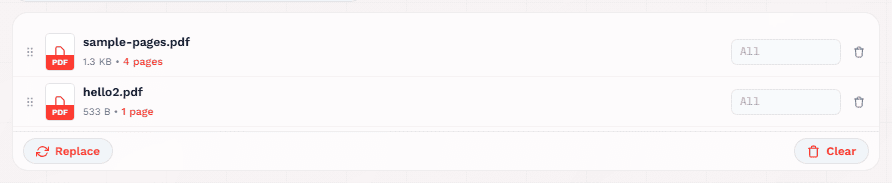
- Drag to reorder — file order determines page order in the merged PDF
- Two merge modes: Combine Files (multi-page) and Merge into One Page (single continuous page)
- All processing runs in your browser using pdf-lib — zero files uploaded to any server
- Enter page ranges to merge only specific pages from each file
- Merging does NOT reduce quality or change formatting
- After merging: add bookmarks, compress if large, protect if sensitive
What Is PDF Merging
Understanding the process of combining multiple PDFs into one document.
PDF merging is the process of combining pages from two or more PDF files into a single document. The merged PDF contains all pages from the source files in the order you specify. It is one of the most common PDF operations — used by professionals, students, and anyone who works with documents.
Merging is non-destructive — pages are copied exactly as they are. No re-rendering occurs, no compression is applied, and no quality is lost. The text, images, fonts, and formatting in each page remain identical to the original.
Page Concatenation
At its core, merging is page concatenation. The tool reads each source PDF, extracts its pages, and appends them to the output. Page 1 of file A becomes page 1, then page 1 of file B becomes the next page.
Zero Quality Loss
The original page content — text, images, vectors, fonts — remains untouched. Merging simply copies pages from one file to another without any modification.
Universal Compatibility
Merged PDFs work in every PDF reader — Adobe Acrobat, Chrome, Preview, Edge, Foxit. The output is a standard PDF file with no special requirements.
Non-Destructive Process
Merging does not alter the source files. Your originals stay exactly as they were. Always keep source files in case you need to re-merge with a different order.
Why You Should Merge PDF Files
Multiple PDFs create clutter. A single merged PDF creates clarity, organization, and professionalism.
Document Organization
Scattered PDFs are hard to manage. A single merged PDF is one file to name, store, search, and back up. No more hunting through folders for "page_3_final_v2.pdf".
Professional Presentation
Sending a client 12 separate PDFs looks unprofessional. One comprehensive PDF with all sections, appendices, and supporting documents looks polished.
Easier Sharing
A single PDF is one attachment, one download, one link. Email systems have attachment limits — a single merged PDF stays within limits better than many files.
Consistent Page Numbering
Individual PDFs each have their own page numbering. When merged, you get continuous page numbering across the entire document — essential for formal reports and legal submissions.
Searchable and Navigable
A merged PDF with bookmarks allows readers to jump between sections. The PDF search function finds text across all pages — impossible when documents are split across multiple files.
Print and Archive Efficiency
Printing multiple PDFs requires opening each file separately. A merged PDF prints in one action with guaranteed page order. For archival, one PDF is easier to catalog and retrieve.
How PDF Merging Works
Merging is page concatenation with baggage — fonts, bookmarks, and form fields all travel along, and each needs its own handling.
Merging PDFs is more complex than simply joining two files together. A PDF is a tree of objects including resources like fonts and color spaces. A proper merge tool handles all of this correctly.
Page Stream Concatenation
The merge tool reads each source PDF, extracts its pages in order, and appends them to the output PDF. Page 1 of file A becomes page 1 of the merged PDF, then page 1 of file B becomes the next page. The content of each page is preserved exactly.
Document Structure Handling
PDFs contain more than just pages: Bookmarks (navigation entries), Metadata (title, author, keywords), Annotations (comments, highlights), and Form fields (fillable data). A good merge tool handles these appropriately — either preserving them, merging them, or flattening them.
Page Size and Orientation
When merging PDFs with different page sizes (A4, Letter, Legal), the output contains mixed page sizes. This is valid and common. The PDF viewer adjusts to each page's dimensions. For professional documents, consistent page sizes look better.
Compression and Optimization
After merging, the PDF may be larger than expected due to overhead. Some tools offer post-merge optimization: removing duplicate fonts, compressing images, or linearizing for fast web viewing. AFFLIGO copies pages without additional optimization — use the Compress PDF tool for maximum compression.
AFFLIGO Merge PDF Tool Features
The drag-reorder difference: you arrange files visually, trim pages per file, and the order on screen is exactly the order in the merged PDF.
AFFLIGO's Merge PDF tool combines drag-and-drop reordering, page range selection, two merge modes, and Google Drive/Dropbox import — all running entirely in your browser with pdf-lib.
No File Limit
Add as many PDF files as you need — they merge sequentially with per-file memory cleanup, so large sets stay stable.
Drag-and-Drop Reorder
Drag files up or down to set the exact page order. The order you see is the order in the merged PDF. Visual, intuitive, and fast.
Page Range Selection
Enter page ranges like 1-5, 8, 10-12 next to each file to merge only specific pages. Leave blank to include all pages. The total page count updates automatically.
Two Merge Modes
Combine Files creates a standard multi-page PDF. Merge into One Page stacks all pages vertically or horizontally into a single continuous page.
Google Drive & Dropbox Import
Import PDFs directly from cloud storage without downloading first. Connect your cloud account and select files instantly.
100% Browser-Side
Uses pdf-lib for all merging. Sources are read and combined locally with per-file memory cleanup — safe for contracts and reports.
I built and tested this merger on pdf-lib: multi-file queues with drag reorder, per-file page ranges (1-5, 8, 10-12), and sequential processing with per-file memory cleanup. Filenames sort alphabetically (1, 10, 11, 2) — use leading zeros (01, 02, 10) or drag to fix order. Merging preserves page content exactly but does not carry over bookmarks or form-field interactivity.
How to Merge PDFs Online
Stack your PDFs, drag them into order, and merge — no Adobe Acrobat needed. Works on Mac, Windows, Linux, iPhone, and Android.
Upload Your PDF Files
Open the AFFLIGO Merge PDF tool and upload your files via drag-and-drop, click to browse, or import from Google Drive or Dropbox. You can add as many files as you need - they merge sequentially with per-file memory cleanup.

Arrange Files and Set Options
Drag files into the correct order. Enter page ranges if needed. Choose your merge mode — Combine Files for a multi-page document or Merge into One Page for a single continuous page.
Merge and Download
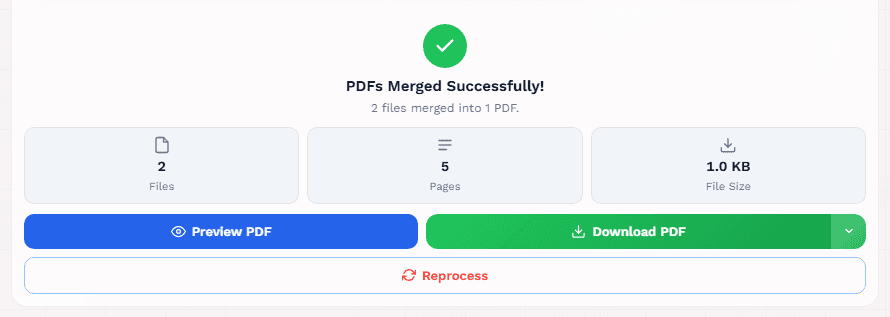
Click Merge PDF to combine your files instantly. Download the merged PDF and open it in a PDF reader to verify page order and content. Save with a descriptive name.
Large collections process one file at a time, so memory stays stable. On slower devices, close other tabs for the smoothest merge.
Two Files, One PDF — Animated Merge Demo
Hit play and watch a simulated run — upload two PDFs, drag to reorder, set a page range, confirm merge mode, and download. About 22 seconds.
Merge Modes Explained
Understanding the two merge modes and when to use each.
Combine Files (Multi-Page)
The standard merge mode. Each source PDF's pages become consecutive pages in the output. File A (10 pages) + File B (5 pages) = merged PDF with 15 pages. This is the mode most people need.
Merge into One Page
Stacks all pages from all files into a single continuous page. Choose vertical (top to bottom) or horizontal (left to right) layout. Set the gap between stacked pages. Useful for creating scrollable overviews or comparison sheets.
One-page mode is ideal for creating visual overviews of multiple documents, comparison sheets, or scrollable previews. For most use cases (reports, contracts, submissions), use the standard Combine Files mode.
Merge Specific Pages Only
How to merge only the pages you need from each PDF file.
AFFLIGO lets you enter page ranges next to each uploaded file. This means you can merge only pages 1-5 from file A, pages 10-20 from file B, and all pages from file C — in one operation.
Enter page numbers separated by commas, or use ranges with hyphens. Examples: 1-5 merges pages 1 through 5. 2, 4, 6-9 merges pages 2, 4, 6, 7, 8, and 9. Leave the field blank to include all pages.
Use page ranges to extract only the relevant sections from large documents. Merge the executive summary from one report with the financial data from another — without bringing along the entire 200-page documents.
Merge PDF on Mac
Two ways to combine PDFs on macOS — Preview and AFFLIGO.
Using Preview (Built-in)
Open the first PDF in Preview. Go to View > Thumbnails to show the sidebar. Drag additional PDF files from Finder into the thumbnail sidebar. Rearrange pages by dragging thumbnails. Go to File > Export as PDF to save the merged document.
Using AFFLIGO (Browser-Based)
Open AFFLIGO's Merge PDF tool in Safari or Chrome. Upload files, drag to reorder, and click Merge. Works on any Mac without installing software. Better for large collections and page range selection.
Merge PDF on Windows
Free ways to combine PDFs on Windows without Adobe Acrobat.
Using AFFLIGO (Recommended)
Open AFFLIGO's Merge PDF tool in Chrome, Edge, or Firefox. Upload files, drag to reorder, and click Merge. No software installation needed. Works on any Windows version with a modern browser.
Using Print to PDF
Select all PDF files in File Explorer, right-click, and choose Print. Select Microsoft Print to PDF as the printer. Windows will combine all selected files into a single PDF. Limited — no reordering or page range control.
Merge PDF on Phone
How to combine PDFs on iPhone, Android, and tablets.
AFFLIGO's merge tool works on any mobile browser. Open the tool in Safari (iPhone) or Chrome (Android), upload your files, drag to reorder, and merge. The merged PDF downloads directly to your phone.
iPhone / iPad
Open Safari, navigate to AFFLIGO's Merge PDF tool. Tap the upload area to select files from your Files app. Drag to reorder and tap Merge. The merged PDF saves to your Files app.
Android
Open Chrome, navigate to AFFLIGO's Merge PDF tool. Tap the upload area to select files from your file manager. Drag to reorder and tap Merge. The merged PDF downloads to your Downloads folder.
For files over 20MB on mobile, use Wi-Fi to avoid data charges. The merge happens entirely on your device, so processing speed depends on your phone's performance.
Preserve Bookmarks When Merging
What happens to bookmarks and navigation during the merge process.
Bookmarks (also called outlines) are hierarchical navigation entries in a PDF. When you merge files, bookmarks from source files may or may not be preserved depending on the tool you use.
AFFLIGO's Merge PDF tool copies pages sequentially without preserving source bookmarks. If you need bookmarks in the merged document, you can add them afterward using a PDF editor. Desktop tools like Adobe Acrobat Pro and PDFsam preserve bookmark hierarchies during merging.
After merging, add bookmarks for each major section using a PDF editor. For documents over 20 pages, bookmarks and continuous page numbering are essential for usability. Use Add Page Numbers Guide to add page numbers to PDF pages after merging, and the Add Watermark Guide to stamp the final document as CONFIDENTIAL or branded.
Password-Protected PDFs
How to handle encrypted PDFs during the merge process.
You can merge PDFs that have an open password if you provide the password during upload. PDFs with owner restrictions (printing, editing restrictions) can still be merged and the restrictions are preserved in the output.
If a file requires a password to open and you do not have it, you cannot merge it. Use a PDF unlock tool first to remove the password, then merge the unlocked file.
The merged output is not password-protected by default. If the source files were protected, apply a new password to the merged PDF using the Protect PDF tool after merging.
Real-World Use Cases
PDF merging solves real problems across every industry and document workflow.
Legal and Contracts
Combine contracts, amendments, exhibits, and signature pages into the complete executed agreement. Page numbering spans the entire document. The merged PDF is the official record.
Academic Theses
Combine title page, abstract, chapters, bibliography, and appendices into one submission PDF. University submissions require continuous page numbering and consistent formatting.
Financial Reports
Merge quarterly and annual reports from multiple departments. Finance, operations, marketing, and HR each produce their sections. The final report is one comprehensive PDF.
Real Estate
Property deals generate dozens of documents: purchase agreement, disclosures, inspection reports, loan documents. The closing package is a merged PDF containing everything.
Medical Records
Patient records consist of admission forms, lab results, imaging reports, and physician notes. For referrals and insurance claims, merge into a single comprehensive file.
E-Books and Publishing
Combine individual chapters into a single PDF with consistent formatting, page numbers, and a table of contents. Bookmarks create chapter navigation for readers.
While preparing this guide I merged a 3-file test set — a 2-page text report, a 4-page scanned form, and a mixed-orientation statement — in a custom drag order: all 10 pages landed in the exact order with fonts and scans intact, and the output opened cleanly in two different readers. One lesson: set the page order before hitting Merge, because re-sorting a finished file means starting over.
Troubleshooting Common Problems
Most merge failures come from a few predictable mistakes. Here is what goes wrong and how to fix it.
Merged PDF Is Too Large
Cause: Source PDFs contain high-resolution images, embedded fonts, or redundant data. Fix: Compress the merged PDF with the AFFLIGO Compress PDF tool. For email, aim under 10MB.
Pages Are in Wrong Order
Cause: Files were uploaded or sorted alphabetically — "1.pdf, 10.pdf, 2.pdf" instead of "1, 2, 10". Fix: Rename files with leading zeros ("01.pdf, 02.pdf, ..., 10.pdf") or use drag-and-drop to set the correct order.
Bookmarks Were Lost
Cause: The merge tool did not preserve bookmarks, or source files had none. Fix: Add bookmarks manually after merging using a PDF editor or Adobe Acrobat.
Form Fields or Annotations Disappeared
Cause: Some merge tools flatten form fields and annotations. Fix: AFFLIGO copies pages without preserving annotations. If these are critical, merge first, then fill forms afterward.
Mixing Portrait and Landscape
Cause: Source PDFs have inconsistent orientations. Fix: Open each source PDF before merging. Rotate landscape pages if needed using the AFFLIGO Rotate PDF tool before combining. If page order is wrong after merging, fix it with the Organize PDF tool.
Deleting Source Files Too Early
Cause: You deleted originals immediately after merging and now need to re-merge. Fix: Keep source files in a separate folder for at least a few weeks. Only delete after verifying the merged document.
Best Practices & Power Tips
Pro tips for getting clean, professional merges every time.
Name Files for Automatic Ordering
Use sequential naming with leading zeros: "01_Cover.pdf", "02_TOC.pdf", "03_Chapter1.pdf". This ensures correct order even if you upload files in random order.
Verify Source Files Before Merging
Open each PDF before merging. Check that all pages are present, orientation is correct, and no pages are corrupted. A corrupt source file can cause the merge to fail.
Keep Source Files After Merging
Never delete source PDFs right away. Store them in a "source" folder and the merged PDF in a "final" folder. Name merged files with dates: "Document_Merged_2026-08-13.pdf".
Add Navigation to Long Documents
A merged PDF without navigation is hard to use. Add bookmarks for major sections, continuous page numbers, and a table of contents. For documents over 20 pages, these are essential.
Merging Large Collections
For 100+ PDFs, add them all at once - files process one by one, which keeps memory stable and makes error recovery easier.
Tool Comparison
Compare the top free PDF merger tools side by side.
| Feature | AFFLIGO | Smallpdf | iLovePDF | PDF24 |
|---|---|---|---|---|
| Free with no daily limit | Always free | 2 tasks/day | Limited free tier | Always free |
| No signup to download | Never required | Required after quota | Pushed hard | Not required |
| Files stay in browser | Yes (pdf-lib) | Server upload | Server upload | Server upload |
| No watermark | Never | Never | Never | Never |
| Files per merge | No limit | Unlimited | 25 (free) | Unlimited |
| Reorder before merge | Drag & drop | Drag & drop | Drag & drop | Drag & drop |
| Page range selection | Yes (free) | Pro only | Yes (free) | Yes (free) |
Online vs Desktop vs Mobile
Choosing the right merge method for your situation.
| Method | Privacy | Ease of Use | Cost | Best For |
|---|---|---|---|---|
| Browser-based (AFFLIGO) | Excellent — no uploads | Very easy | Free | Quick, secure merges of any files |
| Desktop software | Excellent — offline | Moderate | Free to expensive | Complex, frequent tasks with advanced needs |
| OS-native (Preview/Print) | Excellent — offline | Easy | Free | Quick one-off merges with few files |
| Command-line (pdftk/qpdf) | Excellent — offline | Difficult | Free | Automated, high-volume, scripted workflows |
Sources: pdf-lib docs, Adobe Acrobat pricing, Apple Preview and Microsoft Print to PDF behavior checked Aug 2026.
Security & Privacy
Why where your files are processed matters — and how to stay safe.
When you merge PDFs online, your files may be uploaded to a third-party server. For non-sensitive documents (recipes, public reports), this is usually fine. But for contracts, tax returns, medical records, or legal documents, you need to know exactly where your files go.
Browser-Side Processing
AFFLIGO processes everything in your browser using pdf-lib. Your files are read into your device's RAM, merged locally, and the result is prompted for download. No bytes ever leave your device.
Server-Upload Tools
Traditional online tools upload your files to their servers for processing. During that window, your document lives on infrastructure you do not control. Check the tool's privacy policy before uploading sensitive files.
No Data Retention
Since AFFLIGO processes locally, there is no data retention. The merged file exists only in your browser's memory until you download it. Close the tab and it is gone.
Encrypted Transfer
AFFLIGO serves over HTTPS, so the tool code itself is delivered over an encrypted connection. But the actual PDF data never travels over the network — it stays on your device.
Frequently Asked Questions
Answers to the most common questions about merging PDF files.
Want to explore more?
Key Takeaways
- Merging PDFs combines pages from multiple files into one document without quality loss
- AFFLIGO merges everything in your browser — no uploads, no servers, no signup
- Drag to reorder — file order determines page order in the merged PDF
- Use page ranges to merge only specific pages from each file
- After merging, add bookmarks and compress if needed for a professional result
- Always keep source files in case you need to re-merge with a different order