- A user password locks the entire PDF -- no one can open it without the password
- An owner password controls permissions (printing, copying, editing) but does not block opening
- AES-256 encryption is the gold standard -- used by banks and government agencies
- Permissions alone are advisory -- many PDF readers ignore them. Always use encryption for sensitive files
- Never send the password in the same email as the PDF -- use a separate channel
- PDFs can contain hidden metadata (author, dates, GPS) -- strip it before sharing
- Redaction permanently removes content; encryption reversibly locks it -- know the difference
- AFFLIGO processes everything in your browser -- no files uploaded to any server
What Does It Mean to Protect a PDF?
The foundation of PDF security -- passwords, encryption, and permissions explained in plain English.
Protecting a PDF means adding security controls that limit what others can do with the file. These controls can include passwords that block opening, encryption that scrambles the content, and permissions that restrict printing, copying, and editing.
A standard PDF is just a file. Without protection, anyone who receives it can open it, copy its content, print it, edit it, and forward it to others. Protecting the PDF adds layers of control that prevent unauthorized access and misuse.
Password Protection
Requires a password to open or perform actions on the PDF. The most basic and widely used form of PDF security.
Encryption
Converts the PDF content into unreadable code. Only someone with the correct password or key can decrypt and read it.
Permissions
Controls what actions are allowed after opening -- printing, copying text, editing. These are advisory and can be bypassed.
Redaction
Permanently removes sensitive content from the PDF. Unlike encryption, redaction is irreversible.
User Password vs Owner Password
The two types of PDF passwords -- and why most people confuse them.
PDF security supports two independent passwords, each serving a different purpose. Understanding the difference is critical for choosing the right protection.
User Password (Open Password)
This password is required to open and view the PDF at all. Without it, the file remains encrypted and completely inaccessible. This is what most people mean when they say "password protect a PDF."
- Effect: Blocks opening entirely
- Without it: File cannot be viewed, printed, or copied
- Best for: Confidential documents, sensitive information
Owner Password (Permissions Password)
This password controls what actions are allowed after opening. The PDF can be opened and viewed by anyone, but restricted actions (printing, copying, editing) require the owner password.
- Effect: Restricts actions, not access
- Without it: File can be opened and viewed freely
- Best for: Read-only documents, templates, published content
| Feature | User Password | Owner Password |
|---|---|---|
| Blocks opening | Yes | No |
| Blocks printing | Yes (blocks everything) | Yes (if restricted) |
| Blocks copying | Yes (blocks everything) | Yes (if restricted) |
| Blocks editing | Yes (blocks everything) | Yes (if restricted) |
| Encryption strength | Full AES-256 encryption | Permission flags only |
| Can be bypassed | No (without password) | Yes (many readers ignore permissions) |
Owner passwords and permissions are advisory. Many PDF readers and tools completely ignore permission flags. If the content is sensitive, always use a user password (open password) with AES-256 encryption.
How PDF Encryption Works
AES-128 vs AES-256 -- what encryption actually does and why it matters.
Encryption converts your PDF content into unreadable ciphertext using a mathematical algorithm. Only someone with the correct password (the key) can decrypt and read the file. The strength of the encryption depends on the algorithm and key length.
| Algorithm | Key Length | Status | Recommendation |
|---|---|---|---|
| RC4 40-bit | 40 bits | Broken | Never use -- crackable in seconds |
| RC4 128-bit | 128 bits | Deprecated | Avoid -- known statistical biases |
| AES-128 | 128 bits | Acceptable | OK for compatibility, but AES-256 preferred |
| AES-256 | 256 bits | Recommended | Gold standard -- FIPS-197 approved |
AES-256 (Advanced Encryption Standard with 256-bit key) is the modern default for PDF encryption. It is FIPS-197 approved, aligned with NIST guidance, and used by banks, government agencies, and military organizations. Brute-force attacks on AES-256 are computationally infeasible.
The encryption algorithm (AES-256) is not the weak point -- the password is. A 6-character password can be cracked in minutes. A 12+ character passphrase with mixed characters makes the encryption effectively unbreakable.
PDF Permissions Explained
What each permission controls -- and the critical limitation most people do not know about.
PDF permissions are flags in the file metadata that tell PDF readers what actions to allow or restrict. They are controlled by the owner password.
Printing Permission
Controls whether the PDF can be printed. When restricted, the Print option is greyed out in most PDF readers. Can be set to allow low-resolution but block high-quality printing.
Copying Permission
Controls whether text and images can be selected and copied (Ctrl+C). When restricted, users can view the content but cannot extract it via copy-paste.
Editing Permission
Controls whether the PDF content can be modified. When restricted, users cannot change text, add annotations, fill forms, or modify the document in any way.
The Limitation
Permissions are advisory. Adobe Reader, Foxit, and commercial tools respect them. But many open-source tools and online converters completely ignore permission flags. Do not rely on permissions alone for sensitive content.
How to Protect a PDF with AFFLIGO
Lock it down in five moves: upload, set an open password, set a permissions password, choose what to restrict, and download.
The AFFLIGO Protect PDF tool adds password protection and encryption to your PDF files entirely in your browser. No files are uploaded to any server -- your documents never leave your device.
Upload Your PDF
Click the upload area or drag and drop a PDF file into the browser. You can also import directly from Google Drive or Dropbox. Encryption applies locally with per-file memory cleanup — even large PDFs protect without upload.

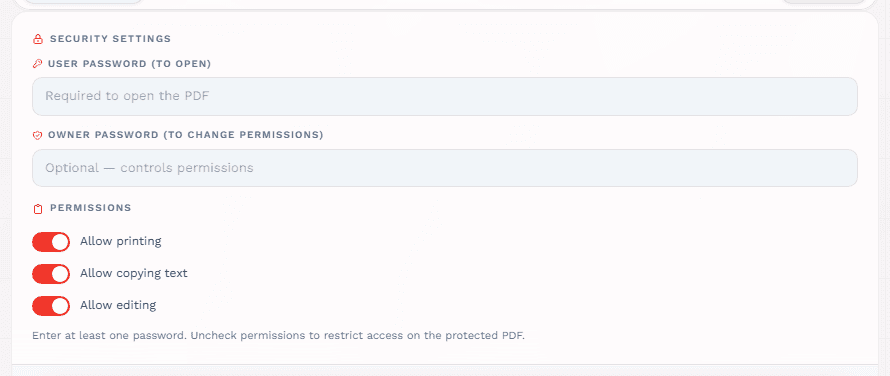
Set User Password (Optional but Recommended)
Enter a password that will be required to open the PDF. This provides the strongest protection -- without this password, the file cannot be opened at all.

Set Owner Password (Optional)
Enter a separate password that controls permissions. This is optional -- if you only need to block opening, the user password is sufficient.

Configure Permissions
Check or uncheck the permission checkboxes:
- Allow printing -- uncheck to prevent printing
- Allow copying text -- uncheck to prevent copy-paste
- Allow editing -- uncheck to prevent modifications
Protect and Download
Click the Protect button to apply strong standards-based PDF encryption (up to 256-bit AES, matched to your file's PDF version) instantly. The tool shows the file size and page count. Download your secured PDF.

Test the protected PDF before sharing. Close it, reopen it, and enter the password yourself. Verify that permissions are working as expected in the recipient's likely PDF reader.
Creating Strong Passwords
Why password strength matters more than the encryption algorithm.
AES-256 encryption is unbreakable -- but a weak password defeats the entire purpose. The password is the key, and if it is short or guessable, attackers can crack it through brute force.
Use at Least 12 Characters
Length is the single most important factor. A 12-character password with moderate complexity is far stronger than an 8-character password with maximum complexity.
Combine Character Types
Use uppercase letters, lowercase letters, numbers, and symbols. The combination makes brute-force attacks exponentially harder.
Consider a Passphrase
Three or four unrelated words create a strong, memorable password. "BlueSky-Contract-2025" is far stronger than "pass123" and easier to remember.
Never Reuse Passwords
Each PDF should have its own unique password. If one document's password is compromised, all your other protected files should not be at risk.
Never use personal information (names, birthdays, invoice numbers), common words ("password", "admin"), or short simple patterns ("1234", "abcd"). These can be cracked in seconds.
How to Share Passwords Safely
The rule that most people break -- and the simple habit that prevents it.
The most important rule of PDF protection: never send the password in the same email or message as the PDF. If someone gains access to that one conversation, they have both the file and the key.
Send the PDF Through One Channel
Attach the encrypted PDF to an email, upload it to a shared drive, or send it through your file-sharing platform. If the document isn't numbered yet, add page numbers to PDF before you protect and share it.
Send the Password Through a Different Channel
Share the password via phone call, text message, a separate email, or a secure messaging app. The channels must be independent.
Confirm the Recipient's Identity
Before sharing the password, verify you are sending it to the correct person. For sensitive documents, this prevents accidental exposure.
| Safe Method | Risky Method |
|---|---|
| PDF via email, password via text | PDF and password in same email |
| PDF via shared drive, password via phone call | Password in email subject line |
| PDF via file share, password via secure app | Password in the PDF filename |
| PDF via email, password via different email | Password in a note inside the same archive |
When to Use User vs Owner Password
A decision guide for choosing the right password type for each scenario.
| Scenario | Recommended | Why |
|---|---|---|
| Sending tax documents | User password | Highly sensitive -- must block opening entirely |
| Sharing medical records | User password | Regulated data -- must prevent unauthorized access |
| Client contracts | User password | Confidential -- only authorized parties should view |
| Internal reports | User password | Business sensitive -- restrict to intended recipients |
| Published e-books | Owner password | Allow reading, prevent editing and copying |
| Company templates | Owner password | Allow use, prevent modification of the template |
| Draft documents | Owner password | Allow review, prevent printing final versions |
| Published research | Owner password | Allow reading, prevent content extraction |
Protect PDF for Email Sharing
The complete workflow for sending encrypted PDFs via email.
Finalize the Document
Complete all edits, formatting, and reviews before protecting. Once encrypted, changes require removing the password first.
Protect with a Strong User Password
Use AFFLIGO or your preferred tool to add AES-256 encryption with a strong, unique password.
Test the Protected File
Close the PDF, reopen it, and enter the password. Verify the content is correct and permissions work as expected.
Email the PDF
Attach the encrypted PDF to your email. Use a neutral filename that does not reveal the content (e.g., "Document.pdf" instead of "Salary_Report.pdf").
Send the Password Separately
Send the password through a completely different channel -- text message, phone call, or a separate secure message.
Protect PDF for Client Deliverables
Professional workflows for contracts, invoices, and proposals.
Contracts & Agreements
Always use a user password. Contracts contain legal obligations, financial terms, and party names. Protect before sending, and send the password to authorized signers only.
Invoices & Financial Documents
Use a user password with strong encryption. Financial data is a prime target for fraud. Never leave invoices unprotected in email.
Proposals & Presentations
Consider owner password if the content is not highly sensitive -- you want clients to read but not modify. Use user password for competitive or proprietary proposals.
Design Drafts
Use owner password to allow review but prevent editing. Add a watermark ("DRAFT" or "CONFIDENTIAL") for visual deterrent.
Protect PDF for Legal & Compliance
Meeting regulatory requirements for document security -- GDPR, HIPAA, and legal standards.
Many industries have legal requirements for protecting sensitive documents. Healthcare (HIPAA), finance (SOX), and privacy regulations (GDPR) all mandate encryption for certain types of data.
HIPAA (Healthcare)
Medical records must be encrypted when stored or transmitted. Use AES-256 encryption with a strong user password. Document the encryption method for compliance audits.
GDPR (Privacy)
Personal data must be protected with appropriate technical measures. Password-protecting PDFs containing personal information demonstrates compliance effort.
Legal Documents
Court filings, depositions, and legal briefs often contain privileged information. Use user passwords and document who has access.
Financial Reports
SOX compliance requires protecting financial data. Encrypt PDFs containing financial statements, audit reports, and internal financial communications.
Protect PDF for Academic & Research
Securing research papers, theses, and academic submissions.
Research Papers
Protect unpublished research with a user password before sharing with reviewers. Prevents premature disclosure of findings.
Thesis & Dissertations
Use owner password to allow committee review while preventing distribution. Add institutional watermark for tracking.
Journal Submissions
Many journals require anonymized PDFs. Use redaction to remove author information before submission.
Grant Proposals
Proprietary research methods and budgets should be protected with user passwords during the review process.
PDF Redaction vs Encryption
The critical difference -- and why black boxes drawn over text are NOT redaction.
Redaction and encryption serve fundamentally different purposes — mixing them up creates dangerous false assumptions about document security.
Encryption (Reversible)
Locks the entire PDF so only people with the password can read it. The content is scrambled but fully recoverable with the correct password. Encryption protects the file during storage and transit.
Redaction (Permanent)
Permanently removes specific content (text, images, sections) from the PDF. The redacted content cannot be recovered by any means. Redaction is irreversible.
Drawing a black box over text in a PDF editor is NOT redaction. The underlying text is still there and can be copied or recovered. True redaction uses dedicated tools that permanently delete the content. Always use a proper redaction tool.
PDF Metadata: The Hidden Data Leak
What your PDF reveals about you -- even when the content is encrypted.
PDFs can contain hidden metadata that persists even after encryption. This data can reveal sensitive information about the document's creation, authorship, and history.
Author Information
The PDF may contain the author's name, email address, and organization in the metadata fields. This reveals who created the document.
Creation & Edit Dates
Timestamps reveal when the document was created, last modified, and potentially the workflow timeline.
Software Information
The PDF may record which software was used to create or edit it, revealing your technology stack.
GPS & Location Data
PDFs created on mobile devices may contain GPS coordinates, revealing the physical location where the document was created.
Strip metadata from sensitive PDFs before sharing. Use Adobe Acrobat's "Remove Hidden Information" feature, or open-source tools like exiftool. Some PDF protection tools include metadata stripping as part of their workflow.
Watermarks as Visual Deterrents
Adding visible warnings that discourage unauthorized sharing and distribution.
Watermarks are semi-transparent text or images overlaid on PDF pages. They do not provide technical protection, but they serve as a visual deterrent and can track document distribution.
Status Watermarks
"DRAFT", "CONFIDENTIAL", "INTERNAL USE ONLY" -- these clearly communicate the document's status and expected handling.
Recipient-Specific Watermarks
Add the recipient's name or email as a watermark. If the document leaks, the watermark identifies the source.
Company Branding
Add your company logo as a watermark. This establishes ownership and makes unauthorized redistribution more traceable.
Layered Protection
Combine watermarks with password protection for maximum security. Watermark first, then encrypt. This provides both visual deterrent and technical protection.
Can a Protected PDF Be Hacked?
A realistic threat model -- what actually works and what does not.
The short answer: a properly encrypted PDF with a strong password cannot be hacked. The encryption is mathematically secure. The weak point is always the password.
Brute Force Attacks
Try every possible password combination. Effective against short, simple passwords. A 6-character password can be cracked in minutes. A 12+ character passphrase would take centuries.
Dictionary Attacks
Try common words and patterns. Effective against passwords based on dictionary words. Using unrelated words in a passphrase defeats this approach.
Permission Bypass
Many tools ignore PDF permission flags entirely. If you only used an owner password (no user password), the content can be accessed by any PDF reader.
Metadata Extraction
Even with encryption, some metadata may be accessible. Strip metadata before sharing sensitive documents.
The encryption is not the problem. Your password choice is. Use a 12+ character passphrase with mixed characters, and your PDF is effectively unbreakable.
Protect PDF on Different Platforms
Platform-specific methods for protecting PDFs -- Windows, Mac, Linux, and mobile.
| Platform | Tool | Method | User Password | Owner Password |
|---|---|---|---|---|
| Any (Browser) | AFFLIGO | Online tool, client-side | Yes | Yes |
| Windows | Adobe Acrobat | Tools > Protect > Encrypt | Yes | Yes |
| Windows | Microsoft Word | File > Export > Create PDF > Options > Encrypt | Yes | No |
| Mac | Preview | File > Export > Permissions | Yes | Yes |
| Mac | Adobe Acrobat | Tools > Protect | Yes | Yes |
| Linux | LibreOffice | File > Export as PDF > Security | Yes | Yes |
| Any | PDFgear | Desktop app, offline | Yes | No |
| iPhone / iPad | Safari + AFFLIGO | Open the tool, import from Files, set passwords | Yes | Yes |
| Android | Chrome + AFFLIGO | Open the tool, pick the PDF, set passwords | Yes | Yes |
Common Mistakes When Protecting PDFs
Nine frequent errors that create a false sense of security.
Sending Password in Same Email
The most common mistake. If the email is compromised, both the file and password are exposed. Always use a separate channel.
Using Weak Passwords
A strong encryption algorithm with a weak password is like a bank vault with a paper lock. Use 12+ characters with mixed types.
Relying on Permissions Only
Permissions are advisory. Many PDF readers ignore them completely. If the content is sensitive, use a user password with encryption.
Forgetting Metadata
Even encrypted PDFs can leak author names, dates, and GPS data. Strip metadata before sharing sensitive documents.
Drawing Black Boxes Instead of Redacting
Black boxes drawn over text are not redaction. The underlying text can still be copied and recovered. Use proper redaction tools.
Not Testing Before Sending
Always close the PDF, reopen it, and verify the password works. Check that permissions are enforced in the recipient's likely reader.
Reusing Passwords Across Documents
If one document's password is compromised, all documents with the same password are at risk. Use unique passwords for each file.
Including Password in Filename
Naming a file "Report_Password123.pdf" defeats the entire purpose. Use neutral filenames for sensitive documents.
Assuming Protection is Permanent
Passwords can be removed by anyone who knows them. Protection is a sharing control, not a permanent security guarantee.
While preparing this guide I protected the same sample three ways — user-password only, owner-password with printing blocked, and both combined: all three prompted on open (or restricted printing) in two different readers, and removing protection with the known password restored the clean original. The reopen-and-verify habit in this section comes from that routine.
FAQ
Answers to the most common questions about PDF protection.
Want to explore more?
Key Takeaways
- Use a user password (open password) with AES-256 encryption for sensitive documents -- permissions alone can be bypassed.
- Never send the password in the same email as the PDF -- always use a separate channel.
- Password strength matters more than encryption strength -- use 12+ characters with mixed types.
- Strip metadata and test the protected PDF before sharing -- hidden data and forgotten passwords cause real problems.