- Rotate is a viewing instruction stored as one number per page — the text, images and fonts inside the page are never touched
- Repeated rotations add up: a page already stored at 90 comes out at 270 when you add 180, and the file tells you so
- Page numbers follow that instruction; watermarks do not — which is why a stamp added after a rotation reads sideways
- Some page-range inputs rotate nothing at all and still report “Rotation complete!”
- Real limits: 30–300 MB per file depending on your device, and per-page picking stops at 60 thumbnails
- A rotation is a re-save, and the re-save drops the password — a protected file comes back unlocked, so rotate first and protect afterwards
Which Angle to Pick (and Why 270 Is 90 the Other Way)
The picker offers four angles. Two of them write the same number into the file.
A rotation is not a picture being turned. It is one integer written into each page's dictionary, and every viewer that opens the file obeys it. That integer is always expressed clockwise, in multiples of 90, and wraps at 360 — so 90 counter-clockwise and 270 clockwise are the same instruction, and the tool normalises both to 270. If you have ever wondered why "rotate left" and "rotate right three times" never look different, this is why.
| You pick | Page 1 stored 0 | Page 3 stored 90 | What the file says afterwards |
|---|---|---|---|
| 90° CW | 90 | 180 | Adds 90 to whatever was there |
| 90° CCW | 270 | 0 | Same result as picking 270 CW |
| 180° | 180 | 270 | Adds 180 |
| 270° CW | 270 | 0 | Same result as picking 90 CCW |
That table is not a description of the behaviour, it is the behaviour: a 4-page fixture (portrait A4, portrait Letter, portrait A4 stored at /Rotate 90, and a 4×6in label page) rotated four times, once per angle, with the saved file reopened and read. Page 3 is the interesting one. It arrived at 90, so adding 90 made it 180 and adding 270 brought it back to a clean 0 — a full turn is stored as zero, not as 360.
Which Angle to Pick for Real Documents
The angle you need depends on what the document is and where it is going next, not just which way the text lies. These are the four situations that actually bring people to this tool, each measured on a real file:
| Document type | What you need | Pick | Why |
|---|---|---|---|
| Scanned invoice, sideways on the glass | Make it upright for GST / accounting software | 90° CW or CCW | Half the filing portals reject a sideways PDF outright; the other half read it but flag it for review. Rotate once, save, then upload |
| Contract page upside down before e-signature | Turn it right-side up before DocuSign or Adobe Sign | 180° | Signing platforms extract the page orientation from the file itself, not from how your screen displays it |
| ID proof or passport scan, tilted sideways | Make it portrait and vertical for visa or KYC upload | 90° CW or CCW | Biometric checks often auto-rotate, but not always — a manually corrected file avoids a re-submission |
| Wide table inside a portrait report | Turn the page so the table header lands at the top | 90° CW or CCW | Pick whichever way the table’s header row reads naturally. The page dimensions stay the same; only the viewing instruction changes |
| Mixed-orientation batch | Some pages portrait, some landscape — normalise them | Per Page, one click per thumbnail | Click each thumbnail that needs turning; a second click turns it again. Rotation is applied per page, not to the whole file at once |
Rotations accumulate. If a page already carries a stored angle — because a scanner wrote one, or because you rotated it last week — your pick is added to it, not applied to a clean sheet. Rotating the same file twice at 90° CW leaves every page at 180, measured, not assumed. If the result comes out wrong by exactly one quarter turn, the page was not clean when you started.
Everything in this section is angle arithmetic on the page dictionary. Nothing has been re-rendered, which is why the page dimensions in the fixture — 595×842, 612×792 and 288×432 — are identical before and after all four runs. A portrait sheet that displays as landscape is still a portrait sheet; only the instruction changed.
What /Rotate Changes, and What It Leaves Broken
The text inside the page does not move. That is the strength and the blind spot.
Open a rotated file and the text sits at exactly the coordinates it sat at before. On the 4-page text fixture, page 1 carried PAGE 1 at x 60, y 720 and a body line at x 60, y 680; after a 90° rotation those two items are still at 60/720 and 60/680 in the content stream, with a text angle of 0. What changed is the viewport the viewer builds — PDF.js reported 595×842 before and 842×595 after, with the page's rotation property at 90. So the pixels are not turned; the page is served through a turned window.
That is why rotation is free and lossless, and it is also why it cannot repair everything people expect it to repair. Here is the honest split, measured where it could be measured:
| Symptom | Does rotating fix it? | What actually happened |
|---|---|---|
| Scan displays sideways or upside down | Yes | The page needs a display angle; the content is fine |
| Text is unselectable or unsearchable | No | There is no text layer. Rotation does not add one — that is OCR |
| Scan is skewed by 2–3 degrees | No | /Rotate only turns in 90° steps. A crooked scan stays crooked |
| Page is mirrored (text reads right-to-left) | No | 180° fixes upside down, not a flip. The scan itself is mirrored |
| Page numbers on the page disagree with the PDF's own page count | No | Page labels are a separate structure; rotation leaves them alone |
| File is too large to email | No | Rotation rewrites one integer per page. Compress it separately |
| Filled form fields or typed values disappear | No | Measured: 1 field before, 1 field after |
The byte cost of a rotation
A 4-page, 1,643-byte text PDF came back at 1,652 bytes — nine bytes heavier for four rotated pages (a second run of the identical input saved 1,653, because the compressed object stream is one byte longer). The mixed geometry fixture (1,504 bytes, four pages, one of them 4×6in) came back at 1,518 bytes on all four angles, because the saved file gains one /Rotate entry plus the cross-reference offsets that point at it. Nothing is re-encoded, so the difference is measured in bytes and never in megabytes — the 4.7 MB two-page image fixture grew by eight bytes (see section 11).
The same reason explains the most common complaint after a rotation: "it looks straight in Acrobat but prints sideways." Viewers let you turn the view without saving anything; printers and other machines read the stored angle. If the number was never written to the file, every other device still sees the original orientation. The test is simple — close the file, reopen it, and look at it before touching any rotate button in the viewer.
A per-page instruction that says "display this sheet turned by N° clockwise", stored in the page dictionary. Nothing else in the document is rewritten — which is exactly why a rotation can be undone, and why it never degrades quality.
The Order That Decides Whether Your Stamp Lands Sideways
Rotation is a page-level instruction. Any tool that writes on the page either reads it or ignores it. Page numbers read it; watermarks do not.
This is the part nobody documents, and it is the reason people rotate a scan, add page numbers and a watermark, then find the stamp running up the side of the sheet. Two tools on this site treat the stored angle in opposite ways, and the difference is visible in the coordinates they write.
The fixture, and what the file said afterwards
One page, 595×842, 946 bytes, with its text drawn sideways (a scanned receipt, rotated −90° inside the page, no stored angle). Rotating it 270° wrote /Rotate 270 and left the page box at 595×842 — 960 bytes, fourteen more than it arrived. From then on the page displays as 842×595 landscape, while the box in the file is unchanged.
| Same rotated file, two stamps | Where the tool wrote it | What it read back as |
|---|---|---|
| Add Page Numbers | Positions against the visible (rotated) box and rotates the text by the page angle — textRotate = page rotation in the code |
Written at x 48, y 424 with a text matrix of −90°, so on the 842×595 display it lands upright at 418, 547 — bottom centre, 48 pt above the bottom edge |
| Add Watermark | Centres on the raw page box (595×842) and uses your slider angle with no compensation | Anchored at the identical point in all four runs (x 181.6, y 421) and written at whatever the slider said — −30° by default, 45° if you type 0, 90° if you type 90 |
Both runs produced a valid PDF with a visible stamp. The difference is the direction. The page still carries a 270° turn, and that turn is applied on top of whatever angle the stamp was written at. A page number compensates for it; a watermark inherits it. That is the whole bug behind “my watermark is sideways after I rotated the page” — the stamp is exactly where it was asked to be, on a sheet that is now turned.
The size of that inherited turn is not a guess either. Each watermark run was rendered with the page angle already applied, so the number below is the angle you actually see on screen:
| Watermark slider | Angle written into the content stream | Angle you see on a page stored at 270° | Reads as |
|---|---|---|---|
| (untouched, default) | −30° | 60° | Steep diagonal, wrong direction |
0 | 45° — the zero is replaced | 135° | Diagonal the other way, not horizontal |
90 | 90° | 180° | Upside down |
−90 | −90° | 0° | Horizontal — the only setting that works |
Four runs, one page, one file: 1,408 to 1,412 bytes out of a 960-byte input, so the whole argument is worth about four bytes. The page number, by contrast, never depends on you remembering a rule — it reads /Rotate and cancels it out, which is why the same rotated scan gets an upright number with no settings touched.
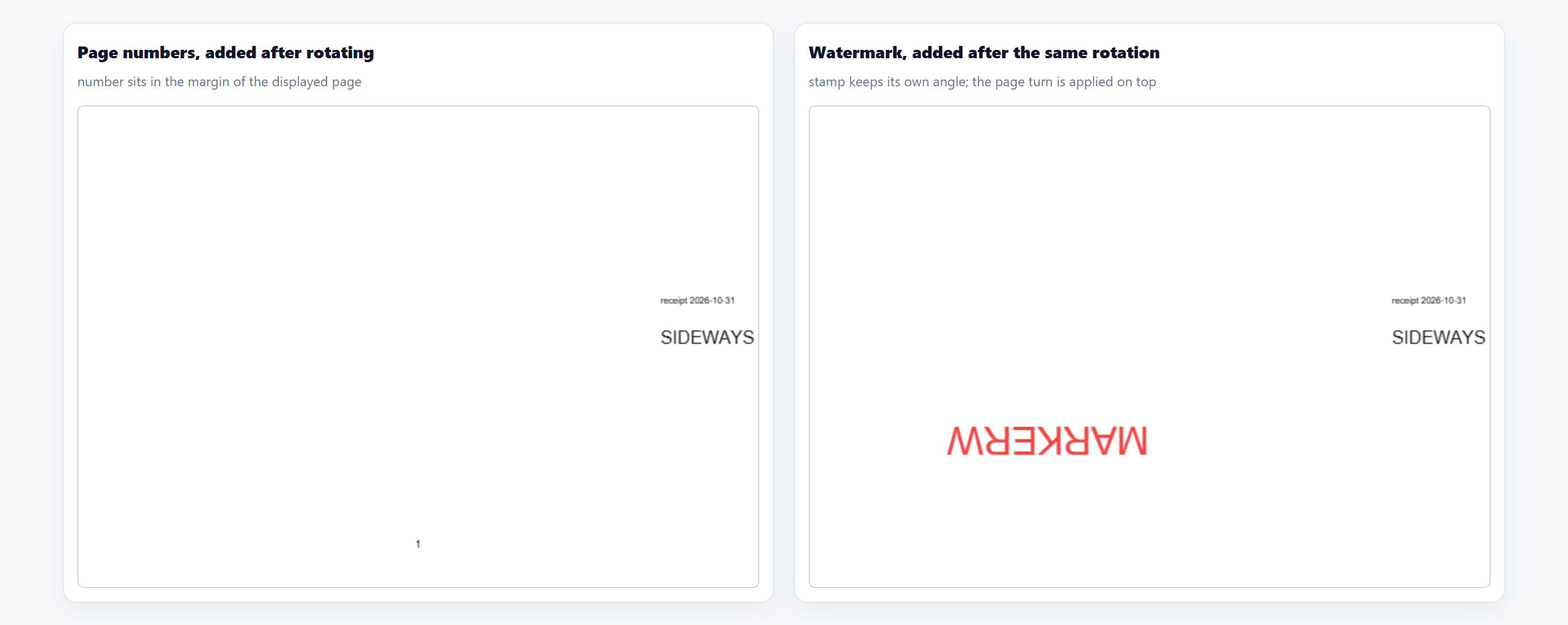
The two working orders
| Order | What you do | Result |
|---|---|---|
| Rotate first, then stamp (recommended) | Rotate, save, upload the rotated file to the stamping tool | The stamping tool sees the page as it displays and does the placing. Page numbers land upright automatically |
| Stamp first, rotate second | Only safe if the page was upright when you stamped it | The rotation then turns the stamp with the page, so the stamp stays correct relative to the text |
| Rotate, then stamp, with a watermark | Set the watermark’s own rotation to −90° — measured on a page stored at 270° | The slider value cancels the page turn, so the stamp reads horizontally again |
On the watermark slider, a value of 0 is treated as “not set” and falls back to the 45° diagonal — that is why the 0° run came back with a 45° stamp and landed at 135° on screen instead of the 90° you would expect. Typing 0 to mean “horizontal” is the single most common way to end up with a diagonal watermark.
What this means before you start
Decide the order on purpose, because it is the one step you cannot see in a preview. If the document needs page numbers, let the rotator do its work first — the numbering tool was built to read the stored angle and will place the number against whichever edge is really the bottom of the displayed page. If it needs a watermark, rotate first too, then set the stamp angle as described above. And if it needs both, number it after rotating and watermark it last, so the only thing you have to correct by hand is one slider.
A useful check that costs five seconds: open the finished file, zoom to a corner and look at the stamp. If the stamp sits at a right angle to the text, the file is fine and the stamp angle was wrong — no re-rotation needed. If the text and the stamp are both sideways, the rotation never landed; see the range section next, because a range that matched nothing is the usual reason.
It Looks Straight but Prints Sideways
Viewers let you turn the display without saving anything. Printers read the stored angle. That is the gap behind almost every "it printed wrong" complaint.
Open a PDF in a viewer and hit the rotate button — the page turns on screen. Close the file and reopen it: it is back to how it was. The viewer never wrote anything to the file; it just changed how it drew the page this one time. Send that same file to a printer and it prints exactly as the file says, with no viewer turns applied.
The five-second test before you trust a rotation:
- Rotate the page and download the file.
- Close the tab or viewer completely.
- Reopen the downloaded file.
If it is still turned the way you left it, the rotation landed in the file and will print that way. If it has gone back to its original orientation, you only turned the viewer and nothing was saved.
A rotated file opened in Chrome, Edge or Adobe Reader will display according to the stored angle. A file that was only turned inside the viewer (and never saved) will look fine on your screen but come out of the printer sideways — because the printer reads the file, not your screen.
Form Fields and Annotations: What Survives a Rotation
Rotation is a page-level instruction, so content drawn on the page — text, images, form fields, annotations — is not re-rendered. What changes is only the viewing angle.
| Item | Survives rotation? | What changes |
|---|---|---|
| Fillable form fields | Yes | One field measured before and after: still one field. The field box rotates with the page — a field at bottom-right on an upright page lands at bottom-left after 90° CW |
| Typed form values | Yes | Values are not re-drawn; they sit at their coordinates inside the turned page box |
| Annotations / comments | Yes | Annotations survive, but their screen position shifts with the page turn |
| Bookmarks / outline | Yes | Page references in the outline are unchanged |
| Page labels | Yes | Page labels are a separate structure; rotation leaves them alone |
| Encryption / password | No | See “Rotate Then Protect” below — the new file is not encrypted |
If you need a fillable form rotated and still fillable, rotate it here, download, then open it in any PDF viewer — the fields stay where they belong relative to the turned page.
Rotate Then Protect: The Order That Keeps Your Password
Rotation strips encryption. If you need both, rotate first and protect last — never the other way round.
The rotator asks for the password on a protected file, opens it, and saves a new one — and the new file is not encrypted. Measured on a protected 4-page file, page labels, bookmarks and annotations came back intact while the lock did not; the before-and-after table is in section 10.
| Order | Result | Safe? |
|---|---|---|
| Rotate first, then protect | Rotated file stays encrypted; password prompt returns | Yes |
| Protect first, then rotate | Rotation saves an unencrypted copy; the lock is gone | No |
Done the wrong way round, the file you download looks protected because it still has a .pdf name and may still show a lock icon in some viewers. Open it and there is no prompt — because the rotation already removed the encryption. The safe order is always rotate first, protect last.
Skew Is Not Rotation
A scan that is 2–3 degrees off stays 2–3 degrees off after any number of quarter turns. Rotation turns in 90° steps only — it does not straighten a crooked page.
This is the distinction competitors bury, and it is worth saying plainly:
| Problem | Rotation fixes it? | What actually fixes it |
|---|---|---|
| Page is 90°, 180° or 270° out | Yes | This tool |
| Scan is tilted 2–3 degrees | No | Deskew in an image editor, or OCR with layout correction |
| Page is mirrored (text reads backwards) | No | Flip the scan itself, not a page-angle change |
| Text is a picture, not a text layer | No | OCR to create a searchable text layer |
If your scan came out crooked from the scanner glass, no amount of /Rotate will pull the lines back to vertical. The tool turns in exact quarter-turns because that is all the PDF page dictionary stores — there is no field for "tilt by 2.4 degrees".
Page Ranges: The Inputs That Rotate Nothing
The All Pages tab has a range box. Some of what you can type into it does nothing at all, and the tool still says it worked.
This is the one behaviour worth knowing before you trust a batch: the range is parsed strictly, and anything it cannot map to a real page number is dropped quietly. If the result is an empty list, every page is skipped — but the file is still saved and the status line still reads "Rotation complete!". There is no error, no warning, and the download button lights up normally.
| Typed into Page Range | Pages actually rotated 4-page file | Status message |
|---|---|---|
| (left empty) | All four | Rotation complete! |
all | All four | Rotation complete! |
3 | Page 3 | Rotation complete! |
2,4,6-9 | Pages 2 and 4 | Rotation complete! |
9-3 | Pages 3 and 4 | Rotation complete! |
2 , 4 | Pages 2 and 4 | Rotation complete! |
1,1,1 | Page 1, once | Rotation complete! |
0 | Nothing | Rotation complete! |
-3 | Nothing | Rotation complete! |
999 | Nothing | Rotation complete! |
abc | Nothing | Rotation complete! |
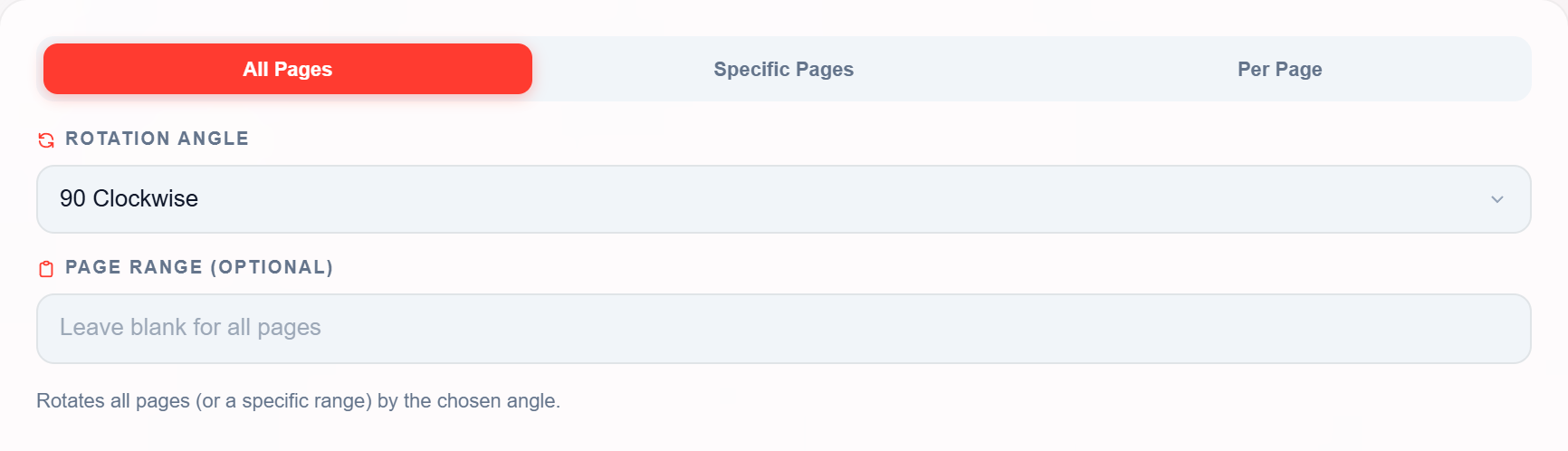
Why the last four are silent
Page numbers start at 1, so 0 and -3 describe pages that cannot exist. 999 is beyond the last page of a 4-page file, and abc is not a number, a range or a comma list. Each of those produces an empty page list, and an empty list is applied literally: no page gets touched. The saved file is byte-different only because it was rewritten — the four pages still read /Rotate 0.
Two of the rows behave the way people expect and are worth keeping in mind because they are forgiving in useful ways. 9-3 is reversed and gets flipped to 3-9, then clipped to the pages that exist, so you get pages 3 and 4 instead of an error. 1,1,1 is de-duplicated, so page 1 turns once, not three times. Spaces around the numbers make no difference.
After a range run, look at the first page of the result before you send it anywhere. If it is unchanged, the range matched nothing. Rewrite it as explicit page numbers (2,4) or a range that starts at 1 — the silent case never announces itself.
Specific Pages mode is guarded, Per Page mode is guarded, All Pages is not
The three tabs are not equally defensive. In Specific Pages, an empty box is refused outright — the tool raises "Enter page numbers." and stops before saving. In Per Page, pressing Rotate with no thumbnail clicked raises "Rotate at least one page first." The range box in All Pages has no such check: empty means "every page", so the guard that exists for the other two tabs cannot exist here. That asymmetry is the whole trap — a typo is caught in one tab and silently accepted in another.
Do not fight the range box. Use Per Page mode and click each thumbnail until the page looks right, then rotate once — a second click on the same thumbnail turns it again. For everything else, the reorder guide covers how page order and rotation interact when you fix both at once.
The Real Limits
Two limits matter: how big a file your device will accept, and how many pages you can pick one by one.
File size is decided by your machine, not by the tool
The rotator reads your device's memory and cores on load and sets its own ceiling. The capacity card in the dropzone shows the result, and the numbers are fixed tiers rather than a guess:
| Device tier shown in the card | Per-file limit | Queue limit |
|---|---|---|
| Low | 30 MB | 150 MB |
| Medium | 60 MB | 300 MB |
| High | 100 MB | 600 MB |
| Ultra | 200 MB | 1 GB |
| Max | 300 MB | 1 GB |
There is also a hard 1 GB per-file message in the rotator itself, but on a normal laptop the device tier blocks the file long before that number is reachable — a 250 MB upload on a Medium device is refused at 60 MB. If a file is rejected and it is nowhere near a gigabyte, the message is telling you about your device tier, not about the file.
Per-page picking stops at 60 thumbnails, rotation does not
A 120-page report was uploaded and rotated: every one of the 120 pages came back at 180°, in 1.8 seconds, for 25,611 bytes in and 25,624 bytes out. Then the Per Page tab was opened and only 60 thumbnails rendered — the grid says “Showing first 60 of 120 pages — pages 61 onwards have no thumbnail here” and stopped, having spent 8.3 seconds drawing those 60. That is a preview ceiling, not a processing ceiling: the All Pages mode still rotated all 120, faster than it takes to draw half the previews.
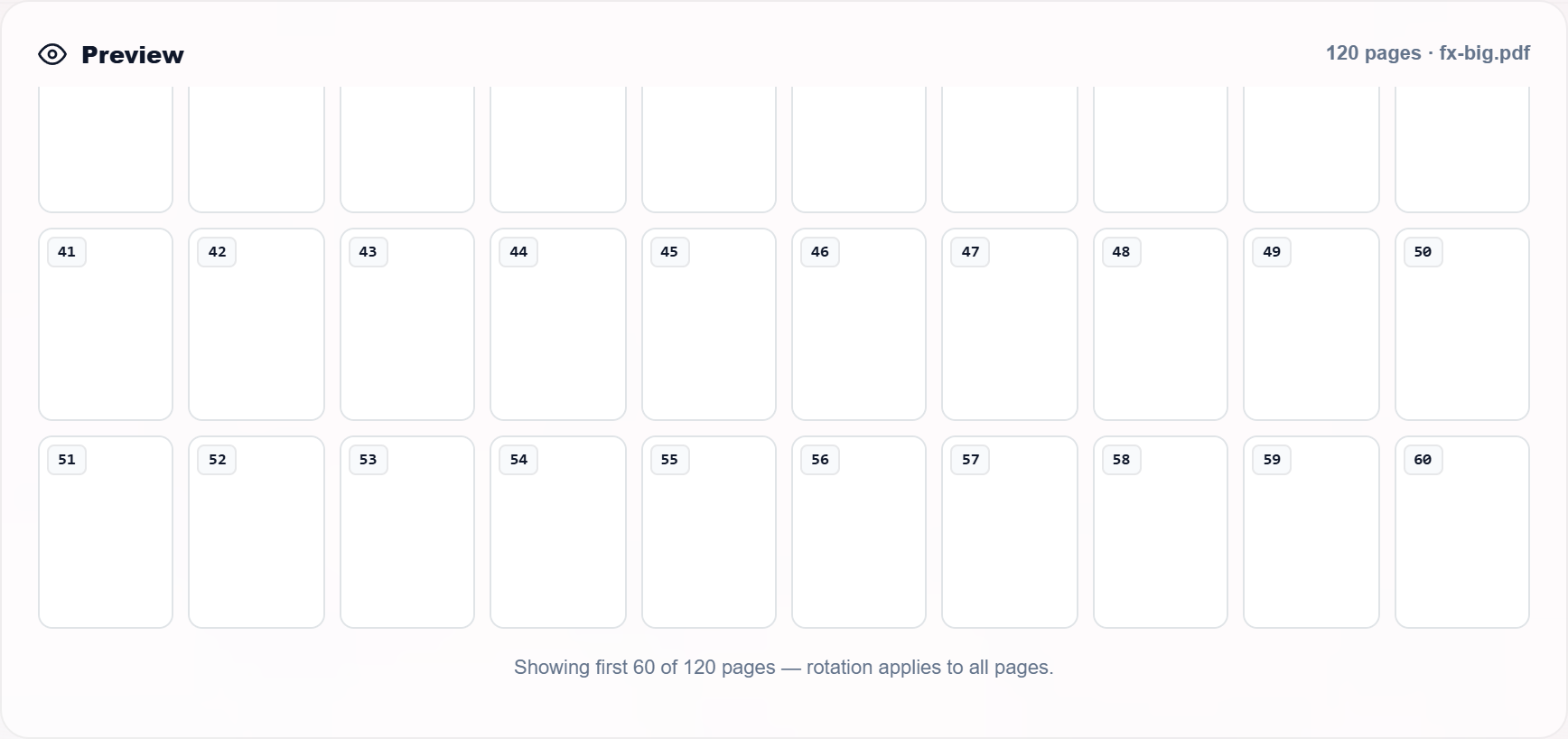
You cannot click page 75 in Per Page mode on a long document — it was never drawn. Use All Pages with a page range (75, or 70-80) instead, or Specific Pages, which accepts any page number up to the real page count and does not render thumbnails at all.
Output naming and batch behaviour
One file in, one file out: name_rotated.pdf. Several files in, one archive out: rotated_files.zip, with each PDF keeping its own name plus the suffix. Files are processed one after another, not all at once, and memory is released between them — which is why a batch of twenty 20 MB scans on a Medium device does not have to hold 400 MB in memory at the same time.
Time scales with page count, not with file size: four pages took about half a second, 120 pages took 1.8 seconds, and a 946-byte one-page scan also took about 0.8 seconds — most of that time is the library loading and the save, not the rotation work. Rotation itself is a per-page integer write, so a hundred-page text document and a hundred-page scan cost roughly the same. The one timing that does not behave is the Per Page preview: the same 60 thumbnails took 4.5, 8.2, 8.3 and 13.1 seconds across four runs on one machine, so treat that number as “several seconds” rather than a constant — it depends on how fast the browser can rasterise 60 pages, not on this tool.
Making It Permanent: Metadata vs Burnt Pixels
“Permanent” means the number is saved inside the file. It does not mean the pixels were redrawn — and those are two different guarantees.
The saved file carries the angle in each page's dictionary, so every viewer and printer that follows the PDF standard shows the page turned. That is what the download button gives you, and it is why the same file looks upright on a phone, in a browser, and on a print shop's machine. It is also reversible: rotate 270° and then 90° and you are back where you started. Nothing was destroyed, which is exactly why the operation is free.
The alternative: rasterise the page
If you specifically need the pixels turned — for software that ignores the page angle, or for a workflow that only accepts images — the page has to be drawn and re-embedded. That was measured on the same 4-page output, page 1 only, rendered at 150 DPI and re-embedded as an image:
| Rotate (what the tool does) | Rasterise at 150 DPI | |
|---|---|---|
| Page 1 of the output | 1,653 bytes for 4 pages | 14,278 bytes for 1 page |
| Image size created | none | 1,754 × 1,240 px |
| Selectable text afterwards | 108 characters, unchanged | 0 characters |
| Can it be undone? | yes, rotate back | no — the text is gone |
One page became 8.6 times the size of the entire four-page rotated file, and it lost its text layer completely. Extrapolate that to a 40-page scan and the difference is the difference between a document you can email and one you cannot. Rasterising is a last resort for compatibility, never a way to “make the rotation stick” — the metadata version already sticks.
The three routes, honestly compared
| Route | What it produces | Use it when |
|---|---|---|
| Save the page angle the rotator's download button |
A normal PDF with /Rotate set per page. Text, images and form fields untouched |
Almost always. This is the only route that keeps the document editable and small |
| Print to PDF from a viewer | A new PDF built from what the viewer displays, so the turn is baked into the page box | When the receiving system ignores page angles. Costs a re-write of the file and usually a bigger download |
| Rasterise to images | Pages as pictures inside a PDF, or as separate PNG/JPG files | Only when text is not needed afterwards. Measured above: 0 characters of text survive |
Open the result and try to select a sentence. If you can select it, the text survived — the rotation was metadata, which is what you want. If the page behaves like a picture, it was rasterised somewhere in the chain.
The one thing rotation quietly removes: the password
A rotation is a re-save, and a re-save only carries forward what the library chooses to write. Encryption is the thing it does not carry. A 4-page file protected with a user password was uploaded, unlocked in the prompt, rotated 90° and downloaded: 2,973 bytes of encrypted PDF came back as 1,924 bytes of unencrypted PDF, and the pages opened in a viewer with no prompt at all.
| What was checked on the saved file | Before | After rotating |
|---|---|---|
/Encrypt dictionary present | yes | no |
| Opens without a password | no | yes |
| Page labels | 4 | 4 |
| Outlines (bookmarks) | 2 | 2 |
| Annotations on page 1 | 2 | 2 |
Page labels, bookmarks and annotations all survive — a file with two of each came back with two of each, at 3,174 bytes in and 1,917 out, which is the other half of the same story: a re-save can shrink a file as easily as it grows one. What does not survive is the lock. If the point of the exercise was to hand on a rotated and still protected document, rotate it first and lock it afterwards with Protect PDF — the same “rotate before you stamp” order, for the same reason.
The rotator asks for a password whenever it finds any /Encrypt dictionary, including the very common case where the document opens freely but restricts printing or copying. Cancel the prompt and nothing is produced — no output, no error toast. That is measured behaviour, not a stall: the run simply ends.
Nine Files, Measured
Every row below is one upload into the live tool and one saved file reopened to read its page angles back out.
| Fixture | Pages | Bytes in → out | Run time | What the saved file says |
|---|---|---|---|---|
| Four pages of text, one angle applied | 4 | 1,643 → 1,652–1,653 | 0.5–0.8 s | All four at 90°; 108 characters of text still at x 60, y 720 |
| Mixed geometry: A4, Letter, an A4 already stored at 90°, a 4×6in label | 4 | 1,504 → 1,518 | 0.6–1.6 s | Page 3 arrived at 90 and left at 180; all four page boxes identical to the input, on every angle |
| Report, one page per sheet | 120 | 25,611 → 25,624 | 1.8 s | All 120 at 180°; the per-page grid drew only the first 60 |
| Sideways scan (text drawn at −90° inside the page) | 1 | 946 → 960 | 0.8 s | /Rotate 270, displays 842×595 from a 595×842 box |
| Fillable form with one text field | 1 | 1,388 → 1,400 | 1.4 s | Rotation 90 applied and the form field still present — field count 1 → 1 |
| The same 4-page file rotated 90° twice | 4 | 1,653 → 1,652 | 0.6 s | All four at 180° — angles accumulate, they do not reset |
| Two pages carrying a 1.1-megapixel photo each | 2 | 4,952,652 → 4,952,660 | 0.7 s | Both at 90°. Eight bytes on a 4.7 MB file — the images were not touched |
| Page labels, two bookmarks, two annotations | 4 | 3,174 → 1,917 | 0.5 s | Labels 4→4, bookmarks 2→2, annotations 2→2 — and 1,257 bytes smaller |
| Password-protected, four pages | 4 | 2,973 → 1,924 | 3.1 s | Rotated to 90° and no longer encrypted — see section 10 |
Three things stand out when the rows are read together. First, the byte change is small but it is not always an increase: the plain files grew by 8 to 14 bytes, while the two that carried extra structures shrank by 35 to 40%, because the re-save writes a tighter file than whatever produced the original. Second, the size of the file has nothing to do with the cost — eight bytes on a 4.7 MB scan, thirteen on a 25 KB report. Third, the time does not follow file size either: a 25 KB document with 120 pages takes longer than a 4.7 MB two-page one, because the work is per page, not per megabyte.
The double-rotation row is the one people get caught by. Rotating twice at 90° is not “rotate and then undo” — it is 180°, and the file will tell you so. If a page is still wrong after a rotation, check the stored angle before you rotate again, otherwise the next run compounds the error instead of correcting it.
Measured in headless Chrome on one laptop, from the click to the download button holding bytes. A slower machine will take longer, and the first run in a session is the slowest because the PDF library has to load. Use them to compare runs against each other, not as a promise about your hardware.
Message Decoder
Every message the rotator can show, what it actually means, and whether you need to do anything.
| Message you see | What happened | What to do |
|---|---|---|
“file.pdf” is not a PDF file. Skipped. |
The extension is not .pdf. The file never entered the queue |
Re-save or re-export it as a real PDF. Renaming an image or a Word file will not work |
“file.pdf” is too large. Max 1GB. |
Past the hard cap. On most devices the capacity card refuses it earlier than this | Split or compress the file first — see the limits section |
Enter page numbers. |
Specific Pages was run with an empty box. The tool stops before saving | Type the pages (2,4,7-9). This is the one tab that refuses an empty input |
Rotate at least one page first. |
Per Page was run without clicking any thumbnail | Click the pages that need turning — a second click turns it again |
Upload a PDF first. |
The Process button was pressed with an empty queue | Drop or pick a file |
Rotate a PDF first. |
Preview or Download was pressed before any rotation produced a file | Run the rotation, then download |
All rotations reset. |
The reset control was used; every per-page choice was cleared | Nothing wrong — it is confirmation, not an error |
PDF.js still loading... |
The rendering library had not finished loading when a preview was requested | Wait a second and press again |
PDF rotated. Click Download or Preview.(or “3 PDFs rotated…”) |
Success. The file exists in memory but has not been saved to your disk yet | Press Download. Closing the tab now loses it |
Rotation complete!Completed in 0.7s · Ready to download (1.6 KB) |
The status panel after a successful run. The size shown is the output size | Check that number against the input if the size matters — and see the warning below |
Rotation failed |
The PDF could not be parsed or saved. Password-protected files are the usual cause | Unlock it first, or run it through Remove Password and try again |
PDF rotated but the page never moved |
Not an error message — a range that matched nothing, reported as success | Read the range section; retype the pages explicitly |
“Rotation complete!” is shown whenever the run finished without throwing — including the case where the page list was empty and no page was rotated. It is not a lie about the process, but it is not proof of a result either. Open the file and look at the first page before you send it on.
One more behaviour worth knowing: a batch does not stop when one file is rejected. The skipped file produces its message and the rest of the queue carries on, so a mixed drop of PDFs and images will still produce a ZIP of the PDFs. If the archive has fewer files than you dropped in, count the skip messages in the corner rather than re-running everything.
Corrections Log
What this page said before, and what the measurements showed instead. Kept public so you can see which claims were tested and which were only repeated.
| Earlier claim | Correction | Evidence |
|---|---|---|
| Rotation “changes the metadata orientation flag” | It writes a /Rotate entry into each page dictionary. Document metadata (title, author, keywords) is untouched, and page labels are a separate structure that rotation does not update |
Saved files reopened and read page by page |
| “Four rotation angles: 90 CW, 90 CCW, 180, 270” | There are four buttons but three distinct stored values: 90° CCW and 270° CW both write 270. A full turn is written as 0, not 360 | Angle matrix on the mixed fixture |
| “Zero quality loss, no recompression” | True, but it was an unsupported claim. The text stays at the same coordinates and the file grows by single-digit bytes — or shrinks, if the original carried extra structures | 1,643 → 1,652–1,653 bytes with text items at x 60, y 720 before and after; 3,174 → 1,917 on the annotated file |
| “Files up to 1 GB” | The rotator does carry a 1 GB hard cap, but the device capacity guard refuses most uploads long before that — 30 to 300 MB per file depending on the machine | Device tiers read from the upload guard source |
| This page's own first draft said 1,655 → 1,662 bytes, 945 → 957 on the scan, and 14,693 bytes for a rasterised page | All re-measured from committed fixtures on 2 November 2026: 1,643 → 1,652, 946 → 960, 14,278. The old figures were close but not reproducible, because the fixtures were generated fresh each run instead of being kept | Fixture PDFs now live in tests/rotate-lab-fixtures/; every row in section 11 is one run of them |
| This page's first draft said 6.75 seconds to draw 60 thumbnails and 2.4 seconds to rotate 120 pages | The 120-page rotation is 1.8 seconds. The thumbnail figure is not a constant — four runs gave 4.5, 8.2, 8.3 and 13.1 seconds for identical work, so it is now quoted as a range instead of one number | Same file, same machine, four consecutive runs |
| This page never mentioned encryption | Rotating a password-protected file returns an unencrypted file. Measured: 2,973 bytes in, 1,924 out, /Encrypt gone. Now documented in section 10 |
Saved file reopened with a PDF parser: encryption true → false |
| “Per Page mode shows a thumbnail for every page” | It renders the first 60 and says so. Pages past 60 cannot be clicked, though they can be rotated with a range | 120-page report: 60 thumbnails, note “Showing first 60 of 120 pages” |
| “Rotating fixes scanned documents” | It fixes orientation only. Skew, mirroring and missing text layers are untouched by a quarter turn | Behaviour of the operation itself — one integer, no content change |
| “Rotation is permanent” (implying final) | Permanent in the sense that it is saved in the file and travels with it. Reversible in the sense that the values accumulate — rotate 90 twice and you are at 180, not back at the start | Second pass on an already rotated file |
| “After rotating, merge, compress, protect, watermark” | Removed. It was a link list, not information. The one ordering fact that matters — rotate before stamping — now has its own section | Replaced by section 03 |
| “Online vs desktop rotators”, “Common mistakes”, “Best practices” | Removed. They restated advice that applies to any file tool and carried no test result | Replaced by the measured sections above |
Nothing in the tool was changed to make this page read better. Where the tool behaves in a way that will surprise someone — a range that rotates nothing, a 60-thumbnail ceiling, a watermark that inherits the page turn — the guide now says so instead of describing the feature list.
Frequently Asked Questions
Want to explore more?
Key Takeaways
- Rotation writes one integer per page dictionary — text stays at the same coordinates, so nothing is re-encoded and quality cannot drop
- Angles accumulate. The same file rotated 90° twice comes back at 180°, so re-rotating a page that is already wrong compounds the error instead of fixing it
- 90° counter-clockwise and 270° clockwise are the same instruction — both are stored as 270, and a full turn is stored as 0
- An empty or unmatched page range rotates nothing and still reports “Rotation complete!”. Typing 0, -3, 999 or abc on a short file does exactly that
- Page numbers read the stored angle and stay upright; watermarks ignore it and inherit the page turn — the order you do the two jobs in decides which way your stamp reads
- Per Page mode draws the first 60 thumbnails only. For page 75 of a long document use a range in All Pages, or Specific Pages, which needs no thumbnails at all